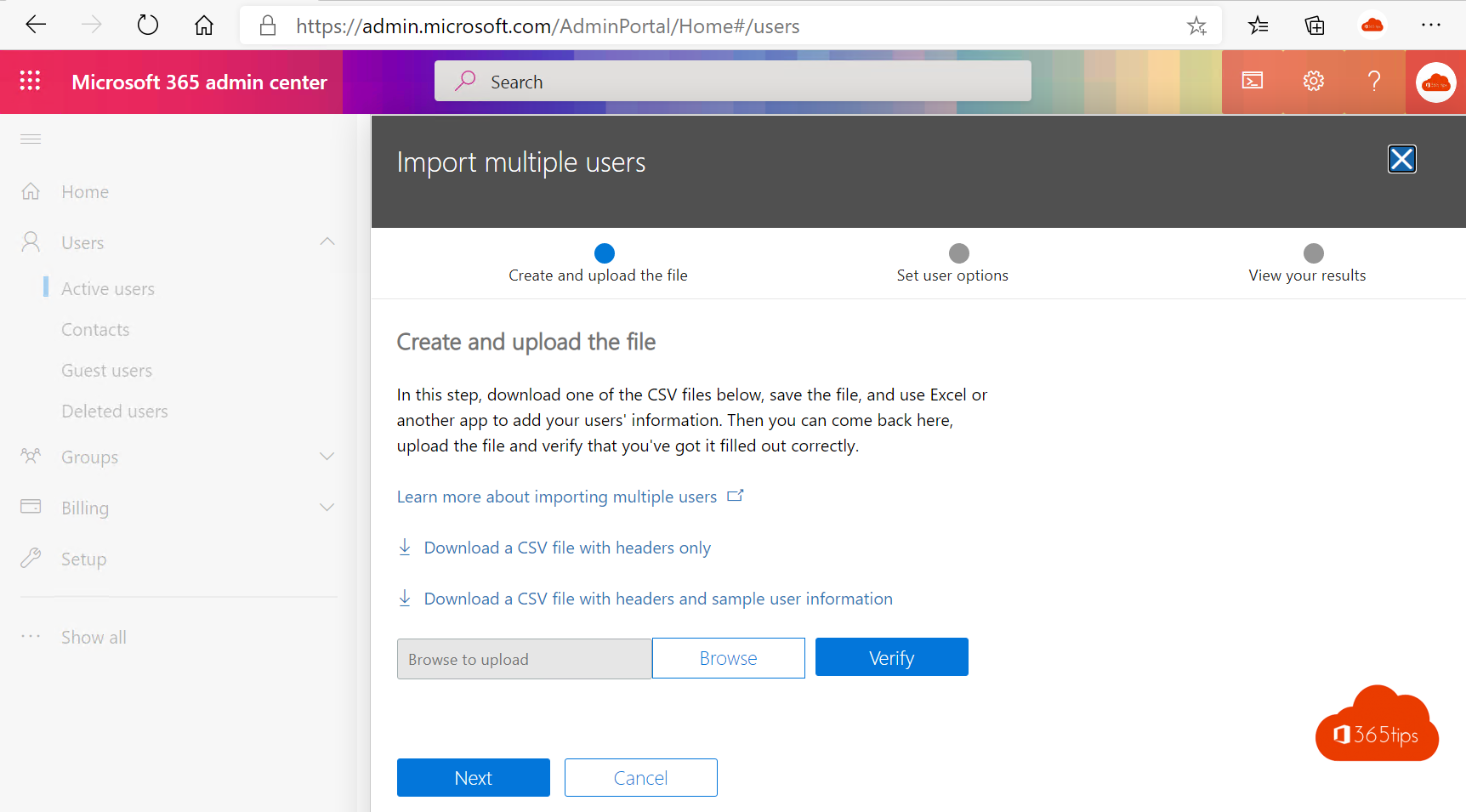
A new class, an acquisition or a migration: sometimes you need to create dozens or hundreds of users at once. With bulk operations in Microsoft Entra ID you create users or invite guests from a single CSV file. This article shows how, and how to do it with PowerShell.
Bulk create users
- Go to entra.microsoft.com > Users > All users.
- Select Bulk operations > Bulk create.
- Download the CSV template and fill in a row per user with name, username (UPN), initial password and optionally department and job title. Keep the first two rows.
- Upload the file and select Submit.
Follow progress under Bulk operation results, which also shows which rows failed and why.

Bulk invite guests
Under Bulk operations, choose Bulk invite. In the template, fill in the email address and redirect URL (for example https://myapps.microsoft.com), and choose whether the guest gets an email invitation.
Assign licences
A bulk import doesn't assign licences. Use group-based licensing: put the new users in a group and assign the licence to the group. Or select them in the Microsoft 365 admin center and choose Manage product licenses.
With PowerShell
Connect-MgGraph -Scopes User.ReadWrite.All
Import-Csv users.csv | ForEach-Object { New-MgUser -DisplayName $_.Name -UserPrincipalName $_.UPN -MailNickname $_.Alias -AccountEnabled -PasswordProfile @{Password=$_.Password; ForceChangePasswordNextSignIn=$true} }
Tips
- Save the CSV as UTF-8 so names with accents come through correctly.
- Use a temporary password that must be changed at first sign-in, and turn on SSPR.
- For guests in Teams, read add guests to Teams.
Read also
How to add external guests in Microsoft Teams
Delete a user in Microsoft 365: soft delete and hard delete
Enable Self-Service Password Reset (SSPR) in Microsoft Entra ID
Nederlandstalige versie: Gebruikers of gasten in bulk importeren met een CSV-bestand