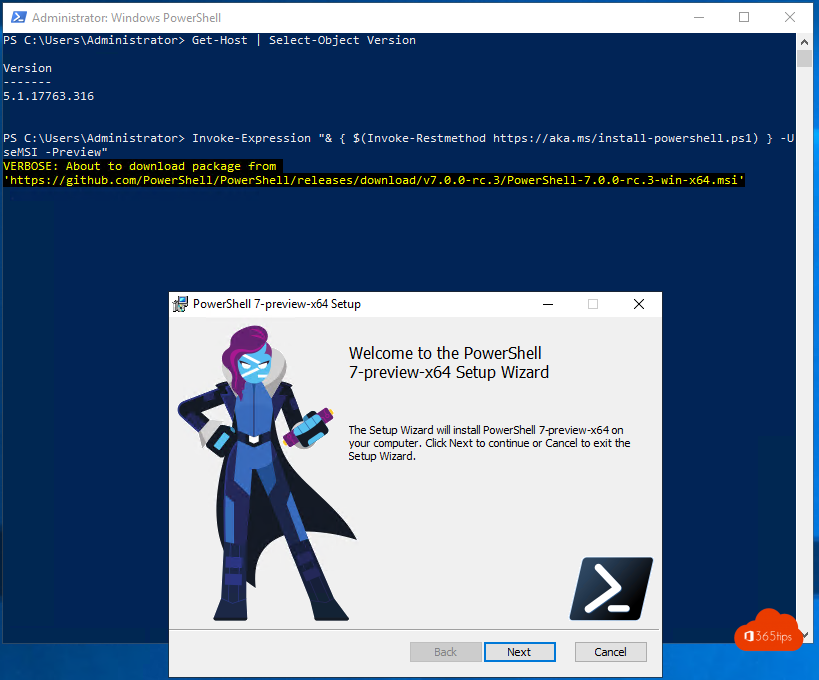
Windows still ships with Windows PowerShell 5.1 by default. Its modern successor is PowerShell 7: faster, cross-platform and with new features such as parallel loops and clearer error messages. You don't really "upgrade": PowerShell 7 installs side by side with 5.1, and both keep working. This article shows how to install PowerShell 7, keep it updated and make it your default.
Which version do you have?
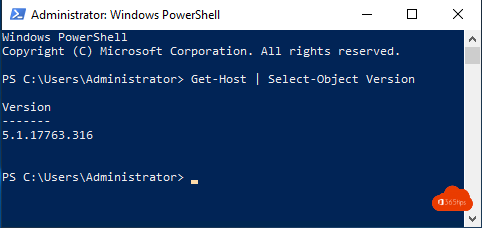
In PowerShell, type $PSVersionTable.PSVersion. If you see 5.1, you're using Windows PowerShell. More details in how to check your PowerShell version.
LTS or stable?
- LTS (Long Term Support): three years of support. The best choice for servers and production scripts.
- Stable: the newest features, but a shorter support period.
Pick the latest LTS release unless you really need a new feature. Note: PowerShell 7.4 LTS is supported until November 2026, so plan your move to the next LTS release in time.
Install with winget (recommended)
- Open Terminal or PowerShell.
- Type: winget install --id Microsoft.PowerShell --source winget
- Update later with: winget upgrade --id Microsoft.PowerShell
Other options
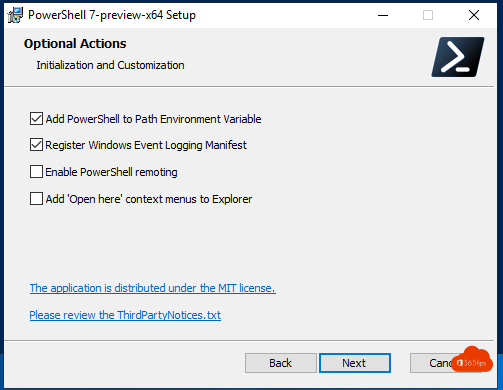
- MSI package from the PowerShell GitHub releases page (PowerShell-7.x.x-win-x64.msi). During setup, tick Enable updating PowerShell through Microsoft Update.
- Microsoft Store: search for PowerShell. Updates are automatic, but some system folders are restricted.
- Intune or another management tool: deploy the MSI to all devices.
Start PowerShell 7
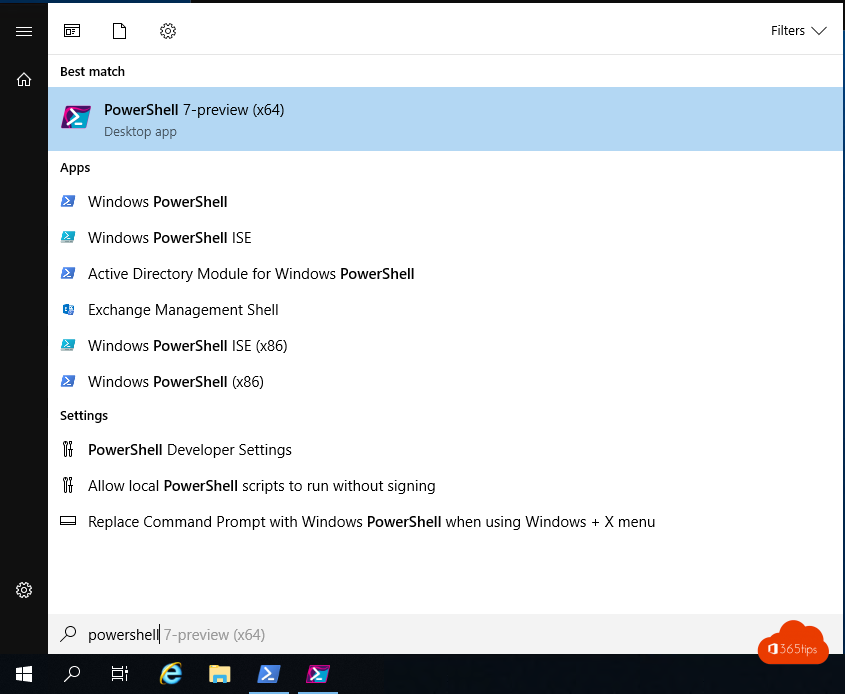
- Search the Start menu for PowerShell 7, or type pwsh in a terminal. Windows PowerShell still starts with powershell.
- In Windows Terminal > Settings > Startup, choose PowerShell as the default profile.
- As an administrator: right-click and choose Run as administrator. See also how to open a terminal as administrator.
What about your modules?
Most modern modules work in PowerShell 7, including Microsoft Graph, ExchangeOnlineManagement, MicrosoftTeams and Az. Old modules such as MSOnline and AzureAD are retired; move to Microsoft Graph PowerShell. A few older Windows modules load in PowerShell 7 through a compatibility layer with 5.1. For an example, see changing a UserPrincipalName with PowerShell.
Read also
How to check your PowerShell version in Windows
Run Command Prompt as administrator in Windows 11 and 10: 6 ways
Change a UserPrincipalName (UPN) in Microsoft 365 and Entra ID
Nederlandstalige versie: PowerShell 7 installeren, bijwerken en gebruiken in Windows