Many Exchange Online settings, such as mailbox permissions, forwarding or attachment size, are quickest to manage with PowerShell. For that you use the ExchangeOnlineManagement module. This article shows how to install it, how it differs from older versions and how to make your first connection.
Install the module
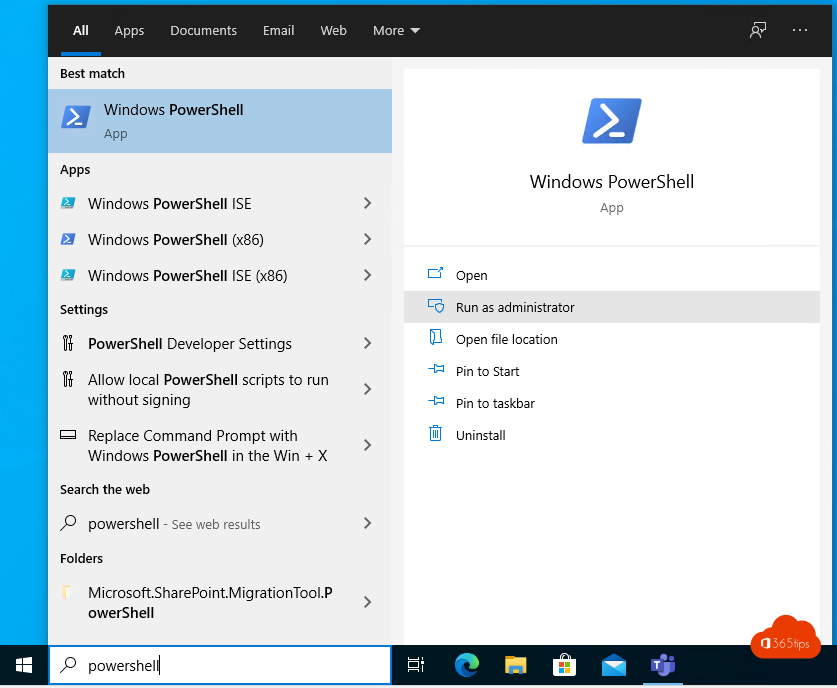
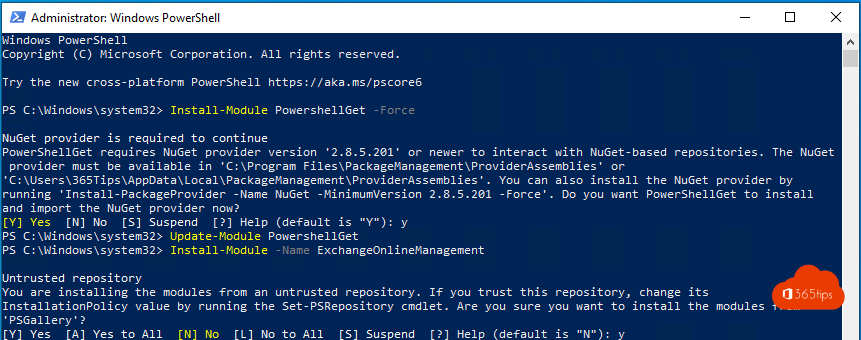
- Open PowerShell 7 or Windows PowerShell 5.1.
- Type: Install-Module -Name ExchangeOnlineManagement -Scope CurrentUser
- Confirm the PSGallery prompt.
Check the version with Get-Module ExchangeOnlineManagement -ListAvailable. Update with Update-Module ExchangeOnlineManagement.
What's different from before?
- The old method with New-PSSession and Basic Authentication no longer works.
- Version 3 and later use modern authentication with MFA and REST, and no longer need WinRM.
- The module runs on Windows, macOS and Linux with PowerShell 7.
Connect
Connect-ExchangeOnline -UserPrincipalName admin@contoso.com
You sign in through a window with MFA. More details, including unattended scripts, in connect to Exchange Online PowerShell with MFA.
A few examples
- All shared mailboxes: Get-Mailbox -RecipientTypeDetails SharedMailbox
- Permissions on a mailbox: Get-MailboxPermission info@contoso.com
- Check forwarding: Get-Mailbox | Where-Object ForwardingSmtpAddress
Done? Disconnect with Disconnect-ExchangeOnline. See also mailbox permissions.
Read also
Connect to Exchange Online PowerShell with MFA or a certificate
Set up Full Access, Send As and Send on Behalf in Exchange Online
Install and use the Microsoft Teams PowerShell module
Nederlandstalige versie: De Exchange Online PowerShell-module (ExchangeOnlineManagement) installeren