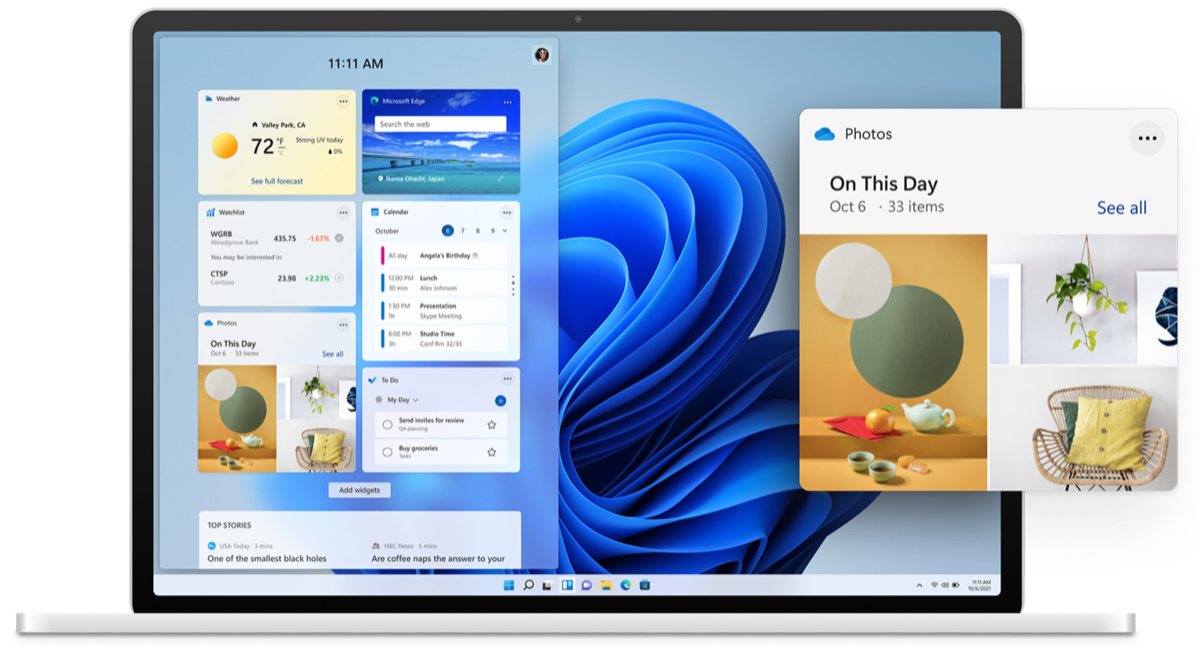
Want to install Windows 11 or upgrade from Windows 10? Microsoft offers three official ways. This article shows how to check whether your PC qualifies, which method to choose and how the installation goes. Windows 10 reached end of support on 14 October 2025, so it no longer gets regular security updates. Upgrading to Windows 11 is free for PCs that meet the system requirements and have a valid Windows 10 license.
Is your PC ready for Windows 11?
Check with Microsoft's PC Health Check app. Download it from aka.ms/GetPCHealthCheckApp and click Check now. You'll see right away whether your PC qualifies.
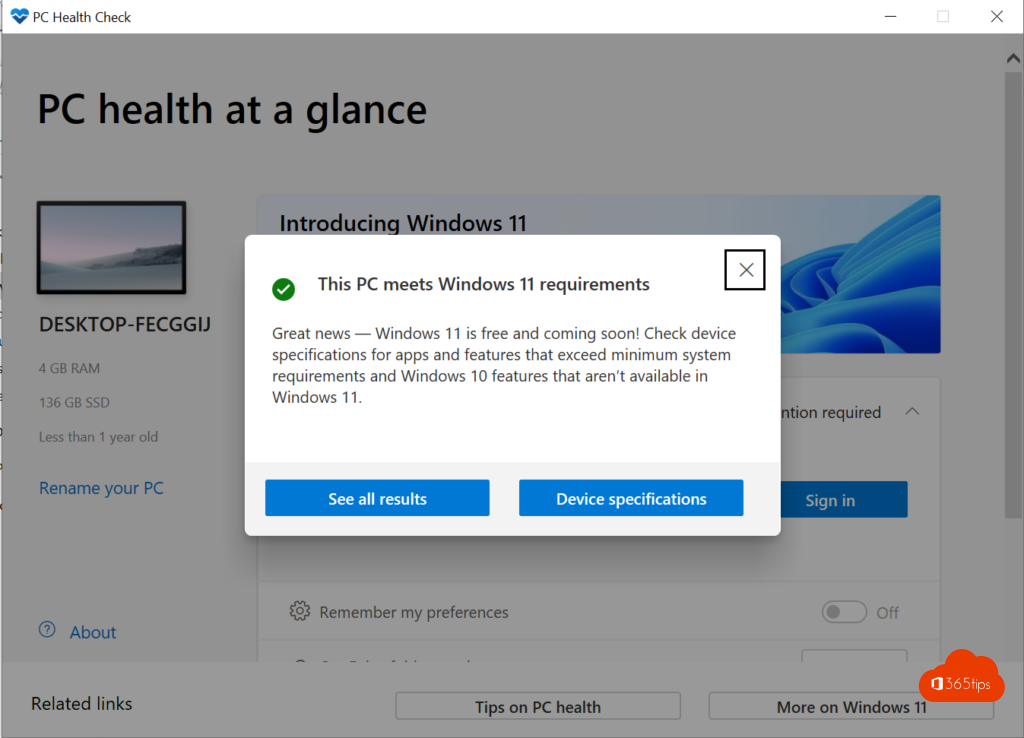

The main system requirements:
| Component | Minimum |
|---|---|
| Processor | 1 GHz or faster, at least 2 cores, 64-bit, on the list of compatible processors |
| Memory | 4 GB RAM |
| Storage | 64 GB |
| Firmware | UEFI with Secure Boot |
| TPM | Version 2.0 |
| Display | Larger than 9 inches, HD (720p) |
Method 1: through Windows Update
This is the easiest way. In Windows 10, go to Settings > Update & Security > Windows Update. If your PC qualifies, you'll see the upgrade to Windows 11 there. Click Download and install.
Method 2: the Installation Assistant
Don't see the upgrade in Windows Update? Use the Installation Assistant.
- Go to microsoft.com/software-download/windows11.
- Under Windows 11 Installation Assistant, click Download Now.
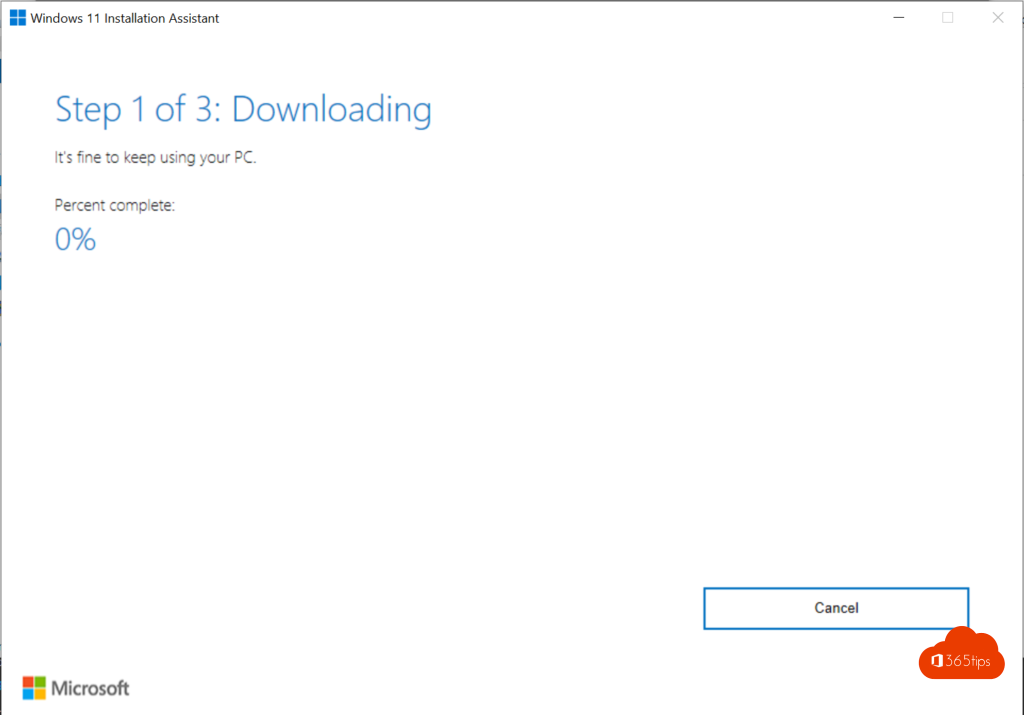
- Open Windows11InstallationAssistant.exe and click Accept and install.
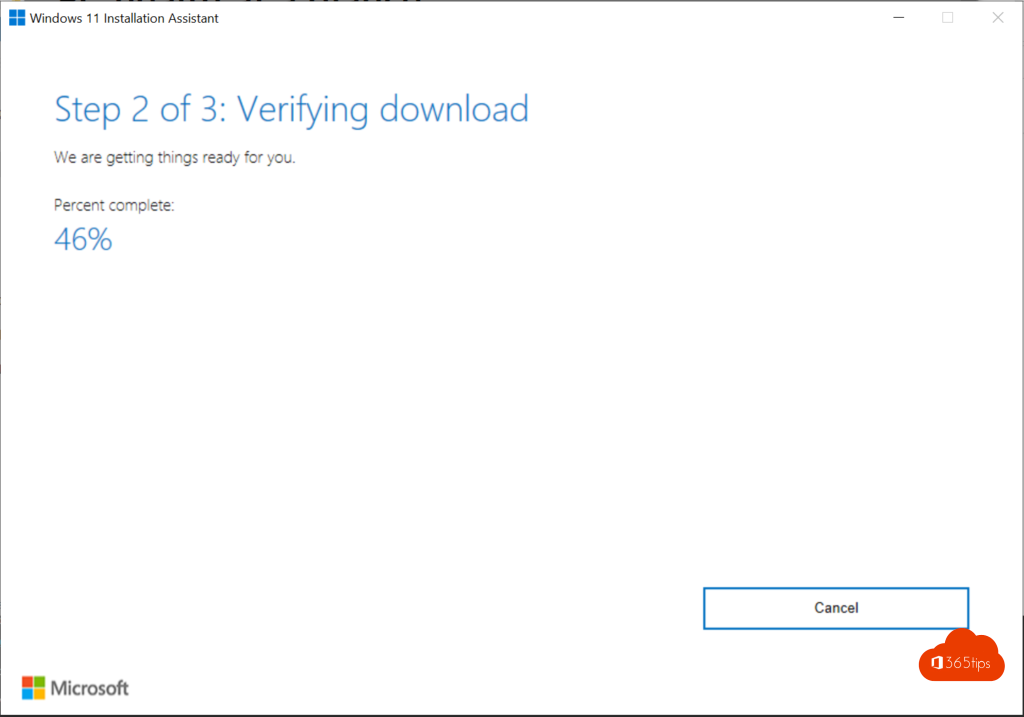
- The assistant downloads Windows 11, verifies the download and installs it. Your PC then restarts.

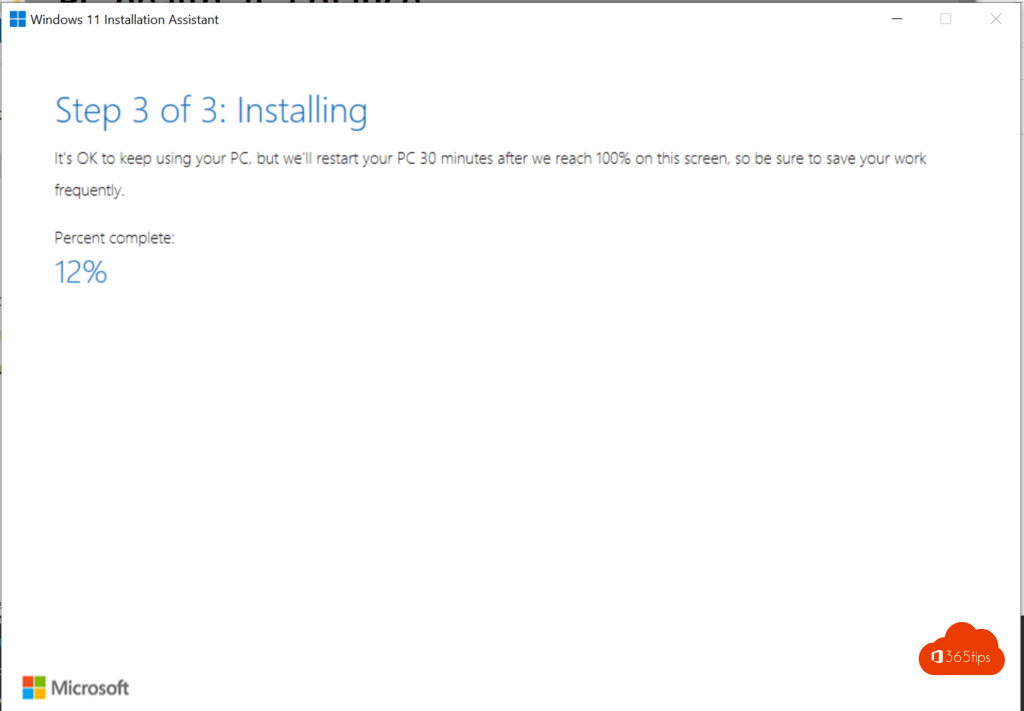
Your files and apps are kept. Still, always make a backup first. More detail in install Windows 11 with the Installation Assistant.
Method 3: USB drive or ISO
For a clean install or for several PCs, choose Create Windows 11 Installation Media (a bootable USB drive) or Download Windows 11 Disk Image (ISO) on the same download page. Read how to install Windows from a USB drive or from an ISO file.
Your PC doesn't qualify?
- Check in the UEFI settings that TPM (sometimes called fTPM or PTT) and Secure Boot are turned on. Often that's the only problem.
- Is the processor too old? Then a new PC is usually the best choice. Microsoft advises against installing Windows 11 on PCs that don't meet the requirements.
- For organizations, Microsoft offers paid Extended Security Updates (ESU) for Windows 10 as a temporary bridge.
For businesses
In an organization, roll out Windows 11 with Microsoft Intune and Windows Autopilot, so you decide when which devices upgrade. Also see productivity tips for Windows 11.
Read also
Upgrade from Windows 10 to Windows 11 with the Installation Assistant
Install or upgrade Windows 11 with an ISO file
Install Windows 11 from a USB drive in 3 steps
Nederlandstalige versie: Windows 11 downloaden en installeren: alle officiële manieren