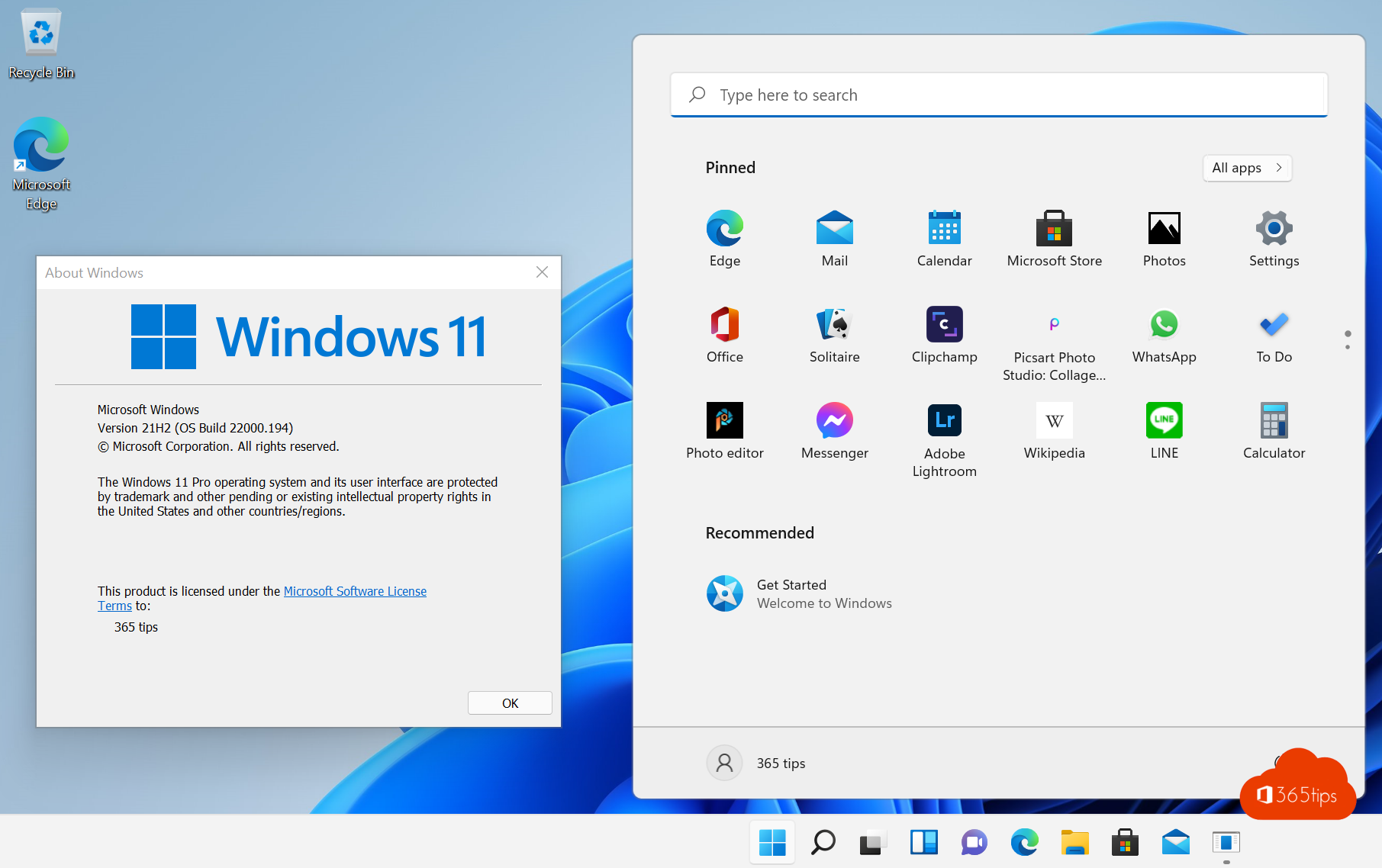
The Windows 11 Installation Assistant is the easiest way to upgrade a Windows 10 PC to Windows 11, without a USB drive and without losing your files or apps. Now that Windows 10 has stopped receiving security updates since 14 October 2025, upgrading is urgent. This article covers whether your PC qualifies, how to use the assistant, how long it takes and how to go back if needed.
Does your PC qualify?
- Windows 10 version 2004 or later, activated.
- A supported processor (roughly Intel 8th generation or AMD Ryzen 2000 and newer), 4 GB RAM and 64 GB storage.
- TPM 2.0 and Secure Boot enabled.
- At least 9 GB free disk space for the download.
Check with the free PC Health Check app. It tells you exactly what's missing. TPM or Secure Boot is sometimes simply turned off in the UEFI settings.

Upgrade with the Installation Assistant
- First back up your important files, for example to OneDrive.
- Go to microsoft.com/software-download/windows11 and under Windows 11 Installation Assistant select Download Now.
- Open Windows11InstallationAssistant.exe and select Accept and install.
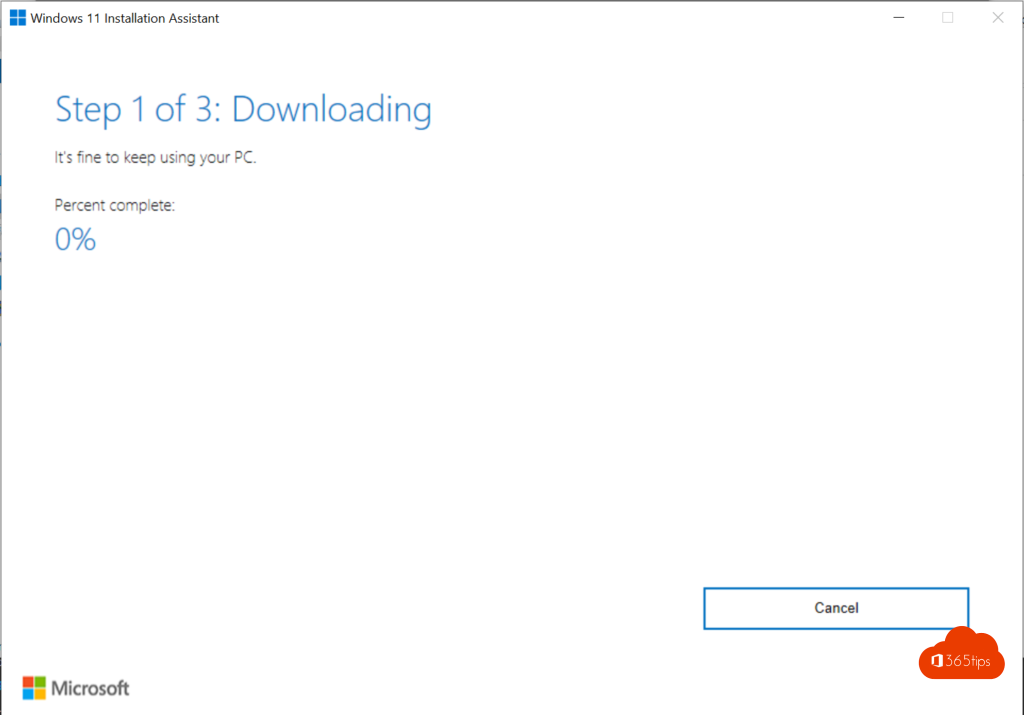
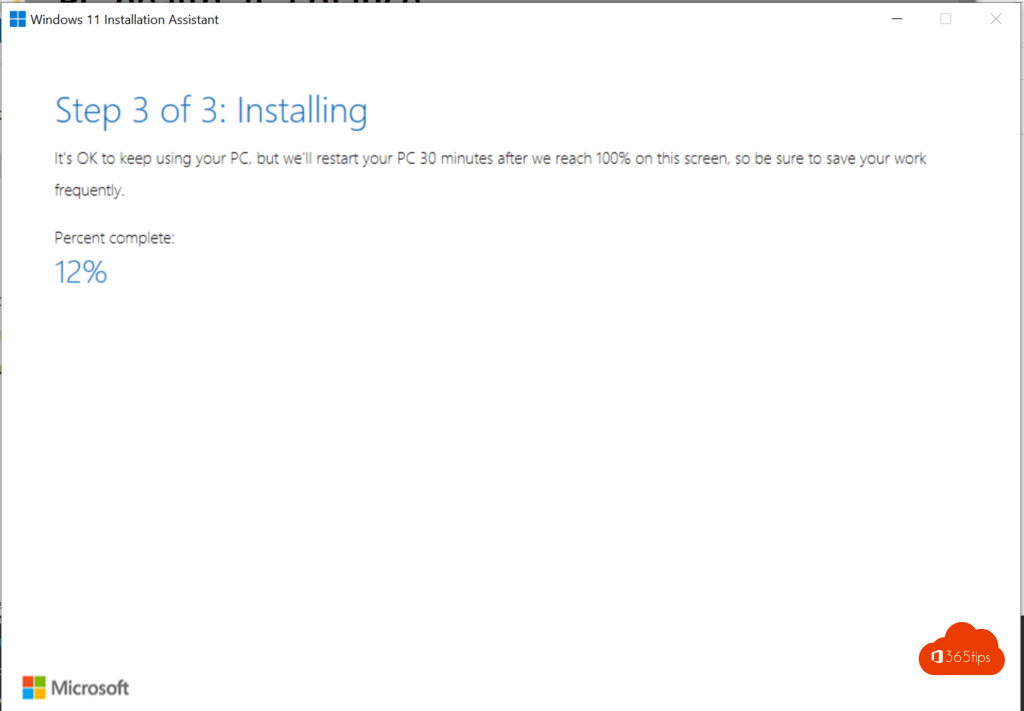
- The assistant downloads Windows 11, verifies the download and prepares the installation. You can keep working meanwhile.
- Select Restart now. The PC restarts a few times. Allow 30 minutes to an hour.
Your files, apps and most settings are kept. Afterwards, check your version under Settings > System > About.
Other ways
| Way | When |
|---|---|
| Windows Update | If Windows 11 already shows under Settings > Windows Update, just select Download and install |
| Installation Assistant | The update doesn't show (yet), but your PC qualifies |
| USB drive | Clean install, or several PCs |
| Intune / Windows Update for Business | Company PCs: let IT roll out the upgrade centrally |
Back to Windows 10?
For 10 days after the upgrade you can go back via Settings > System > Recovery > Go back. After that Windows deletes the old files and it's no longer possible. Keep in mind that Windows 10 gets no more security updates, unless you or your organization pay for Extended Security Updates.
Your PC isn't compatible
- Turn on TPM (sometimes called PTT or fTPM) and Secure Boot in the UEFI settings and check again.
- An unsupported processor can't be fixed with a setting. Consider a new PC, or Extended Security Updates for Windows 10 as a bridge.
- We don't recommend workarounds that bypass the check: Microsoft doesn't guarantee updates on such PCs.
Read also
Create a bootable Windows 11 USB drive
How to update drivers in Windows 11 and 10
Windows Autopilot: what it is and how to set it up in 4 steps
Nederlandstalige versie: Van Windows 10 naar Windows 11 met de installatieassistent