An ISO file is a full copy of the Windows 11 installation disc. You use it to upgrade Windows to a new version, do a clean install from a USB stick or install Windows in a virtual machine. This article shows how to download and use the ISO file.
Step 1: download the ISO file
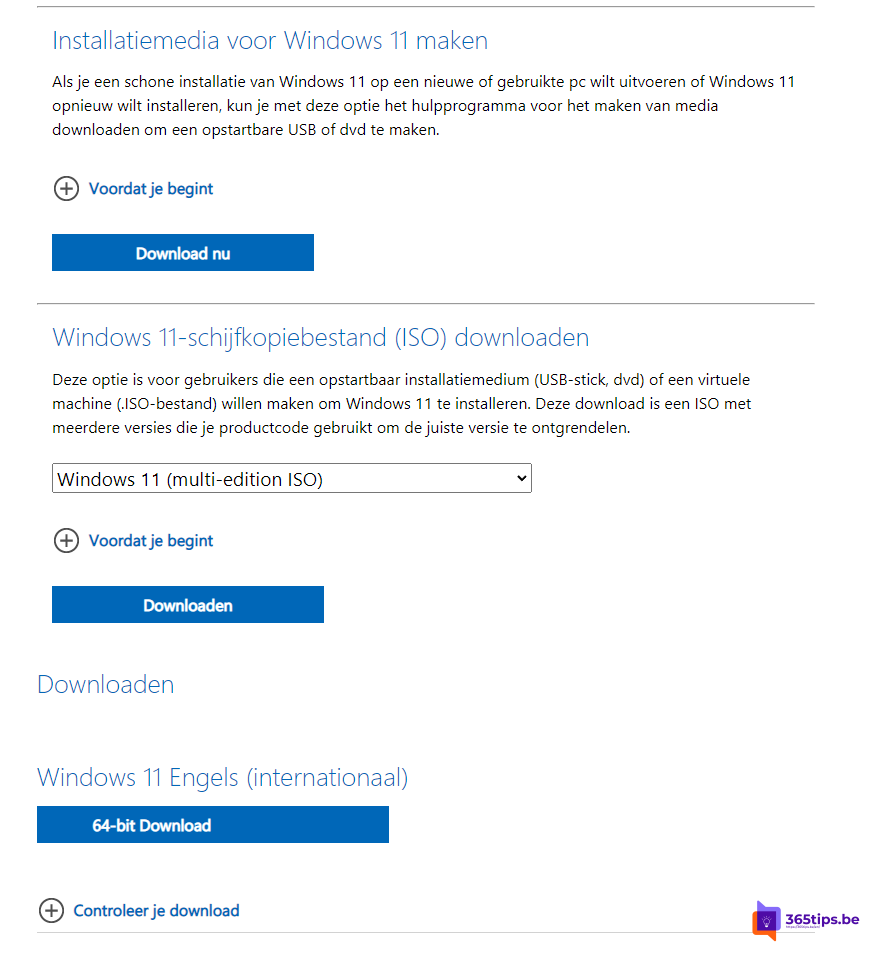
- Go to the Windows 11 download page at microsoft.com/software-download/windows11.
- Under Download Windows 11 Disk Image (ISO), choose the edition and select Download.
- Choose the language and select Confirm.
- Select 64-bit Download. The file is about 6 GB.
Can your PC run Windows 11?
Windows 11 requires, among other things, a TPM 2.0 chip, Secure Boot, a supported processor, 4 GB RAM and 64 GB storage. Check with the PC Health Check app.
Step 2: choose how to use it
- Upgrade from Windows: double-click the ISO file. Windows mounts it as a drive. Open it and run setup.exe. Choose whether to keep files and apps.
- Clean install via USB: create a bootable USB stick with the Media Creation Tool or a tool such as Rufus. Read create a bootable USB stick.
- Virtual machine: attach the ISO file as a DVD drive in Hyper-V. Read Windows 11 in Hyper-V.
Step 3: install
- Follow setup and choose I don't have a product key if Windows was already activated on this PC; activation returns automatically.
- Choose the edition matching your licence (Home or Pro).
- For a clean install: delete the old partitions and install on the empty space.
- Sign in with your Microsoft or work account.
Tips
- Back up first, for example with OneDrive backup, and note your BitLocker recovery key.
- Just upgrading to the latest version? That also works through the Installation Assistant or Windows Update.
Read also
Create a bootable Windows 11 USB drive
Upgrade from Windows 10 to Windows 11 with the Installation Assistant
Enable Hyper-V and install Windows 11 in a virtual machine
Nederlandstalige versie: Windows 11 installeren of bijwerken met een ISO-bestand
More in English
▸Create a bootable Windows 11 USB driveCreate a bootable Windows 11 USB drive for free with Microsoft's Media Creation Tool or Rufus, and boot a PC…
▸Reset a Windows 11 PC to factory settingsReset your Windows 11 PC to factory settings, with or without your files, via cloud download or local…
▸Join the Windows Insider Program for Windows 11Try new Windows 11 features early as a Windows Insider. The Canary, Dev, Beta and Release Preview channels,…
▸Turn on BitLocker in Windows 11 and keep your recovery key safeEncrypt your drive with BitLocker in Windows 11. Device encryption in Home, storing and finding the recovery…