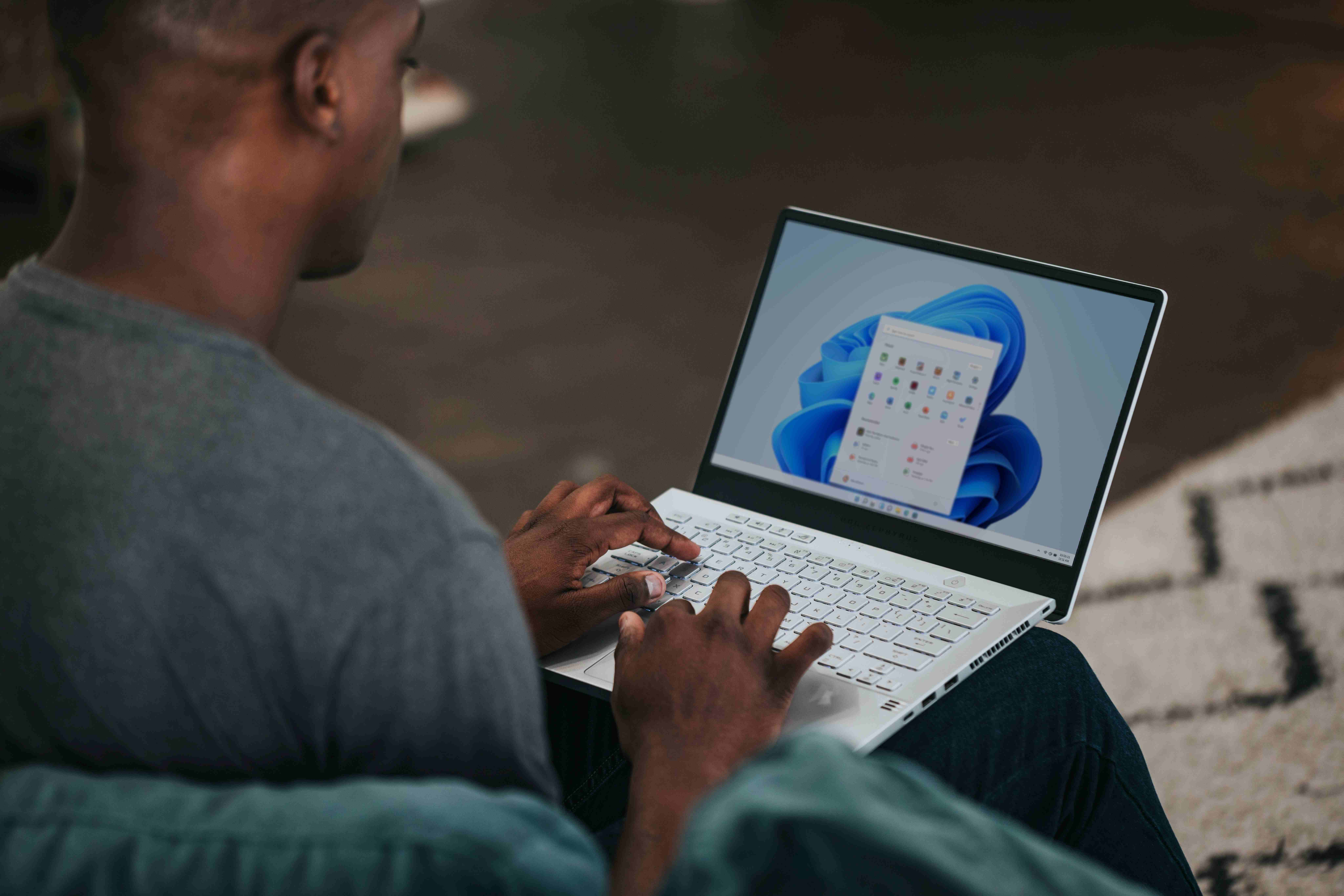
Windows 11 has a few features that make your day much smoother, once you know them. Here are seven tips you can use right away, each with a link to the full explanation.
Seven tips
- Windows side by side with Snap layouts: hover over the maximize button or press Windows + Z. Read how.
- Clipboard history: press Windows + V to paste text and images you copied earlier. Read how.
- Virtual desktops: press Windows + Tab and create one desktop for work and one for personal use.
- Tabs in File Explorer: open folders in tabs with Ctrl + T. Read how.
- Focus sessions: start a focus timer in the Clock app or from the notification center, and silence notifications for a while.
- Screen capture: take a screenshot with Windows + Shift + S, or a video with the Snipping Tool.
- Shortcuts: Windows + E for File Explorer, Windows + L to lock, Windows + . for emoji. All shortcuts.
Bonus
Install Microsoft PowerToys for even more handy tools, such as copying text from an image and a quick launcher with Alt + Space. Read install PowerToys and move the Start button to the left.
Nederlandstalige versie: Zeven tips om productiever te werken in Windows 11
Related articles
▸The most useful keyboard shortcuts for Windows 11The handiest Windows 11 shortcuts: Start menu, File Explorer, Snap layouts, virtual desktops, Snipping Tool…
▸How to put windows side by side in Windows 11 with SnapPut two, three or four windows side by side in Windows 11 with snap layouts, dragging, Windows + arrow keys…
▸Use tabs in File Explorer in Windows 11Open folders in tabs in Windows 11 File Explorer. Shortcuts, dragging files between tabs and tearing tabs off…
▸How to view and use clipboard history in Windows 11 and 10 (Windows + V)Windows + V shows the last 25 things you copied. Turn on clipboard history, pin items, clear it and sync the…
▸Install PowerToys on Windows 11: the most useful toolsInstall Microsoft PowerToys on Windows 11 with winget or the Store and discover FancyZones, Text Extractor…