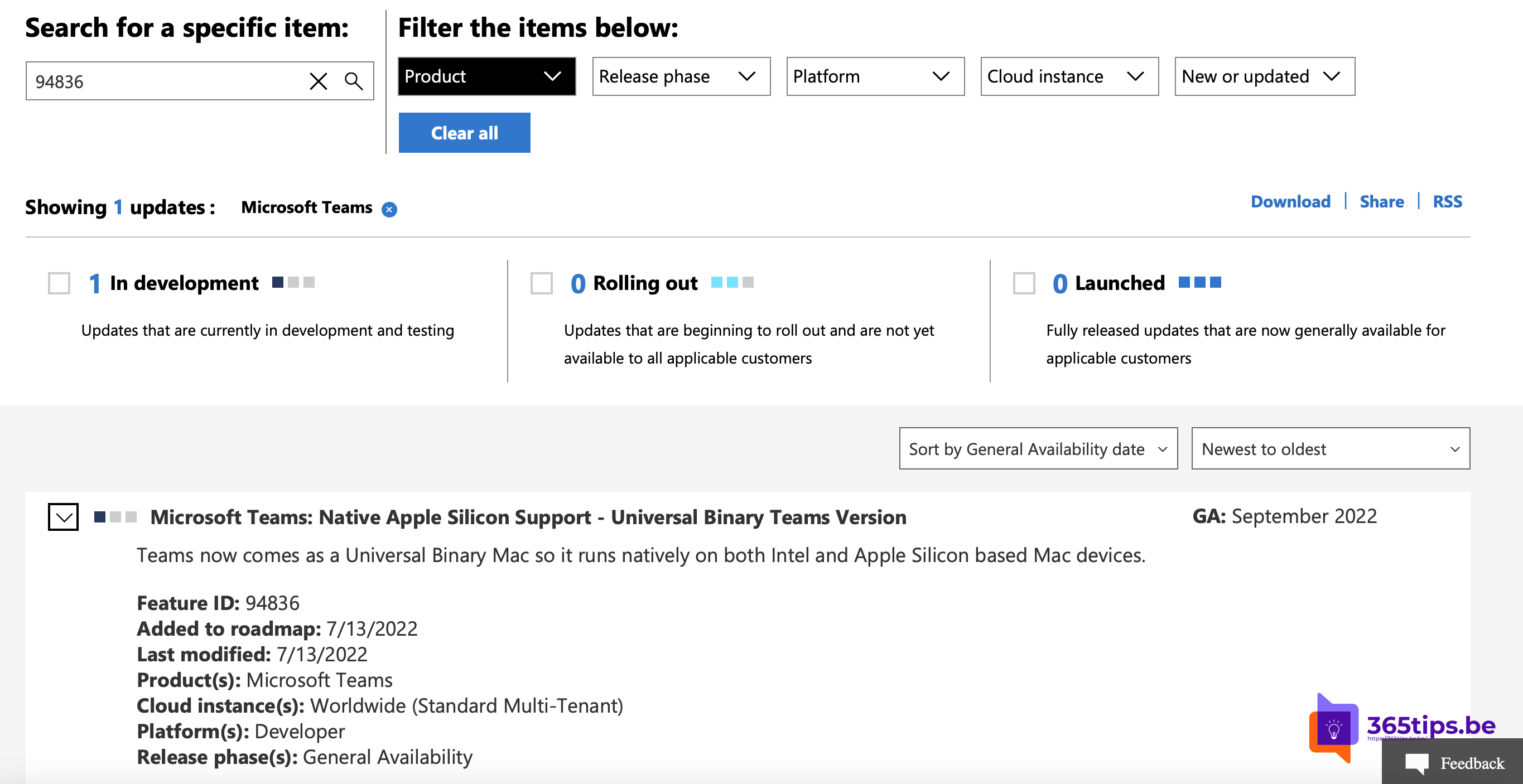
Have a Mac with an Apple chip, such as an M1, M2 or newer? Microsoft Teams runs natively on it. Teams for Mac has long been a universal app, so here is how to install the right version and check it.
What does native support mean?
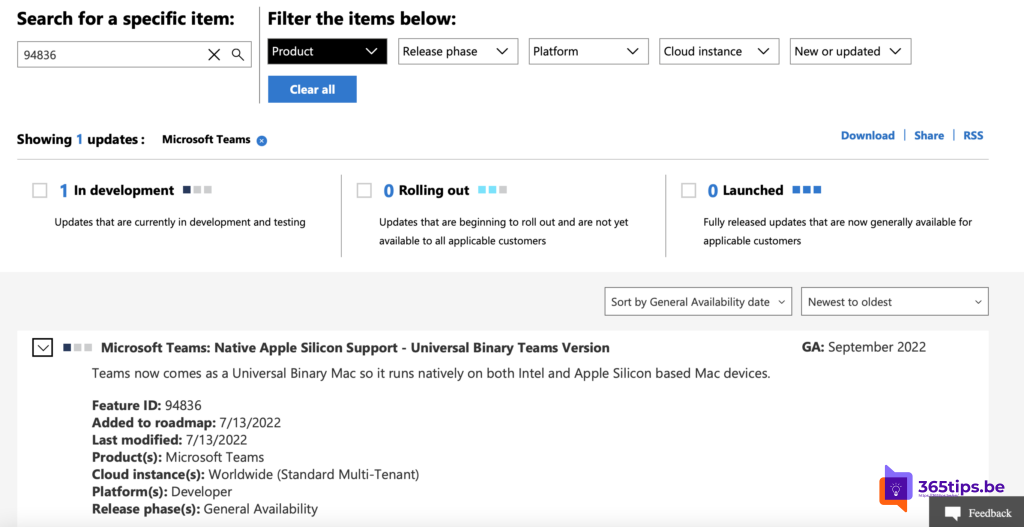
Teams ships as a Universal app. The same install runs directly on Intel Macs and on Macs with Apple chips. You don't need Rosetta for Teams, which means better performance and longer battery life.
Install Teams on your Mac
- Go to Microsoft's official Teams download page. Avoid old direct package links from preview days.
- Download Teams for Mac and open the installer package.
- Follow the steps and sign in with your work or school account.
Teams then keeps itself up to date.
Check that Teams runs natively
- Open Activity Monitor on your Mac.
- Find Microsoft Teams in the list.
- The Kind column shows Apple when Teams runs natively.
Also see download and install Microsoft Teams and install Microsoft 365 apps on a Mac.
Read also
Download and install Microsoft Teams on Windows, Mac and mobile
Install the Microsoft 365 apps (Office) on a Mac
Share computer sound in Teams on a MacBook or iMac
Nederlandstalige versie: Microsoft Teams op een Mac met Apple-chip (M1, M2 en nieuwer)