Want to use Microsoft Teams to meet with friends, a club or customers, or start using Teams with your company? There are several ways to create a Teams account, from completely free to a full Microsoft 365 subscription. This article shows which option suits you, how to create a free account and what the limits are. And: to join a meeting you don't need an account at all.
Just joining? No account needed
Received an invitation to a Teams meeting? Click the Join now link. You can join in the browser (Edge or Chrome) or in the Teams app, and you simply enter your name.
Which Teams do you need?
| Option | For | Price |
|---|---|---|
| Microsoft Teams (free) | Personal use, friends, family, small clubs | Free |
| Teams Essentials | Small businesses that only meet and chat | Paid per user |
| Microsoft 365 Business Basic, Standard or Premium | Businesses: Teams plus e-mail, OneDrive, SharePoint and (with Standard and Premium) the Office apps | Paid per user |
| Microsoft 365 Personal or Family | Personal use, with Office apps and more OneDrive storage | Paid per year |
Prices change regularly; check Microsoft's website for current amounts.
Create a free Teams account
- Go to microsoft.com/microsoft-teams/free and click Sign up for free, or download the Teams app.
- Sign in with a personal Microsoft account (for example @outlook.com or @hotmail.com). Don't have one? Create one; you can also use your existing Gmail address.
- Enter your name and follow the steps. You can start chatting, create a community or start a meeting right away.
On your phone, download Microsoft Teams from the App Store or Google Play and sign in with the same account.
What can the free version do?
- Group calls of up to 60 minutes with up to 100 participants.
- Unlimited chat and communities for groups.
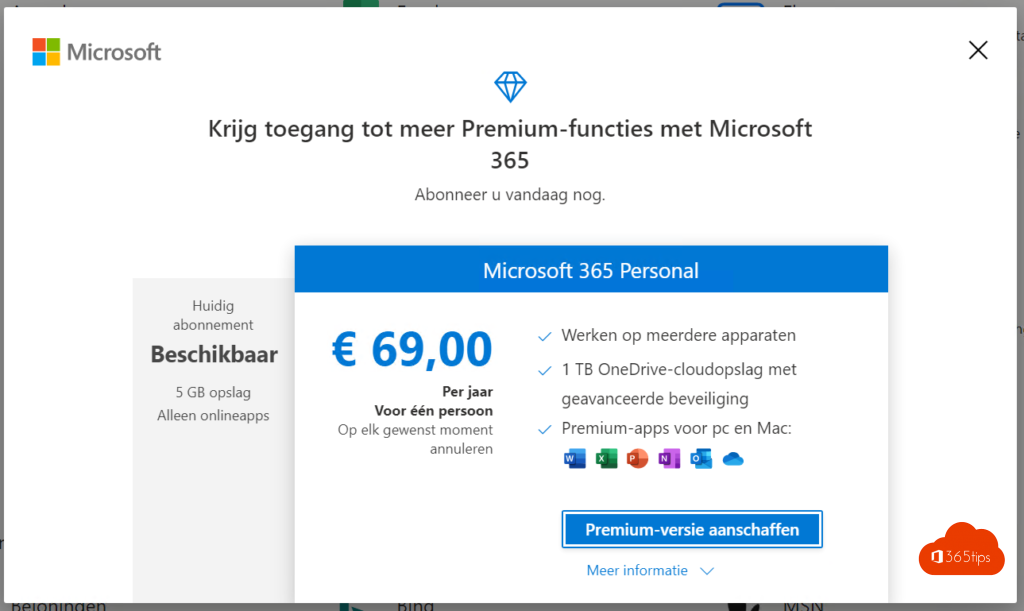
- 5 GB of cloud storage per person.
- No recordings, no transcripts and no management by an organization.
The free version is meant for personal use. For a business, choose a business plan: it gives you security, management and your own domain name.
Start Teams for your business
- Go to the Microsoft 365 for business website and choose a plan, for example Microsoft 365 Business Basic (Teams, e-mail, OneDrive) or Business Standard (with Office apps). You can usually try it free for a month first.
- This creates your own tenant, for example yourcompany.onmicrosoft.com, and a first administrator account.
- Add your own domain (yourcompany.com) in the Microsoft 365 admin center and create accounts for your colleagues.
Personal and work in one app
Have both a free account and a work account? The new Teams app supports several accounts side by side. Click your profile picture and choose Add another account.
Read also
How to schedule a chat message in Microsoft Teams
How to set out of office and a status message in Microsoft Teams
How to create a distribution list in Microsoft 365 and use it in Teams
Nederlandstalige versie: Een gratis Microsoft Teams-account aanmaken