Every day, documents, customer data and sometimes even account numbers or passwords get shared in Teams. With Data Loss Prevention (DLP) in Microsoft Purview, you detect sensitive information automatically and stop it from ending up with the wrong person in a chat or channel. This article explains what DLP does in Teams, which licence you need and how to create a policy step by step.
What does DLP do in Microsoft Teams?
- It scans chat and channel messages for sensitive information such as IBANs, credit card numbers or national ID numbers.
- It can block a message, block it only for external users, or just show a warning.
- The user sees a policy tip with an explanation and, if you allow it, can enter a business justification.
- Files you share in Teams live in SharePoint and OneDrive, so include those locations in your policy too.
Which licence do you need?
DLP for Exchange, SharePoint and OneDrive is already included in Microsoft 365 E3. For DLP in Teams chats and channels you need Microsoft 365 E5 or A5, Office 365 E5, or an add-on such as Microsoft 365 E5 Compliance. See how to check your Microsoft 365 licence.
Create a DLP policy for Teams
- Go to purview.microsoft.com and open Data loss prevention > Policies.
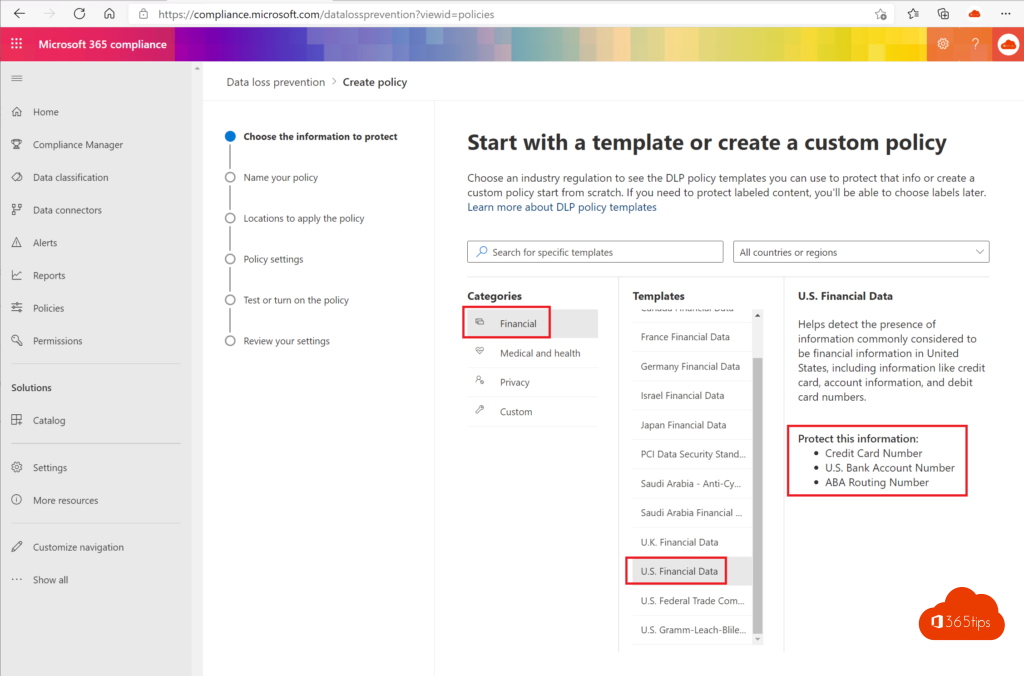
- Select Create policy and choose a template, for example Financial or Privacy for your country, or start with a custom policy.
- Choose Teams chat and channel messages as a location. Add SharePoint sites and OneDrive accounts as well.
- Set the rules: which type of sensitive information, how many instances and what should happen (block, policy tip, alert to the admin).
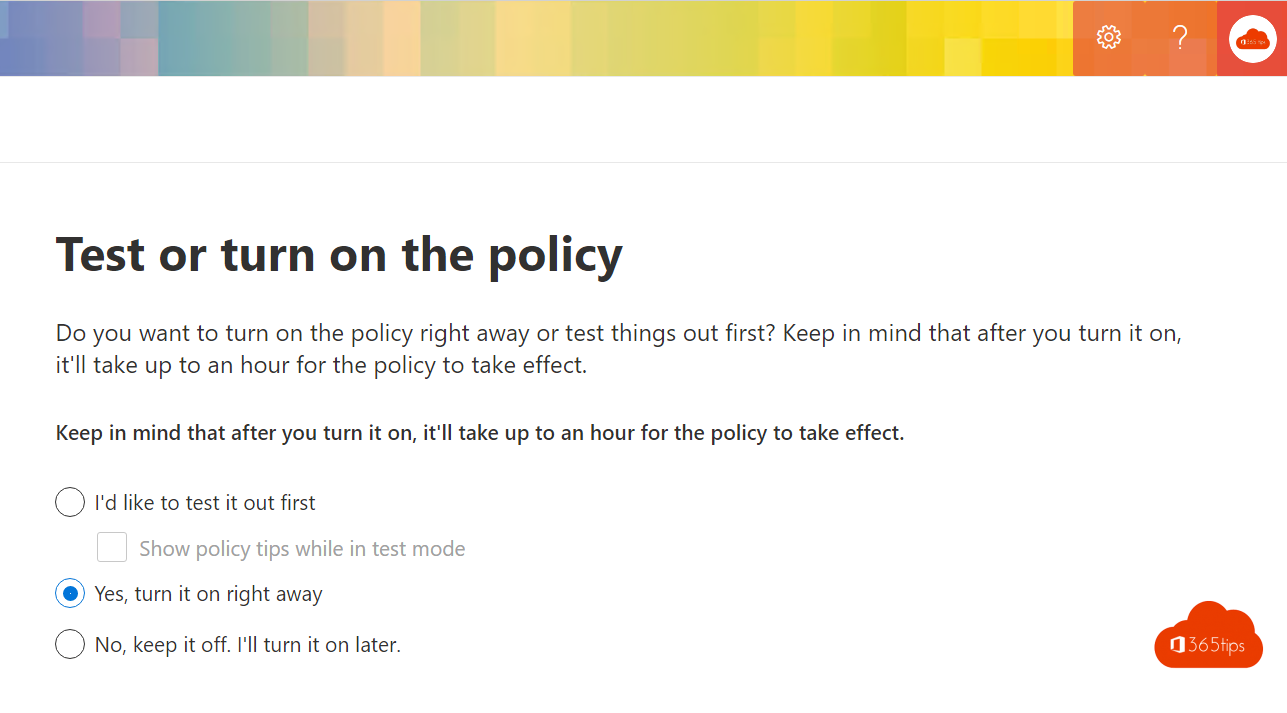
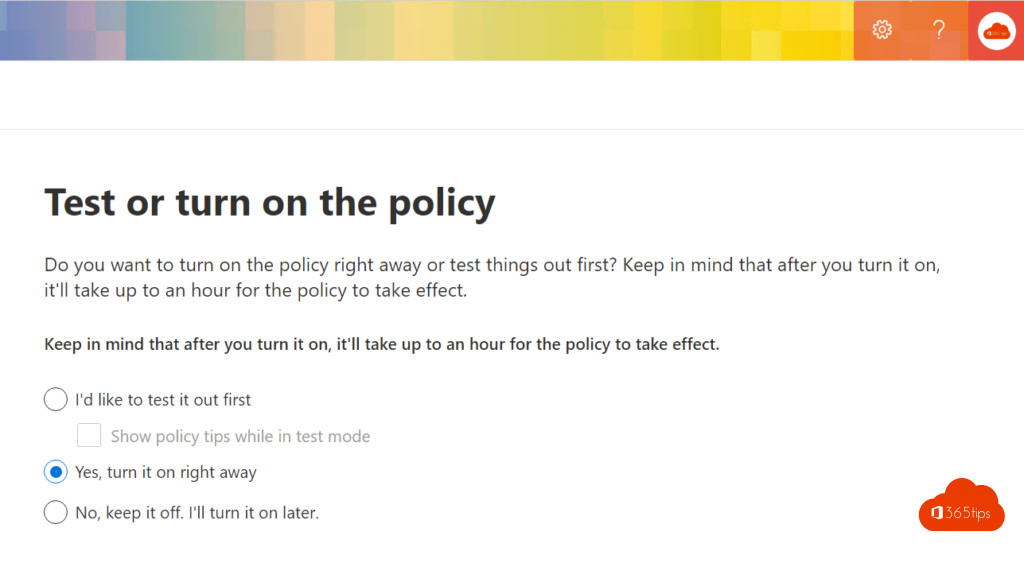
- Start with Run the policy in simulation mode. You see what would be blocked without disturbing users.
- Review the results after a week, then turn the policy on.

What does the user see?
When a message is blocked, the sender sees a red notice saying This message was blocked with a link to more information. The recipient only sees that a message was removed. You can let users report the message as a false positive or override it with a justification.
Tips
- Start small: one information type and a policy tip, and tighten later.
- Use Activity explorer in Purview to see how often rules match.
- Combine DLP with encrypted email and blocking automatic forwarding.
Read also
Block automatic forwarding and outgoing email in Microsoft 365
How to encrypt or protect an e-mail in Outlook and Microsoft 365
Assign admin roles in Microsoft 365
Nederlandstalige versie: Data Loss Prevention (DLP) in Microsoft Teams activeren met Purview