A user creates a rule that automatically forwards all their work email to a private address. Or an attacker who took over an account does the same to read along unnoticed. It's one of the most common ways company data leaks. In Microsoft 365 you can block automatic forwarding to external addresses and make exceptions for people who really need it. This article shows how, and how to block all outgoing email for one user.
What's the default?
In the default outbound spam policy, Automatic forwarding rules is set to Automatic - System-controlled. Microsoft treats that as off: automatic forwarding to external addresses is blocked. The sender gets a non-delivery report with code 5.7.520 Access denied, Your organization does not allow external forwarding. Forwarding to colleagues inside the organization keeps working. Still check that nobody switched the setting to On in the past.
Block automatic forwarding
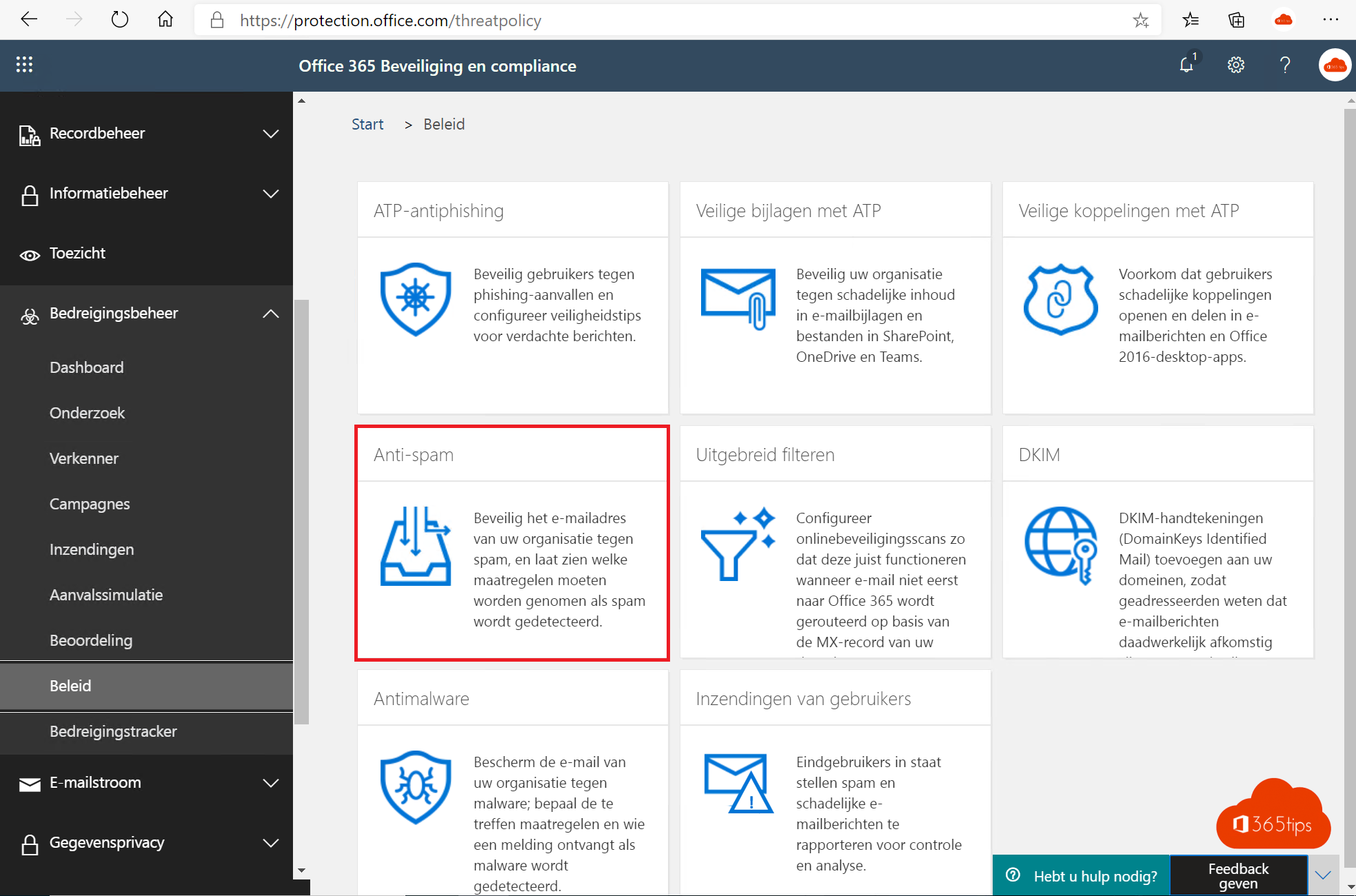
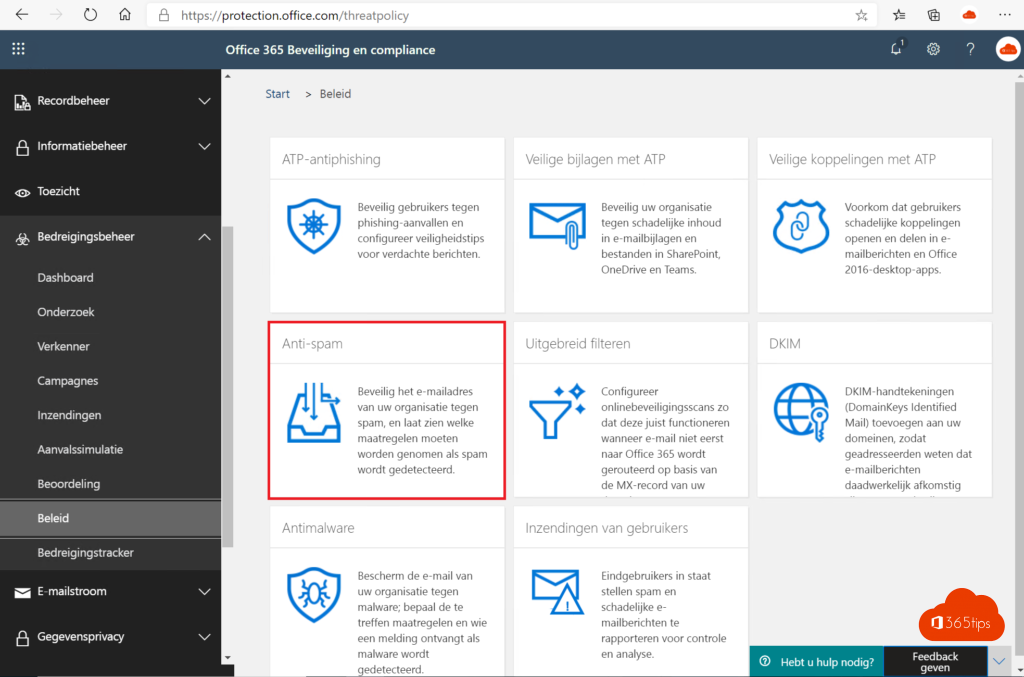
- Go to security.microsoft.com > Email & collaboration > Policies & rules > Threat policies > Anti-spam.
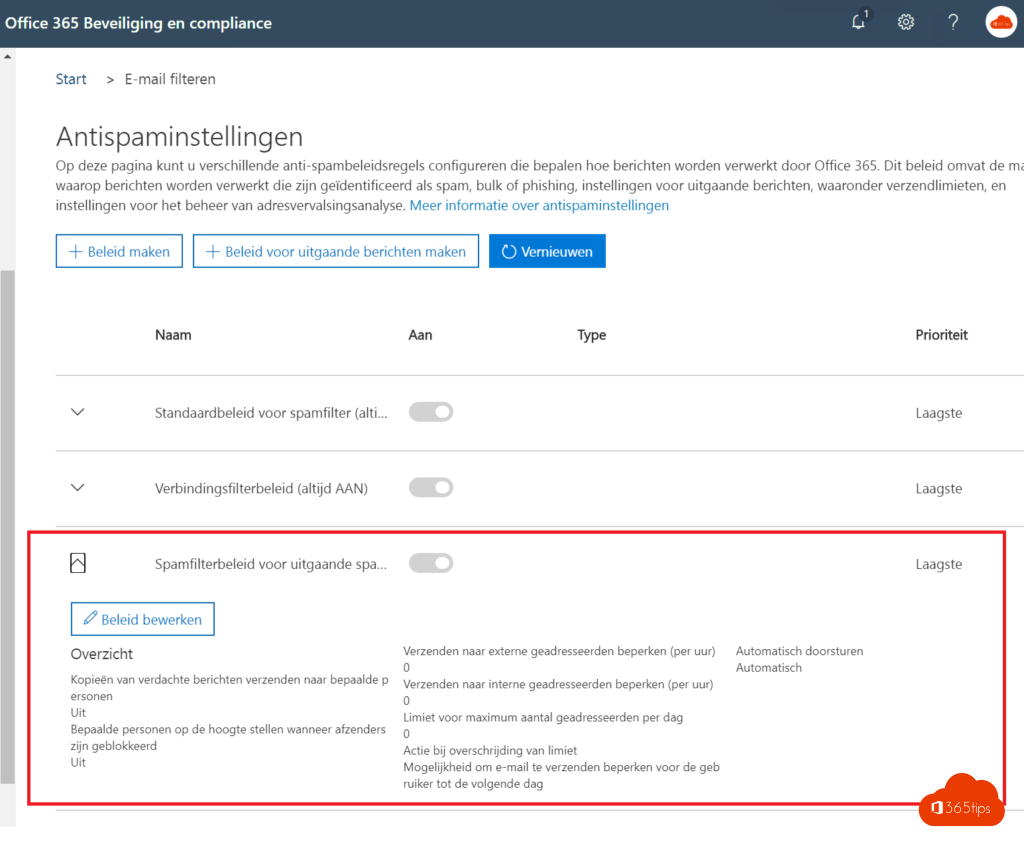
- Open Anti-spam outbound policy (Default) and select Edit protection settings.
- Set Automatic forwarding rules to Off - Forwarding is disabled.
- Select Save.
This blocks forwarding through Outlook rules, through the forwarding setting in Outlook on the web and through mailbox forwarding set by an admin (ForwardingSmtpAddress).
Exceptions for certain users
- On the same page, select Create policy > Outbound.
- Name it, for example Forwarding allowed, and pick the users or group.
- Set Automatic forwarding rules to On.
- Give the policy a higher priority than the default policy.
Prefer a group, so exceptions are easy to find and revoke later.
Allow forwarding to one external domain
Need forwarding to a partner, for example the parent company? In the Exchange admin center > Mail flow > Remote domains, add that domain with Allow automatic forwarding. Turn off automatic forwarding on the default domain (*). Forwarding only works when both the spam policy and the remote domain allow it.
Block all outgoing email for one user
Want an account, such as an intern or a shared mailbox, unable to email outside the organization at all? Use a mail flow rule:
- Go to the Exchange admin center > Mail flow > Rules > Add a rule > Create a new rule.
- Under Apply this rule if: The sender > is this person, and add a second condition: The recipient > is external/internal > Outside the organization.
- Under Do the following: Block the message > reject the message and include an explanation, with a clear text.
- Save the rule and enable it.

Find existing forwarding
Find out who already forwards with Exchange Online PowerShell:
Get-Mailbox -ResultSize Unlimited | Where-Object {$_.ForwardingSmtpAddress} | Select-Object Name, ForwardingSmtpAddress
In the Exchange admin center, Reports > Mail flow has an Auto forwarded messages report. Microsoft Defender also has a default alert policy for suspicious email forwarding activity.
Read also
How to encrypt or protect an e-mail in Outlook and Microsoft 365
Security defaults in Microsoft Entra ID: what they do and how to enable them
How to set out of office on a shared mailbox in Microsoft 365
Nederlandstalige versie: Automatisch doorsturen en uitgaande e-mail blokkeren in Microsoft 365