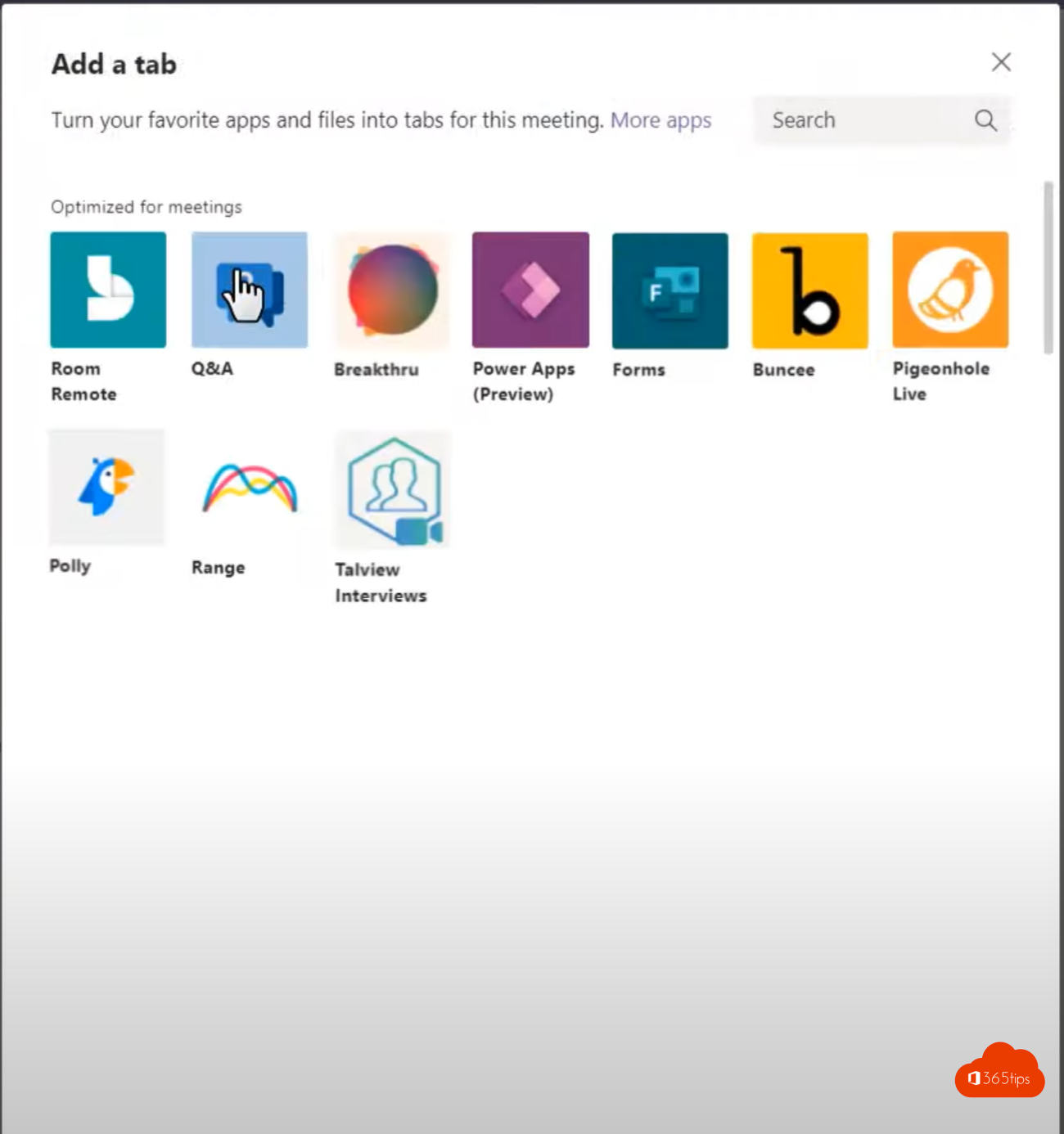
In a large meeting, town hall or webinar, the chat fills up fast and questions get lost. With Q&A in Microsoft Teams, attendees post their questions in a separate list, upvote each other's questions, and you answer the most popular first. This article shows how to turn Q&A on, moderate it, how anonymous questions work and what an admin must allow.
Turn on Q&A for a meeting
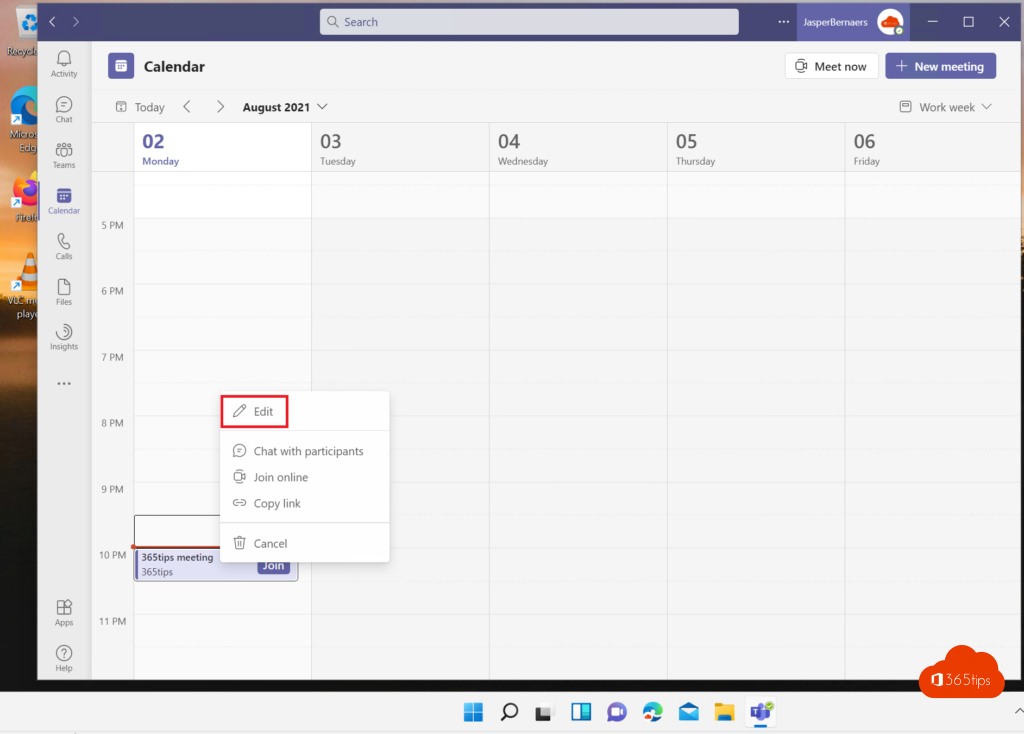
- Open the meeting in your Teams calendar and select Options (Meeting options).
- Under Engagement, turn on Enable Q&A.
- Select Save.
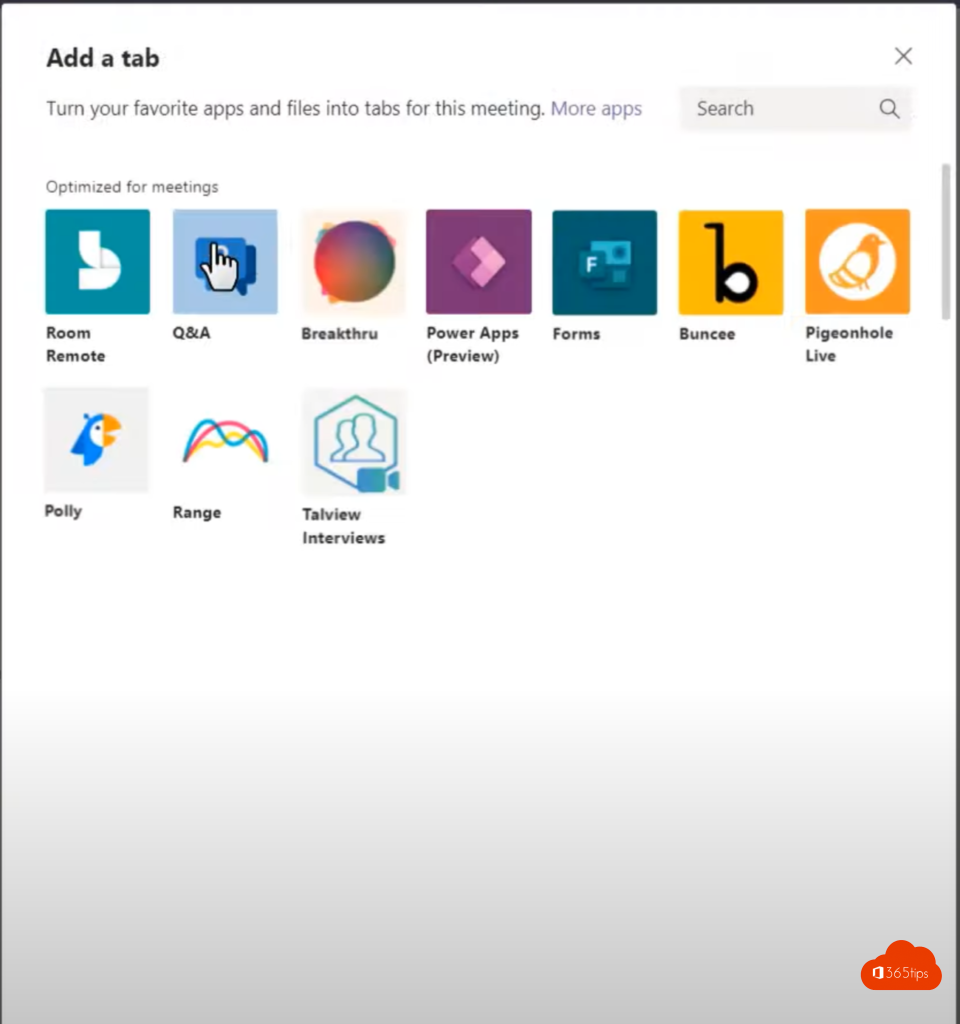
During the meeting a Q&A button appears at the top. In town halls and webinars Q&A is often on by default.
How do attendees ask a question?
- Select Q&A at the top.
- Type the question and select Post. Optionally choose Post anonymously if the organizer allows it.
- Support other people's questions with Like so they move up.
Moderate and answer
- Turn on moderation in the Q&A settings. New questions then go to the organizer and co-organizers first, who publish or dismiss them.
- Sort by Top to see which questions matter most.
- Answer a question verbally and mark it Answered, or type a written reply.
- Pin a question to keep it at the top, or hide inappropriate ones.
- Let a co-organizer run Q&A while you present.
Q&A, chat or poll?
| Tool | Good for |
|---|---|
| Q&A | Collecting questions, voting, moderating; large meetings |
| Chat | Quick discussion, sharing links; small meetings |
| Poll | Ask everyone one question and measure opinion |
After the meeting
Questions and answers stay available on the meeting's Q&A tab. Export them to publish frequently asked questions afterwards, for example on your intranet.
For admins
In the Teams admin center > Meetings > Meeting policies you decide whether organizers can use Q&A. With PowerShell: Set-CsTeamsMeetingPolicy -Identity Global -QnAEngagementMode Enabled.
Read also
Create polls in Microsoft Teams with Polls and Microsoft Forms
The co-organizer role in a Microsoft Teams meeting
Turn live reactions on or off in Microsoft Teams meetings
Nederlandstalige versie: Vragen verzamelen met Q&A in Microsoft Teams-vergaderingen