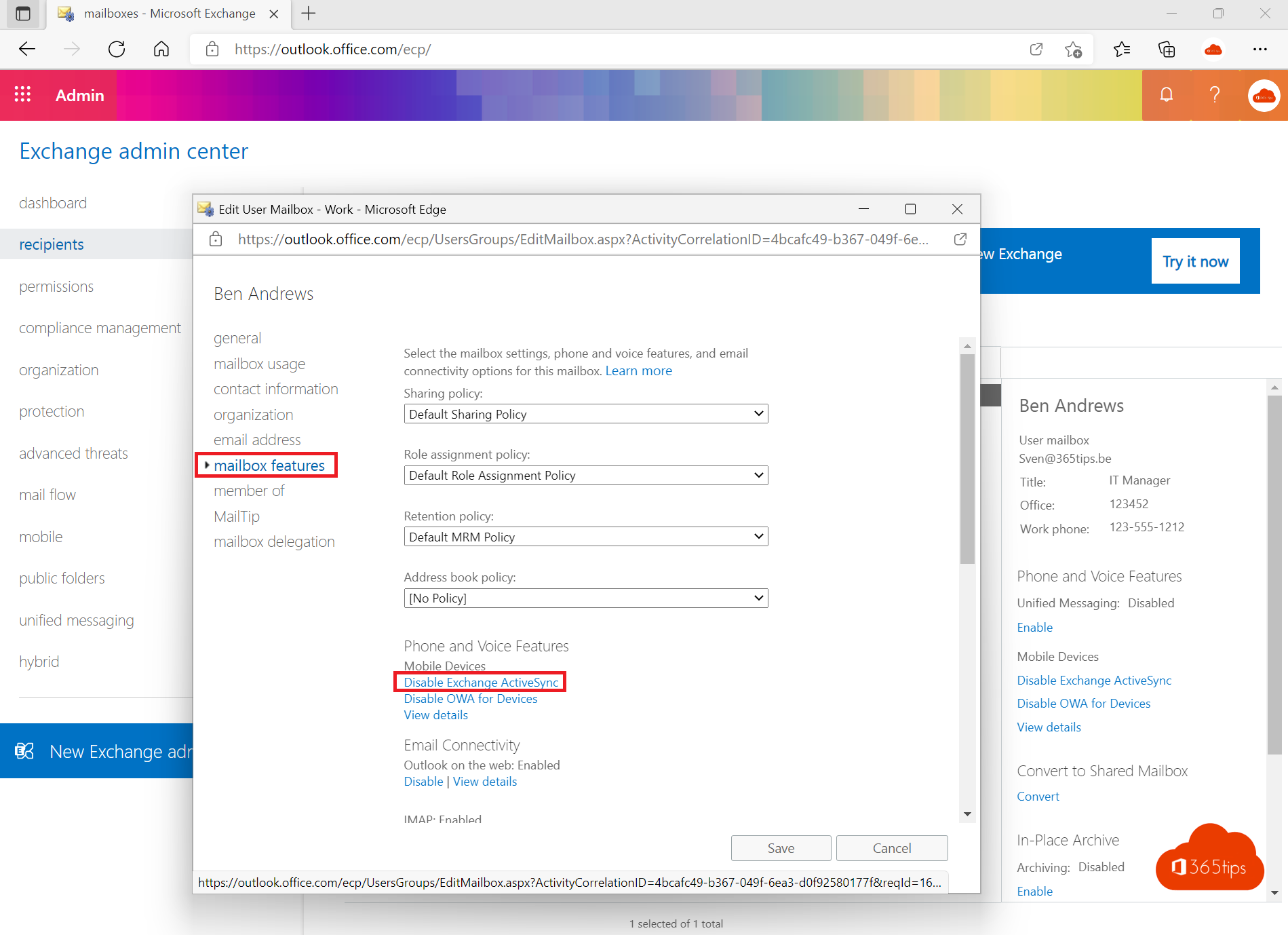
Exchange ActiveSync lets the built-in mail apps on phones, such as Mail on iPhone or Gmail on Android, connect to your mailbox. Those apps are hard to manage: you can't apply app protection and company data stays on the device. Many organisations block ActiveSync and only allow the Outlook app. This article shows how.
Good to know: Outlook mobile doesn't use ActiveSync
The Outlook app for iOS and Android connects using Microsoft's own sync technology. Block ActiveSync and Outlook mobile keeps working. The built-in mail apps stop.
For one user
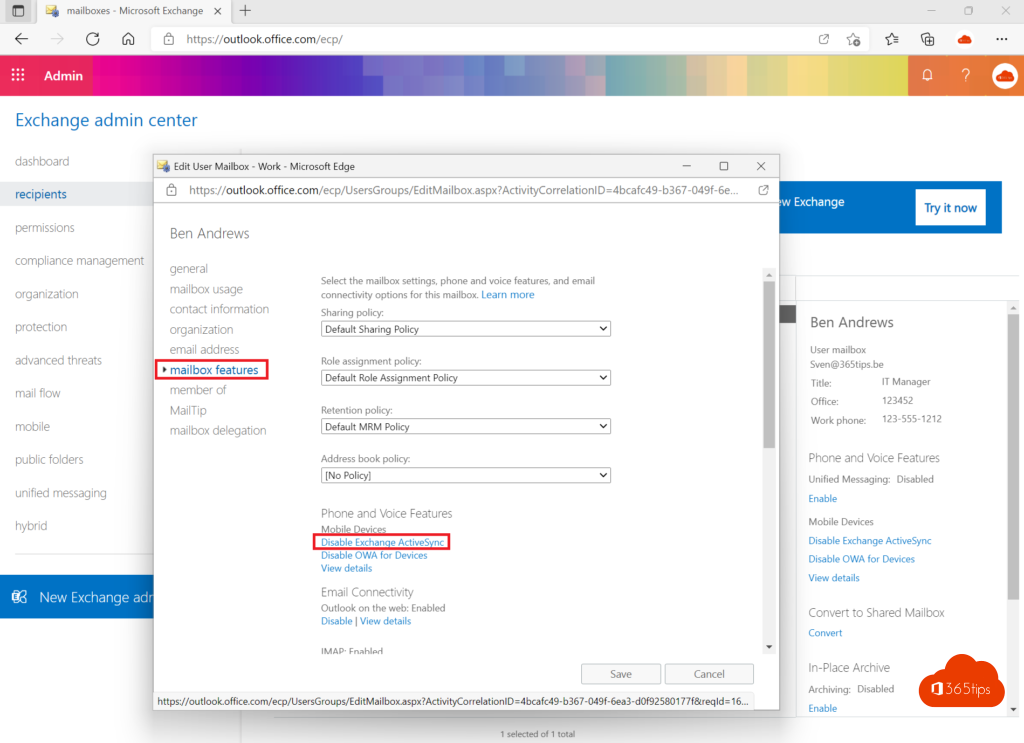
- Go to admin.exchange.microsoft.com > Recipients > Mailboxes.
- Select the mailbox > Manage email apps settings.
- Turn off Exchange ActiveSync and save.
With PowerShell: Set-CASMailbox -Identity john@contoso.com -ActiveSyncEnabled $false.
For all existing and new users
- Existing mailboxes: Get-Mailbox -ResultSize Unlimited | Set-CASMailbox -ActiveSyncEnabled $false
- New mailboxes: Get-CASMailboxPlan | Set-CASMailboxPlan -ActiveSyncEnabled $false
Better: with Conditional Access
Have Entra ID P1? Create a policy in entra.microsoft.com > Conditional Access:
- Users: all users (exclude your break-glass accounts).
- Target resources: Office 365 Exchange Online.
- Conditions > Client apps: tick Exchange ActiveSync clients and Other clients.
- Grant: Block access.
Combine it with a policy that requires app protection (Intune) for Outlook on mobile devices.
Who still uses ActiveSync?
Check the sign-in logs in Entra and filter on client app Exchange ActiveSync, or use Get-MobileDevice in Exchange Online PowerShell. Warn those users before you block. Related: security defaults in Entra ID.
Read also
Security defaults in Microsoft Entra ID: what they do and how to enable them
Enable multi-factor authentication (MFA) in Microsoft 365
Install the Intune Company Portal automatically on all computers
Nederlandstalige versie: Exchange ActiveSync blokkeren en alleen de Outlook-app toelaten