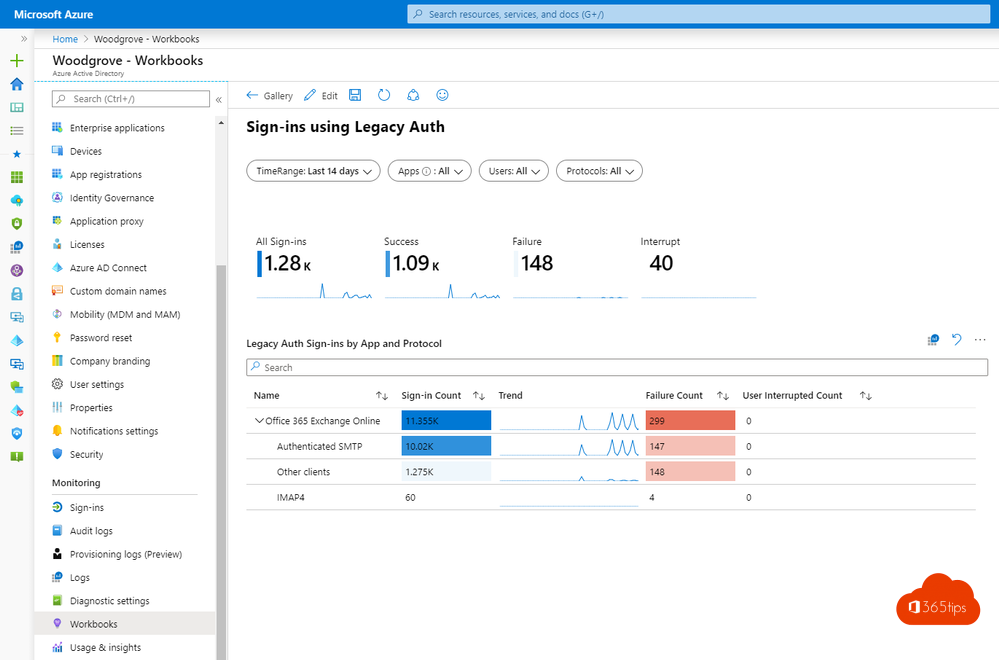
Old sign-in protocols such as POP, IMAP or SMTP AUTH with a plain password don't support MFA. That's why attackers love to try passwords against them. Before you block legacy authentication, you want to know who still uses it. With the sign-in logs in Microsoft Entra ID and a Log Analytics workspace you get a clear picture.
Quick look without Log Analytics
Just want a quick look? In the Microsoft Entra admin center, go to Entra ID > Monitoring & health > Sign-in logs. Add the Client app filter and select all options under Legacy authentication clients. You'll see the sign-ins of the last few days. For a longer period and charts you need Log Analytics.
1. Create a Log Analytics workspace
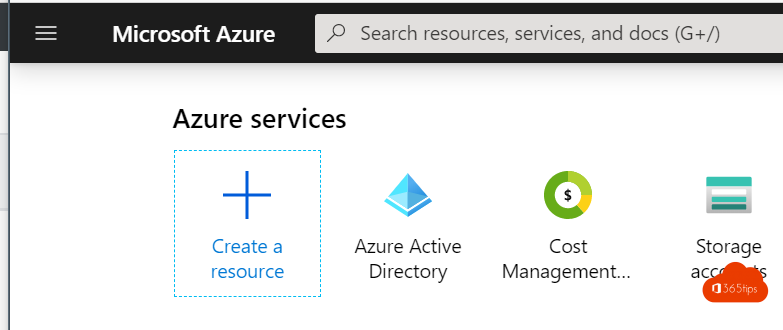
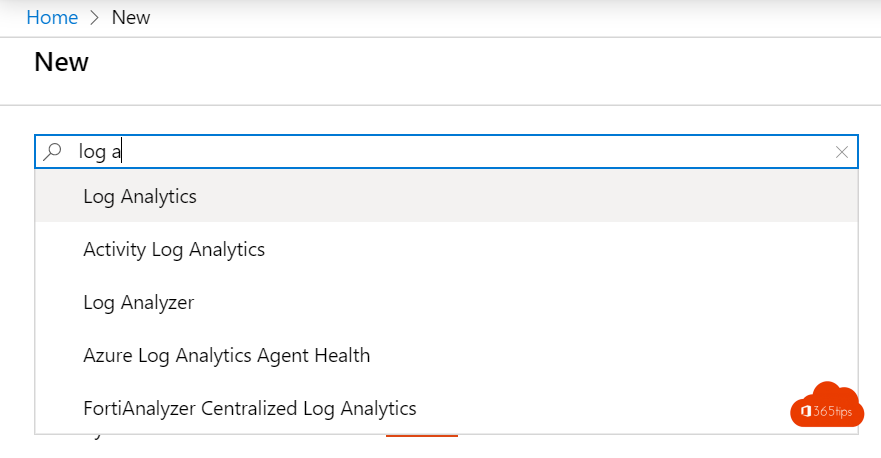
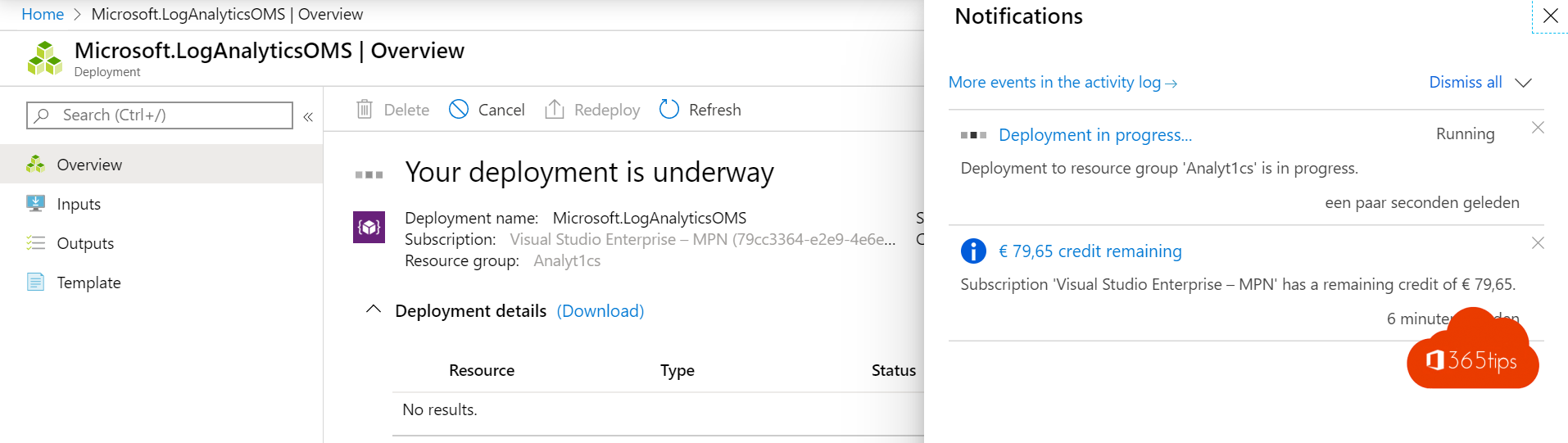
- Go to portal.azure.com and search for Log Analytics workspaces.
- Select Create.
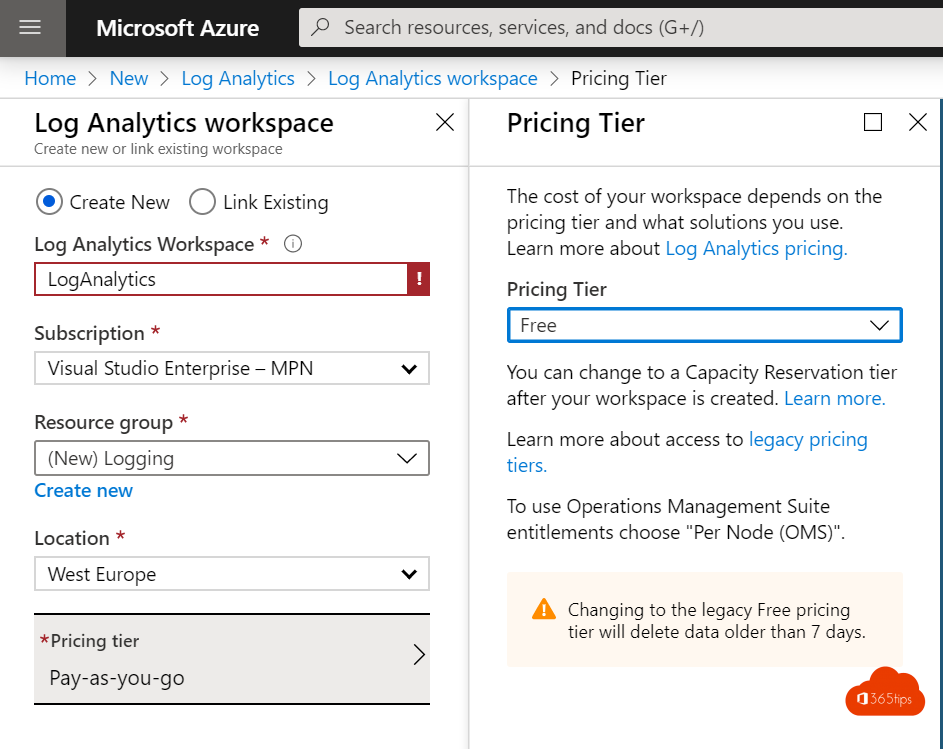
- Choose your subscription and a (new) resource group.
- Name the workspace and choose a region, for example West Europe.
- Select Review + create > Create.
Log Analytics charges by the amount of data ingested and the retention period. Check current pricing on the Azure website and set a retention period that fits your needs.
2. Send the sign-in logs
- In the Entra admin center, go to Entra ID > Monitoring & health > Diagnostic settings.
- Select Add diagnostic setting and give it a name.
- Tick at least AuditLogs, SignInLogs and NonInteractiveUserSignInLogs.
- Choose Send to Log Analytics workspace and select your workspace.
- Select Save.
This requires a Microsoft Entra ID P1 or P2 license. After a while the first data arrives.
3. Open the legacy authentication workbook
Go to Entra ID > Monitoring & health > Workbooks and open Sign-ins using Legacy Authentication. It shows how many legacy sign-ins there are per protocol, user and app.
4. Search yourself with KQL
Want the exact details? Open your workspace, choose Logs and run this query:
SigninLogs
| where TimeGenerated > ago(30d)
| where ClientAppUsed !in ("Browser", "Mobile Apps and Desktop clients")
| summarize SignIns = count() by UserPrincipalName, ClientAppUsed, AppDisplayName
| order by SignIns desc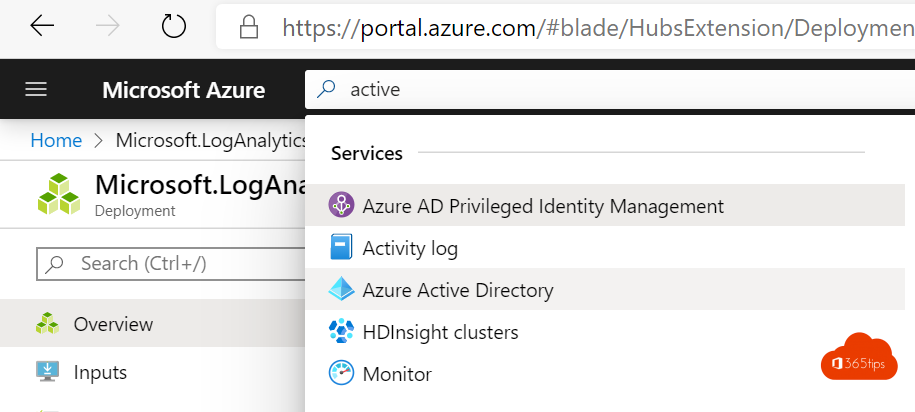
5. Block legacy authentication
- Contact the users or owners of the apps, printers and scripts on your list and move them to modern authentication (OAuth).
- Create a Conditional Access policy that blocks Legacy authentication clients. Start in Report-only.
- No Entra ID P1? Then security defaults also block legacy authentication.
Also see security defaults in Microsoft Entra ID and block ActiveSync in Exchange Online.
Read also
Security defaults in Microsoft Entra ID: what they do and how to enable them
Block Exchange ActiveSync and allow only the Outlook app
App passwords in Microsoft 365: create, delete and replace them
Nederlandstalige versie: Legacy authenticatie inzichtelijk maken met Log Analytics