An assistant managing the director's calendar, a team reading info@ together, a colleague following up your email while you're away: in Exchange Online you give delegated permissions on a mailbox for that. There are three kinds: Full Access, Send As and Send on Behalf. This article explains the difference and how to set them up.
The difference
| Permission | What can the delegate do? | What does the recipient see? |
|---|---|---|
| Full Access | Open the mailbox and read and manage all folders | Nothing, this isn't about sending |
| Send As | Send email as if it came from the mailbox | info@contoso.com |
| Send on Behalf | Send email on behalf of the owner | John on behalf of Info |
For a shared mailbox you usually grant Full Access + Send As.
In the Exchange admin center
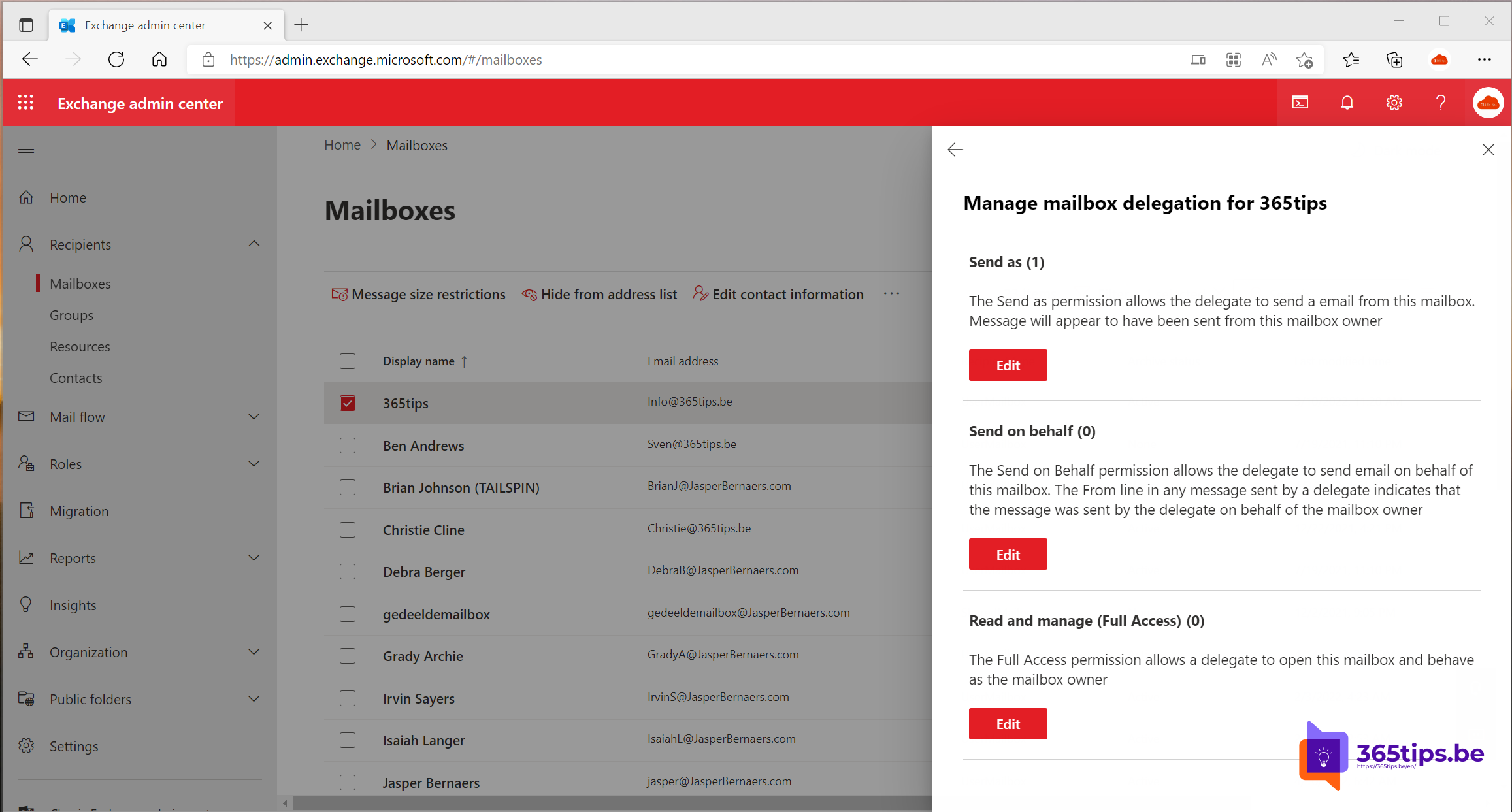
- Go to admin.exchange.microsoft.com > Recipients > Mailboxes.
- Select the mailbox and open the Delegation tab.
- Next to Send as, Send on behalf or Read and manage (Full Access), select Edit and add the user.
Permissions can take up to an hour to work. With Full Access, the mailbox appears automatically in classic Outlook after a while (automapping).


With PowerShell
- Full Access: Add-MailboxPermission -Identity info -User john -AccessRights FullAccess -AutoMapping $true
- Send As: Add-RecipientPermission -Identity info -Trustee john -AccessRights SendAs
- Send on Behalf: Set-Mailbox -Identity info -GrantSendOnBehalfTo @{Add="john"}
Use -AutoMapping $false if someone has many mailboxes and Outlook gets slow. They then add the mailbox themselves.
Sent items in the shared mailbox
By default, an email you send as the shared mailbox only lands in your own Sent Items. To let the whole team see it, run Set-Mailbox info -MessageCopyForSentAsEnabled $true -MessageCopyForSendOnBehalfEnabled $true.
Related: set an automatic reply on a shared mailbox.
Read also
How to set out of office on a shared mailbox in Microsoft 365
Create a dynamic distribution group in Exchange Online
Assign admin roles in Microsoft 365
Nederlandstalige versie: Volledige toegang, Verzenden als en Verzenden namens instellen in Exchange Online