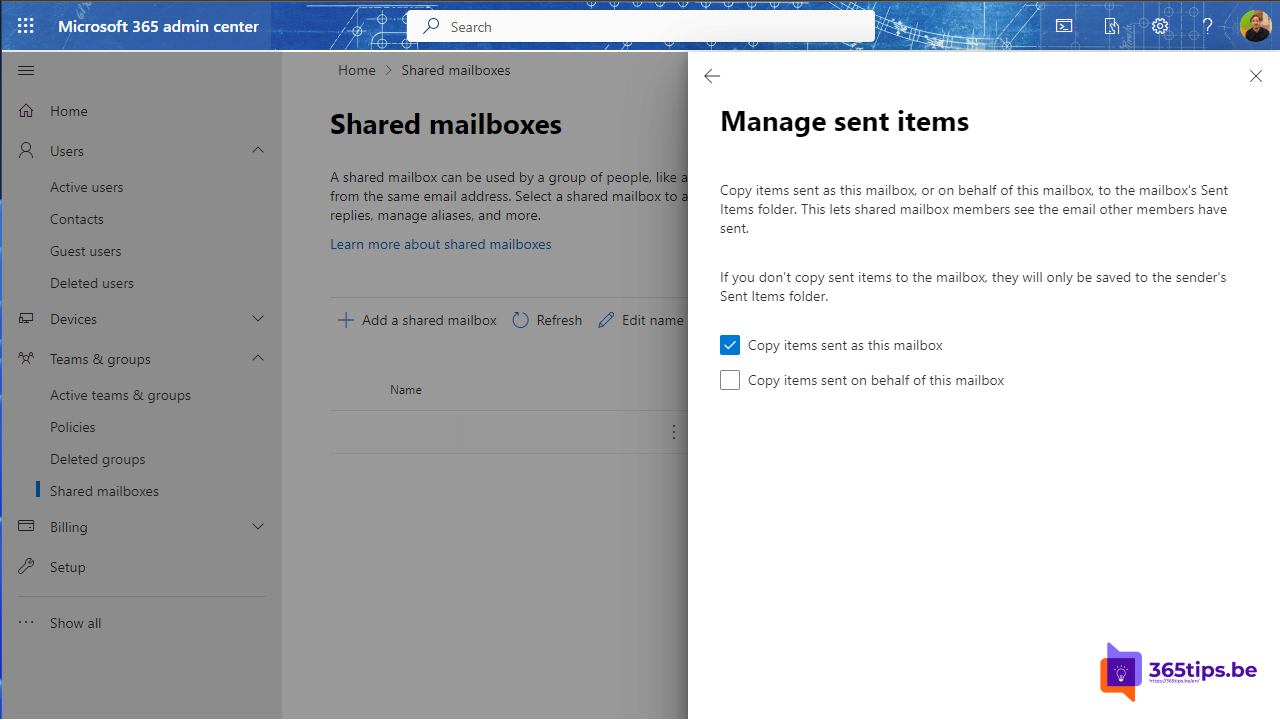
You send an email as the shared mailbox info@, but your colleagues can't see it: it's only in your own Sent Items. With one setting, Exchange Online also keeps a copy in the shared mailbox, so the whole team sees what has already been answered. This article shows how.
In the Exchange admin center
- Go to admin.exchange.microsoft.com > Recipients > Mailboxes.
- Select the shared mailbox.
- Under Mailbox (or Others), open the Sent items settings.
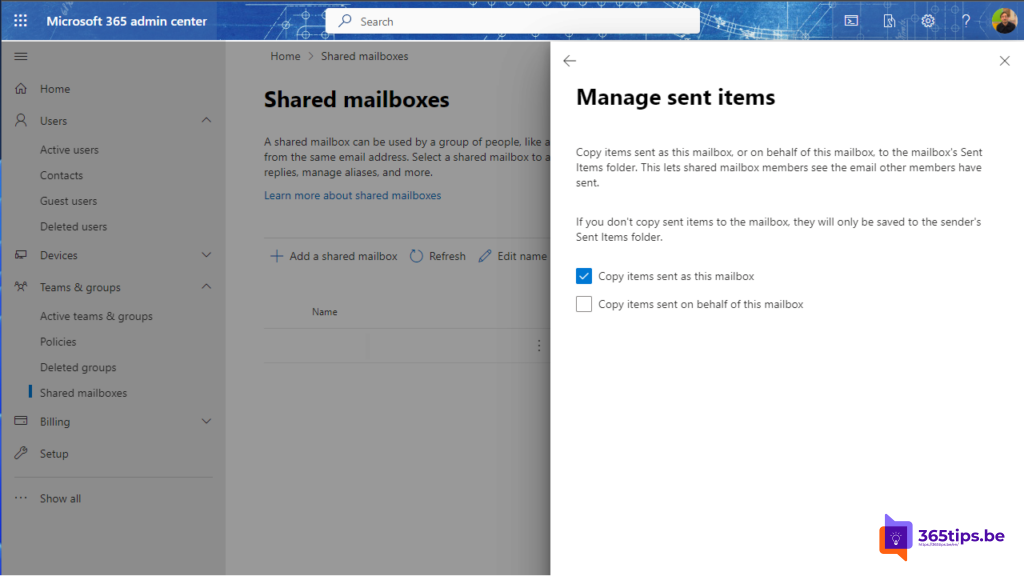
- Turn on Copy items sent as this mailbox and Copy items sent on behalf of this mailbox.
- Select Save.
With PowerShell
Set-Mailbox -Identity info@contoso.com -MessageCopyForSentAsEnabled $true -MessageCopyForSendOnBehalfEnabled $true
For all shared mailboxes at once:
Get-Mailbox -RecipientTypeDetails SharedMailbox | Set-Mailbox -MessageCopyForSentAsEnabled $true -MessageCopyForSendOnBehalfEnabled $true
When does it work?
- When you send with Send As or Send on Behalf permission. Read set mailbox permissions.
- It works for email sent from Outlook on the web, the new and classic Outlook and the mobile app.
- The copy lands in the shared mailbox's Sent Items. A copy stays in your own Sent Items too.
Tips
- Also for regular mailboxes: if an assistant sends on behalf of a manager, the manager sees what was sent.
- Using the shared mailbox on your phone? Read a shared mailbox in the Outlook app.
- Out of office for the shared mailbox? Read automatic replies on a shared mailbox.
Read also
Set up Full Access, Send As and Send on Behalf in Exchange Online
Add a shared mailbox in Outlook for iPhone and Android
How to set out of office on a shared mailbox in Microsoft 365
Nederlandstalige versie: Verzonden items automatisch bewaren in een gedeeld postvak