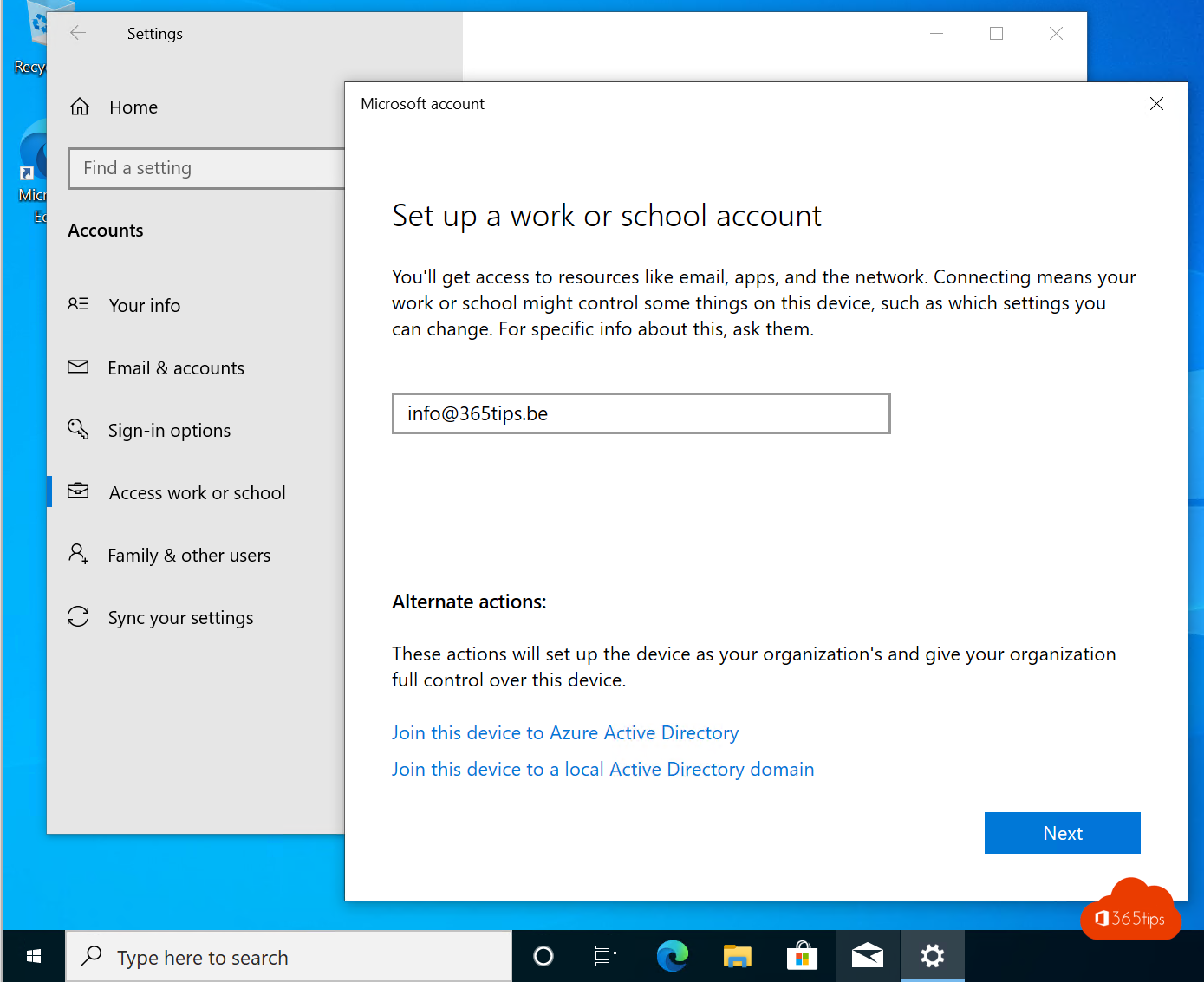
Do you sometimes work on your own computer at home? Then you can add your work account to Windows. You sign in once for the Office apps, Teams and OneDrive, without typing your password every time. Your PC still stays yours.
Add your work account
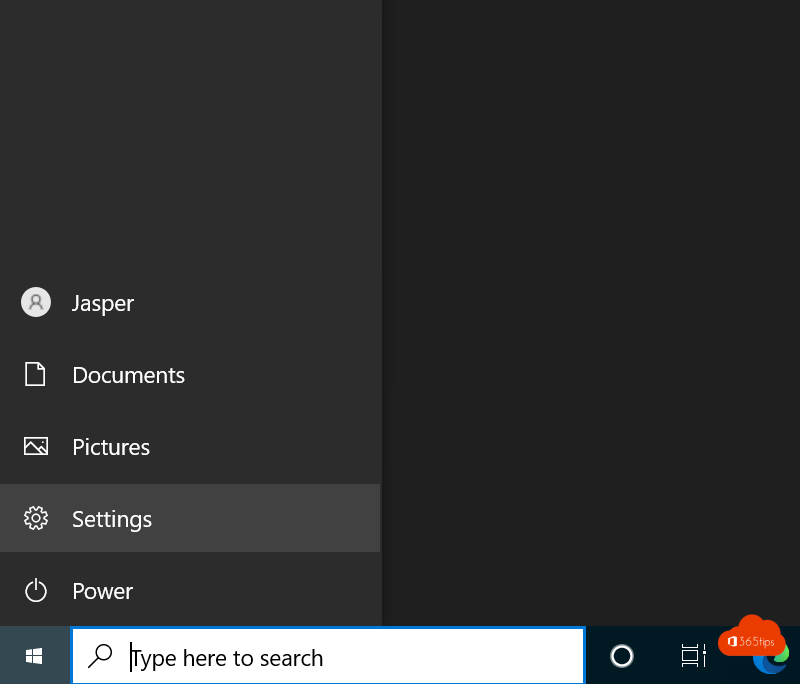
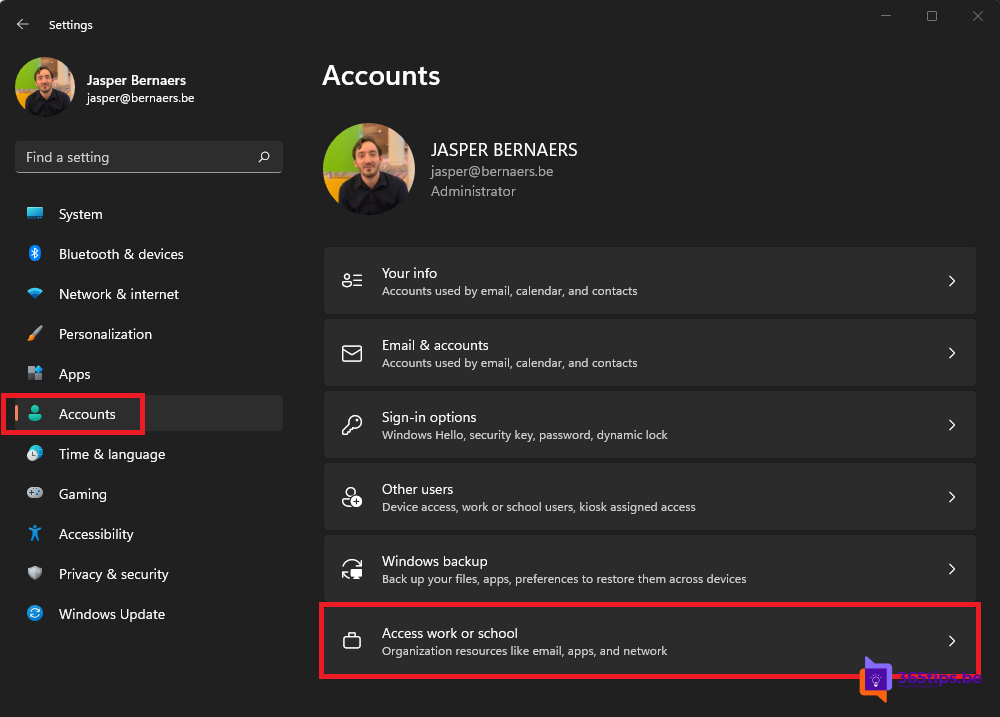
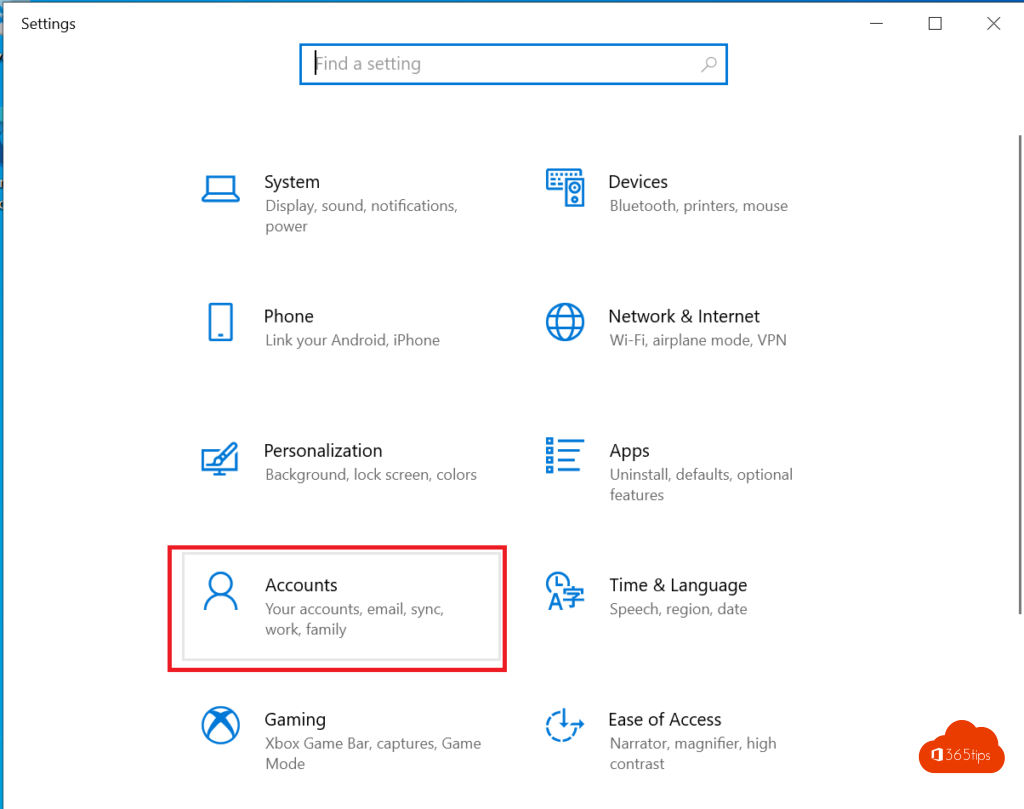
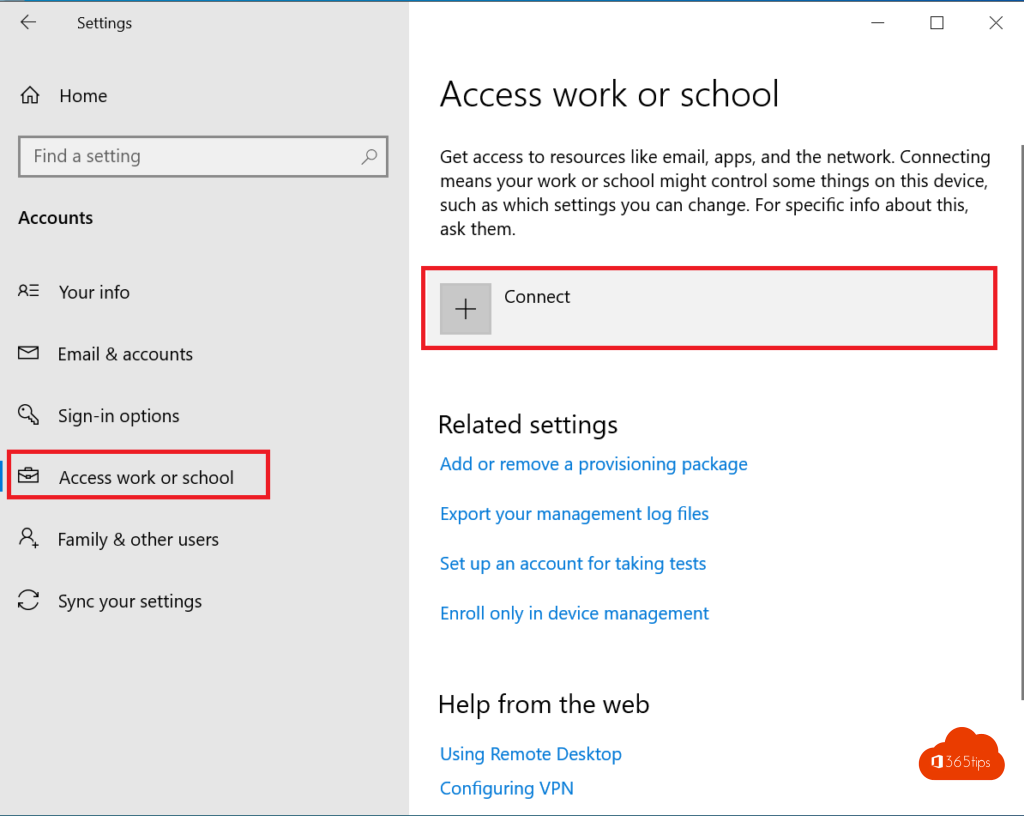
- Go to Settings > Accounts > Access work or school.
- Select Connect.
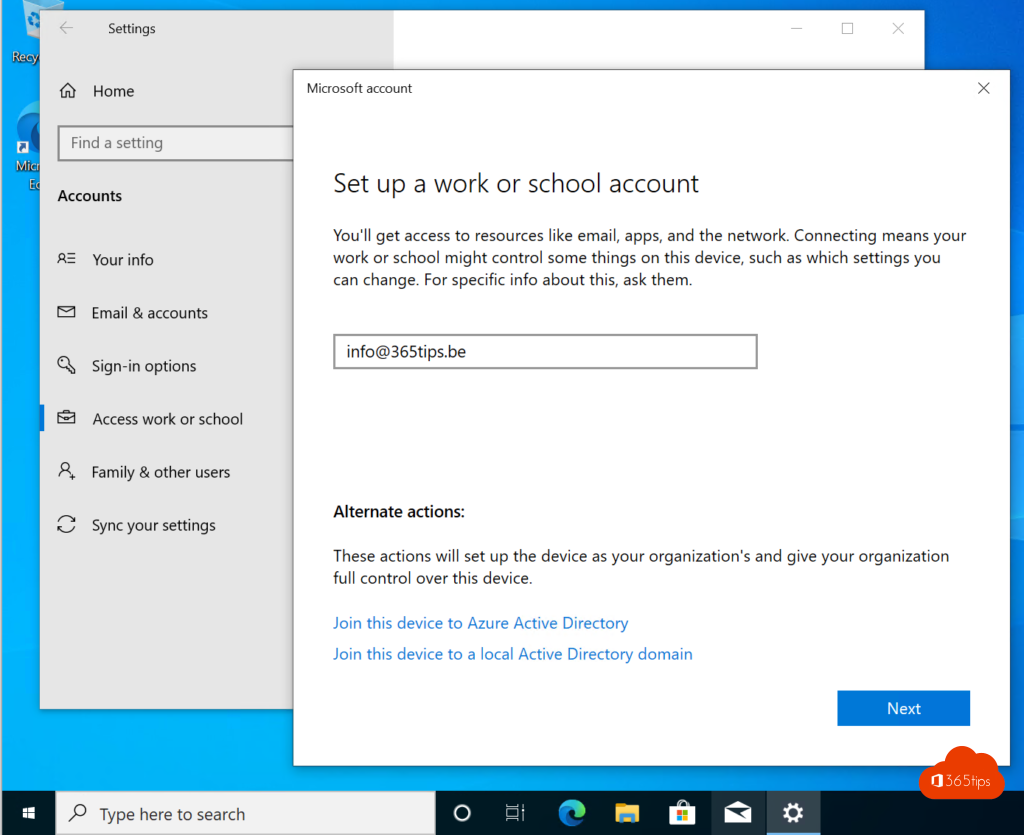
- Type your work address and select Next.
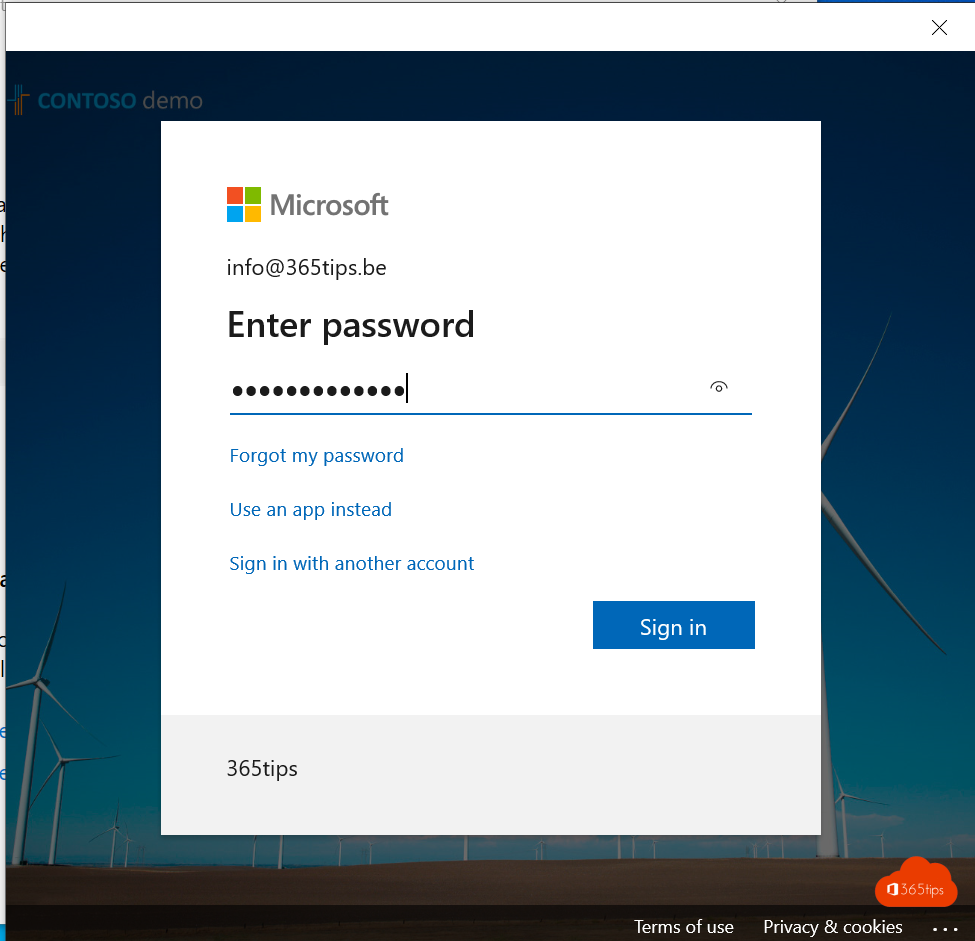
- Sign in with your password and MFA.
- Select Done. Your account is now in the list.
Can your organization manage your PC?
When you sign in to an Office app, Windows sometimes asks Allow my organization to manage my device. On a personal PC, choose No, sign in to this app only. Your PC stays yours and your organization only manages the work apps.
Remove the account again
Go to Access work or school, select the account and choose Disconnect. This works the same in Windows 10. Also see install Microsoft 365 apps on Windows and Entra joined vs hybrid joined.
Read also
Install the Microsoft 365 apps (Office) on your Windows PC
Entra joined, hybrid joined or registered: which should you choose?
Add a user in Windows 11 with a Microsoft or local account
Nederlandstalige versie: Je werkaccount toevoegen aan je eigen Windows-computer