Sharing a PC with your partner or children? Give everyone their own user account in Windows 11, with their own desktop, files and settings. This article shows how to add a user with a Microsoft account or a local account, and how to make someone an administrator.
Add a user
- Open Settings > Accounts > Other users.
- Next to Add other user, select Add account.
- Type the person's Microsoft account email address and select Next > Finish.
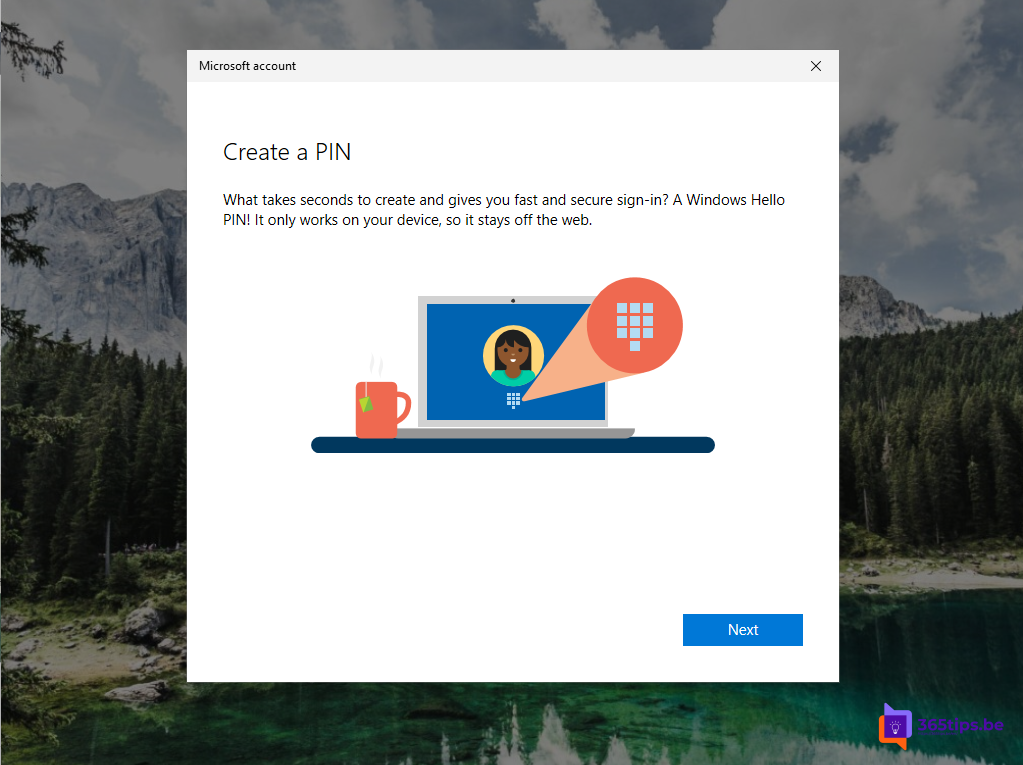
The new user signs in the first time with their own password or PIN, and Windows creates their profile.

A local account without a Microsoft account
- Under Add account, choose I don't have this person's sign-in information.
- Choose Add a user without a Microsoft account.
- Enter a username, password and security questions.
A local account doesn't sync settings and has no OneDrive, but works fine for a guest or a second account.
Make someone an administrator
Under Other users, select the account > Change account type > Administrator. Only give admin rights to people who need to install software.
For children
Add children through Settings > Accounts > Family. With Microsoft Family Safety you set screen time, age filters for apps and websites, and purchase approvals.
On a work PC
On a PC joined to your organisation, a colleague just signs in with their own work account. Adding personal accounts is often blocked there. Related: create a free Microsoft account and remove a device from your Microsoft account.
Read also
Create a free Microsoft account or Outlook.com address
How to remove a device from your Microsoft account or Microsoft 365 account
Change or fix your keyboard layout in Windows 11 (QWERTY, AZERTY)
Nederlandstalige versie: Een gebruiker toevoegen in Windows 11 met een Microsoft- of lokaal account