Sold an old laptop, lost a phone or have a PC from a colleague who left? Then you want to disconnect that device from your account so it no longer has access to your mail, files or Office licence. How that works depends on the type of account: a personal Microsoft account (Outlook.com, Microsoft 365 Personal or Family) or a work or school account (your organization's Microsoft 365). This article covers both, plus how an administrator removes or wipes a device.
Which account do you have?
| Account | Recognize it by | Manage devices at |
|---|---|---|
| Personal Microsoft account | @outlook.com, @hotmail.com, @live.com or your own address with Microsoft 365 Personal/Family | account.microsoft.com/devices |
| Work or school account | Your organization's e-mail address | myaccount.microsoft.com > Devices |
Remove a device from your personal Microsoft account
- Go to account.microsoft.com/devices and sign in.
- Find the device and click Show details.
- Click Remove this device, tick the confirmation and click Remove.
The device no longer appears in your list, but you aren't automatically signed out everywhere. So if the device was stolen or lost, also change your password and choose Sign out everywhere under Security.
Sign out of Office (Microsoft 365 Personal/Family) on a device
Microsoft 365 Personal and Family let you sign in to Office on several devices at once. Hit the limit? Go to account.microsoft.com/services, open your subscription and choose Sign out next to the installed device.
Remove a device from your work or school account
- Go to myaccount.microsoft.com and click Devices.
- Expand the device.
- Click Disable lost device if the device is lost or stolen. It can then no longer sign in with your account.
Only your administrator can remove a device completely. So also report a lost device to your IT department.
Sign out of the Office apps
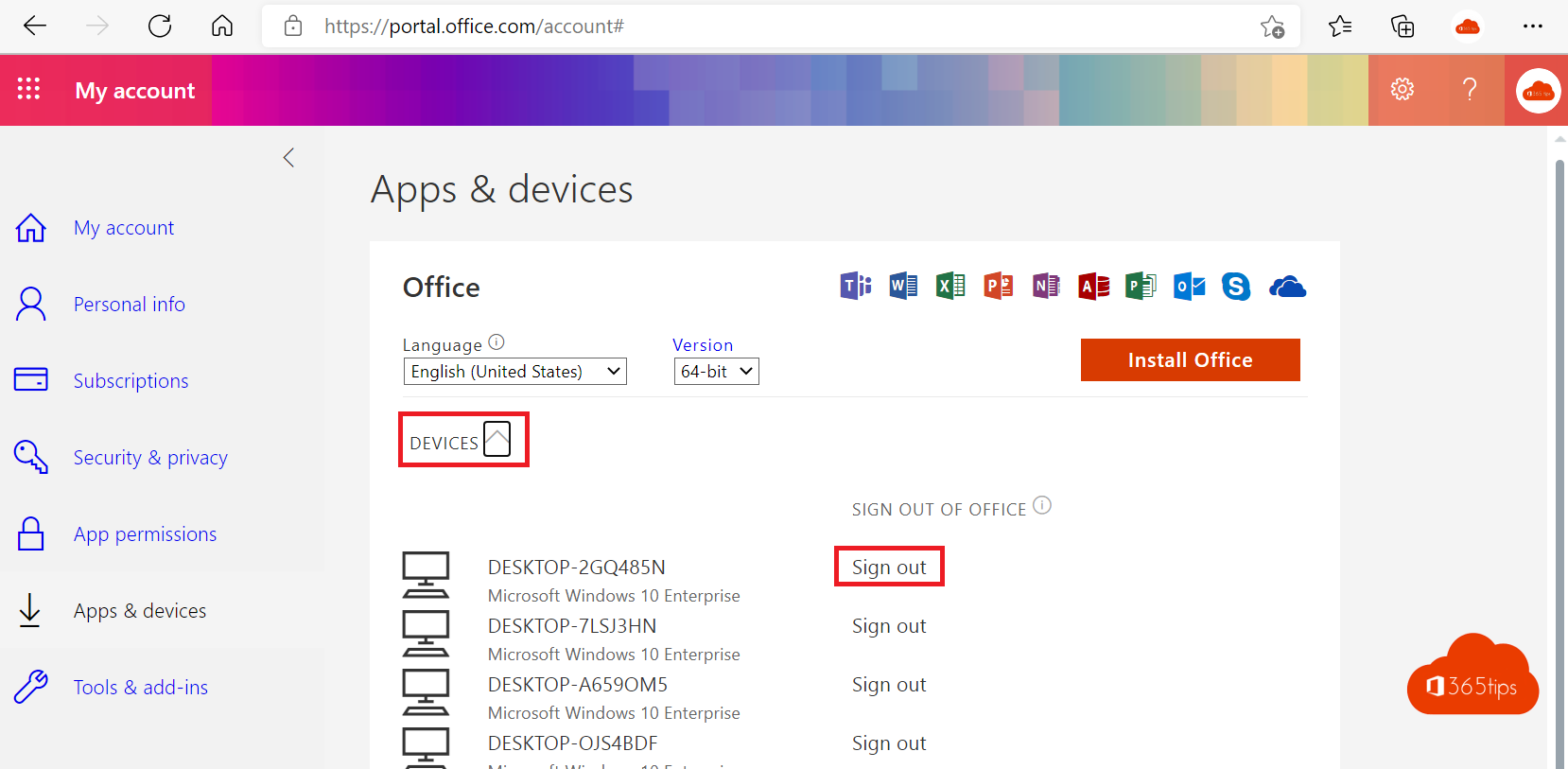
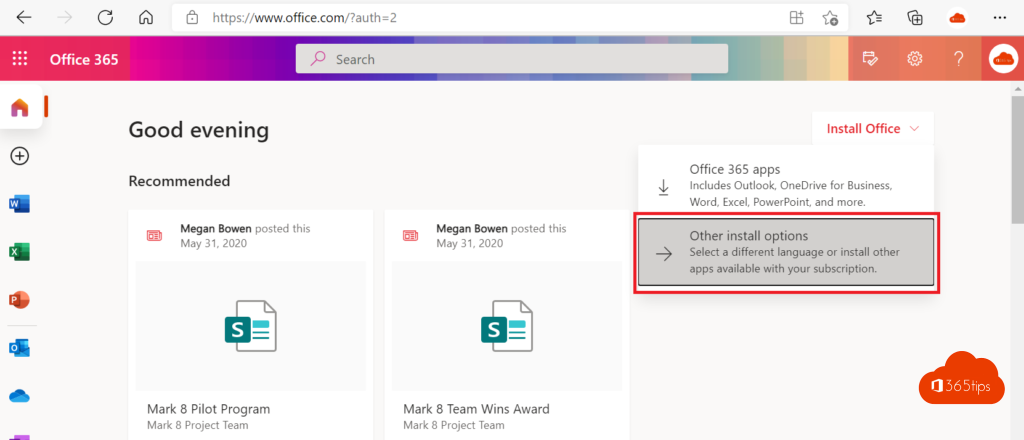
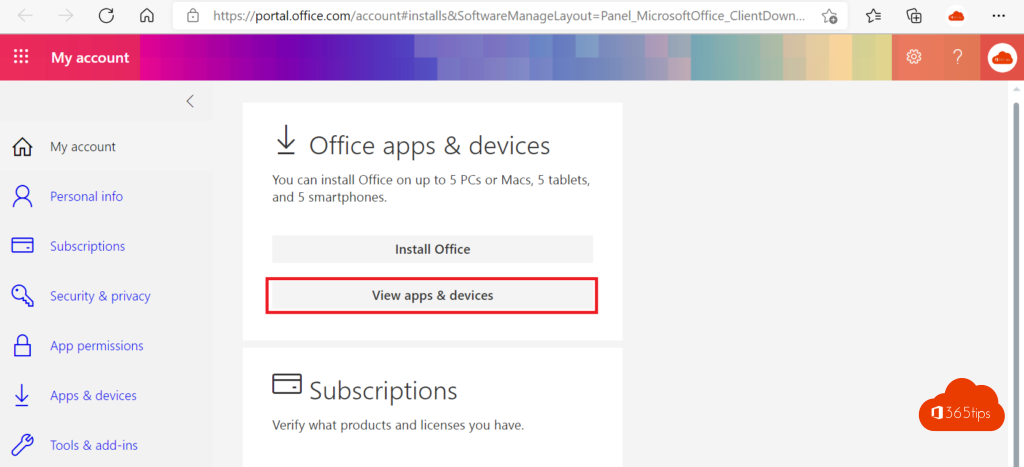
You may use your work Office apps on up to five PCs or Macs, five tablets and five phones. In My Account, go to Office apps (or Subscriptions) and click Sign out next to an old device.
Disconnect your work account from a Windows PC
Selling or passing on your own PC that had your work account on it? On that PC go to Settings > Accounts > Access work or school, click the account and choose Disconnect. Then reset the PC to factory settings (Settings > System > Recovery > Reset PC).
For administrators
In the Microsoft Entra admin center:
- Go to entra.microsoft.com > Entra ID > Devices > All devices.
- Select the device and choose Disable (blocks sign-in) or Delete.
In Microsoft Intune (for managed devices): go to intune.microsoft.com > Devices, open the device and choose:
- Retire: removes company data and apps, personal data stays. Handy for an employee's own phone.
- Wipe: resets the device to factory settings. For lost or stolen company devices.
- Delete: removes the device from Intune.
For a stolen device, also revoke the user's sessions: in the Entra admin center open the user and click Revoke sessions.
Clean up old, unused devices regularly: in All devices sort by Activity and disable devices that haven't signed in for months before deleting them.
Read also
Which Microsoft 365 licence do I have? How to check
How to set the password expiration policy in Microsoft 365
All Microsoft 365 admin portals in one list: the right URLs in 2026
Nederlandstalige versie: Een apparaat verwijderen uit je Microsoft-account of Microsoft 365-account