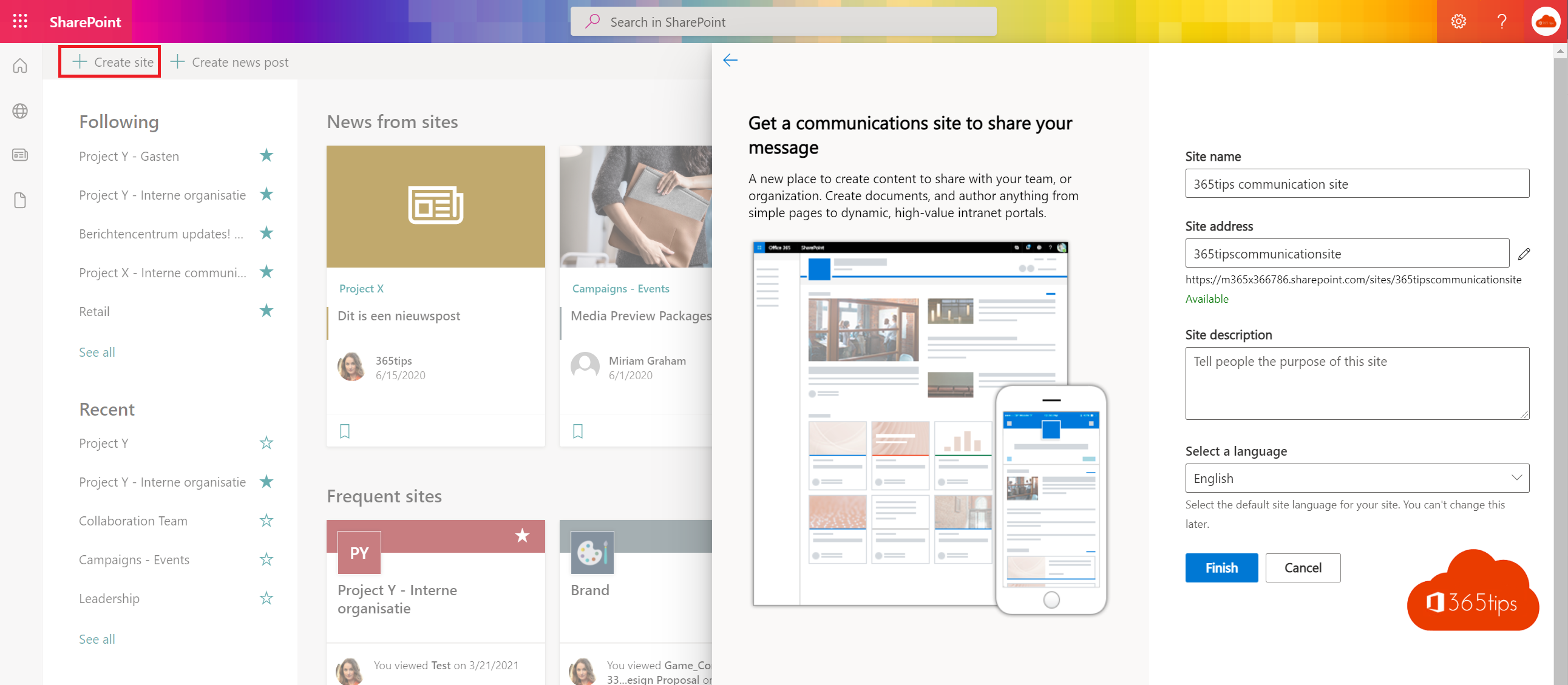
A communication site in SharePoint is meant for sharing information with a large audience: an intranet, news from management, an HR portal or a site about a project. A few people write, everyone else reads. In this guide you create such a site and add it to Teams.
Communication site or team site?
- Communication site: few authors, many readers. No connected group, mailbox or team.
- Team site: everyone works together on documents. Usually connected to a Microsoft 365 group and a team in Teams.
Create a communication site
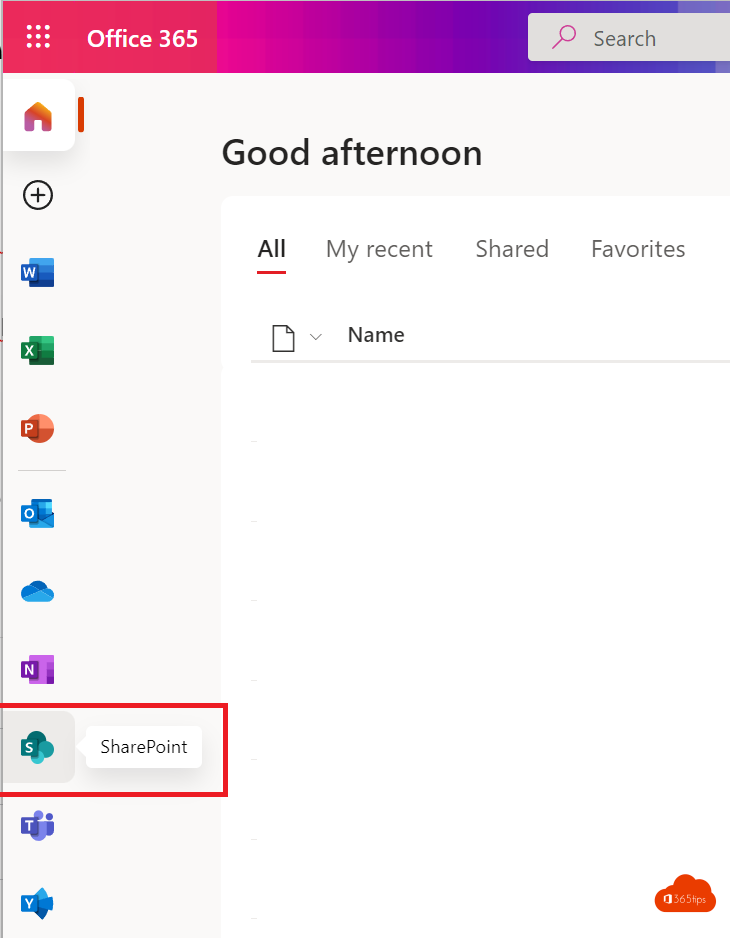
- Go to the SharePoint start page via the app launcher or https://yourtenant.sharepoint.com.
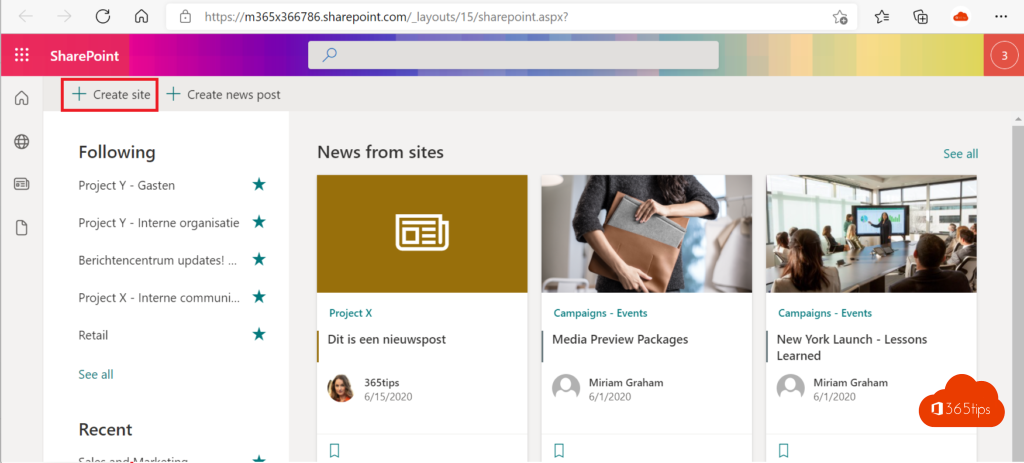
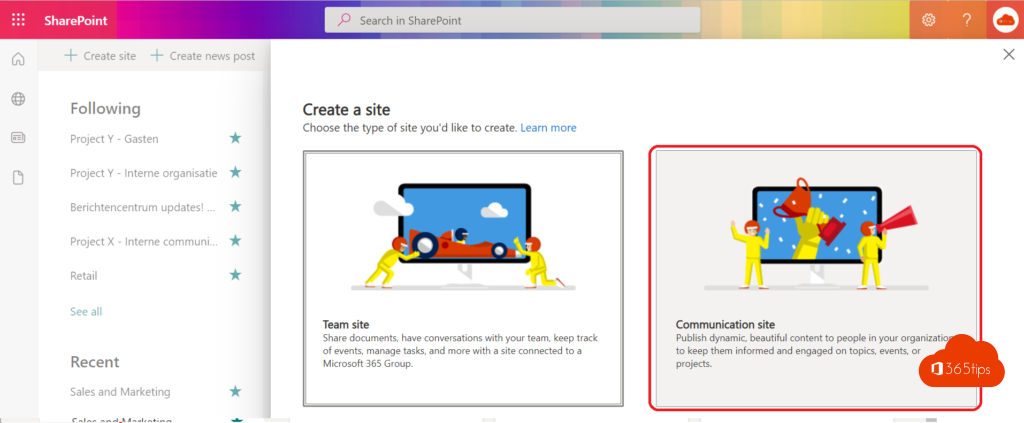
- Select + Create site > Communication site.
- Choose a template, such as Standard communication, Showcase or a theme like HR or department.
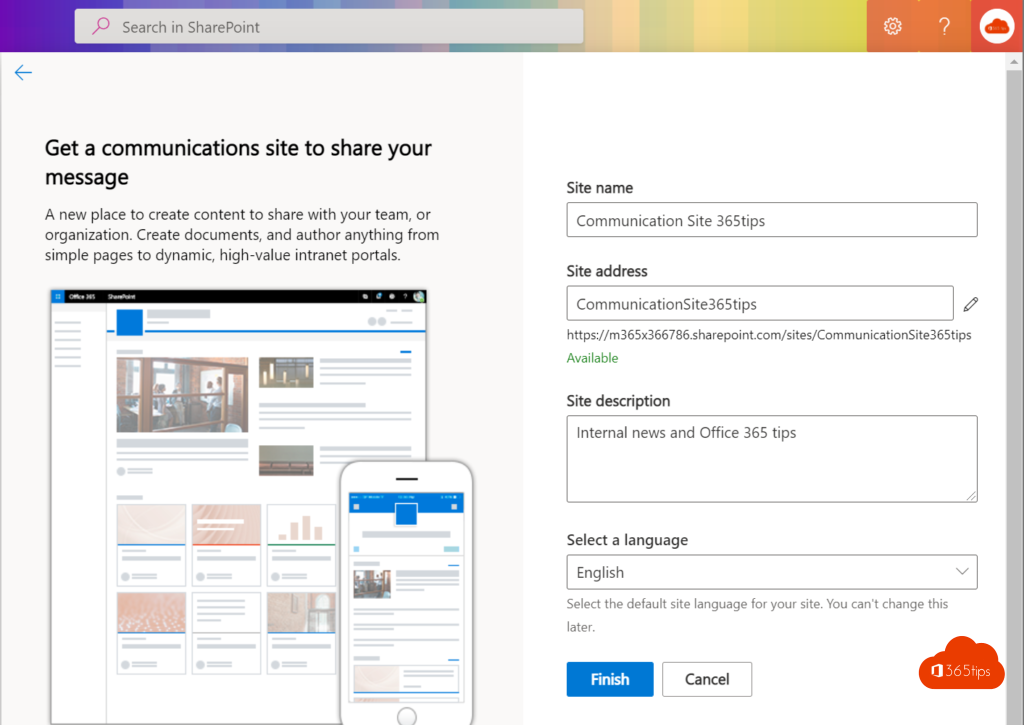
- Give the site a name, check the site address and add a description.
- Choose the language and select Create site.
Don't see the button? Then your admin has restricted site creation. Ask your IT department to create the site.
Set up the site
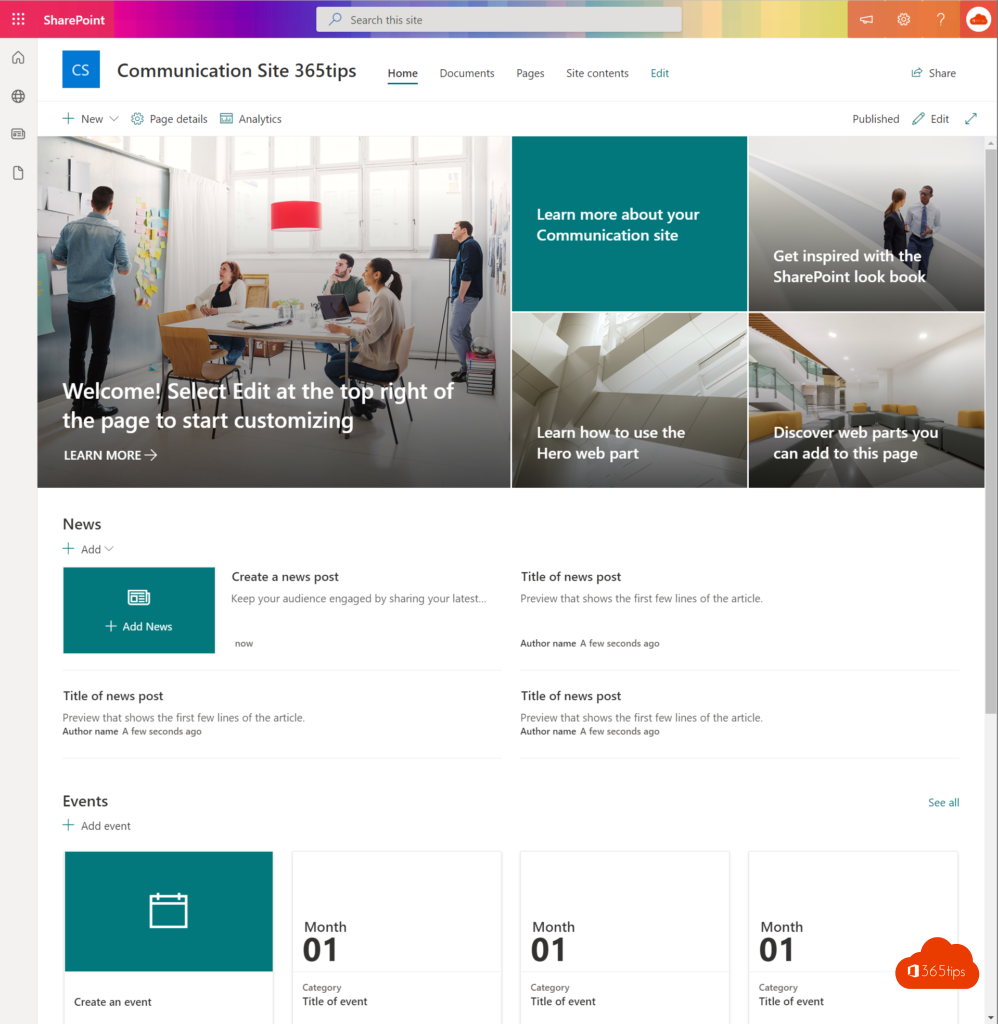
- Select Edit to change the home page with web parts such as News, Quick links and Events.
- Go to Settings (gear) > Change the look for colors, header and navigation.
- Give permissions via Settings > Site permissions: a small group as members or owners, everyone else as visitors (read).
Add the site to Teams
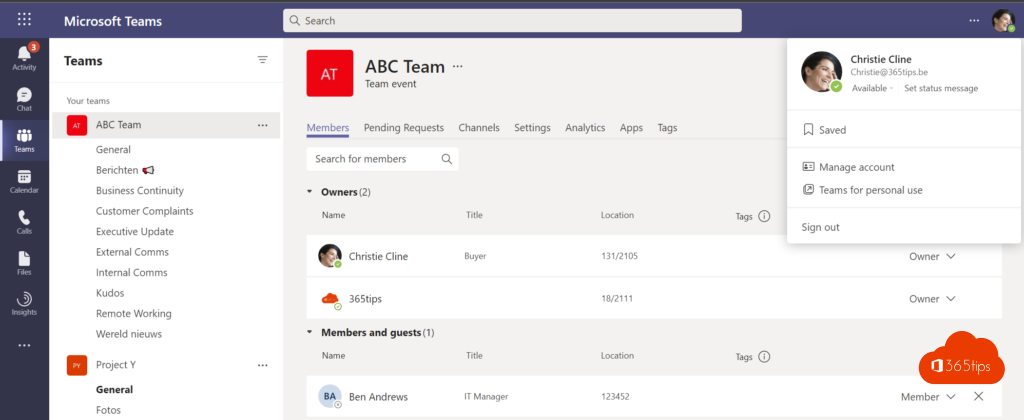
Add the site as a tab in a channel: select + > SharePoint and pick the page or site. Read add a SharePoint page or site as a Teams tab. For a real intranet inside Teams, look at Viva Connections. Next step: create a page in SharePoint Online.
Read also
Create and publish a page in SharePoint Online
Add a SharePoint page, site or list to Microsoft Teams
Sharing options greyed out in Teams, SharePoint or OneDrive: how to fix it
Nederlandstalige versie: Een communicatiesite maken in SharePoint Online