A task list, a request list or a content calendar quickly looks dull and cluttered as a table. In Microsoft Lists you switch the same list to a board view in one click: a kanban board with cards in columns such as To do, In progress and Done. Drag a card to another column and the list updates instantly. This article shows how to create a board view, customize the cards and use it in Teams.
What do you need?
- A list in Microsoft Lists or SharePoint.
- A column of type Choice (for example Status) or Person. Its values become the columns of your board.
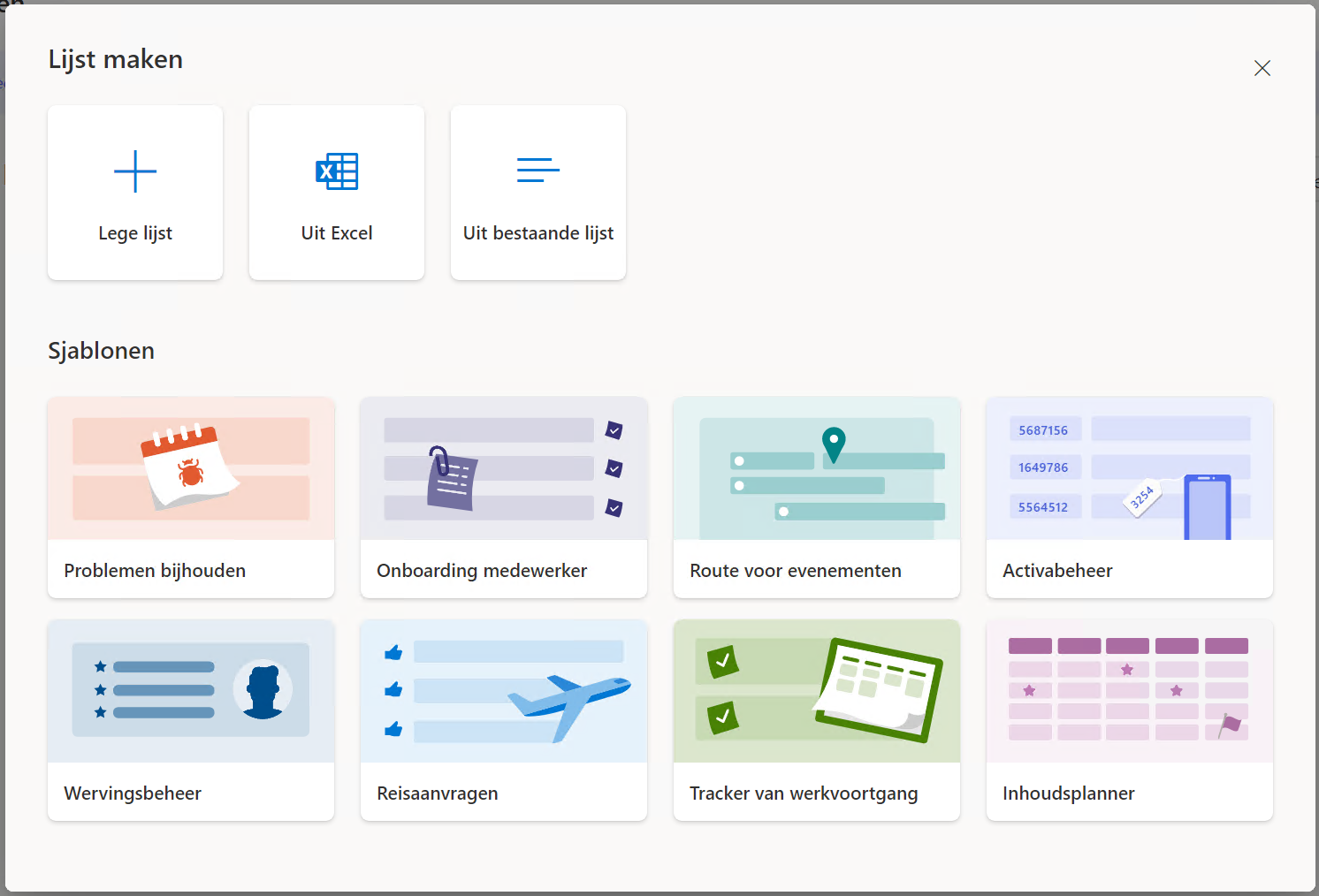
Starting from scratch? Under New list, pick a template such as Issue tracker or Work progress tracker. They already have a status column.
Create a board view
- Open the list in Microsoft Lists, SharePoint or Teams.
- Select the view picker at the top right (for example All items) > Create new view.
- Name the view, choose Board and under Organize by choose the Status column.
- Select Create.
Each value of the choice column becomes a column on the board, and each item a card. Drag a card to another column to change its status.

Customize the board
- Add or move columns: select + Add bucket, or drag a column to another position. That also updates the choices in your status column.
- Customize cards: in the view, choose Edit card to pick which fields appear on the card, such as the assignee, due date or an image.
- Colors: give the choices in your status column a color under Column settings > Edit; the color shows on the board too.
- Organize by person: create a second board organized by Assigned to to see who does what.
Use it in Teams
Add the list as a tab in a channel: select + at the top of the channel, choose Lists and select the existing list. Then set the board view as the default. The whole team works from the same board without leaving Teams. With rules (Automate > Create a rule) someone gets notified automatically when a card moves to Done.
Lists board or Planner?
| Lists board | Planner | |
|---|---|---|
| Custom columns and fields | Yes, unlimited | Limited |
| Forms, rules, Power Automate | Yes | Limited |
| Tasks in To Do and Outlook | No | Yes |
| Good for | Requests, registers, content calendars | Team tasks with deadlines |
Read also
Request and give approvals with the Approvals app in Teams
How to restore deleted files in Microsoft Teams and SharePoint
How to schedule a chat message in Microsoft Teams
Nederlandstalige versie: Een kanbanbord maken met de bordweergave in Microsoft Lists