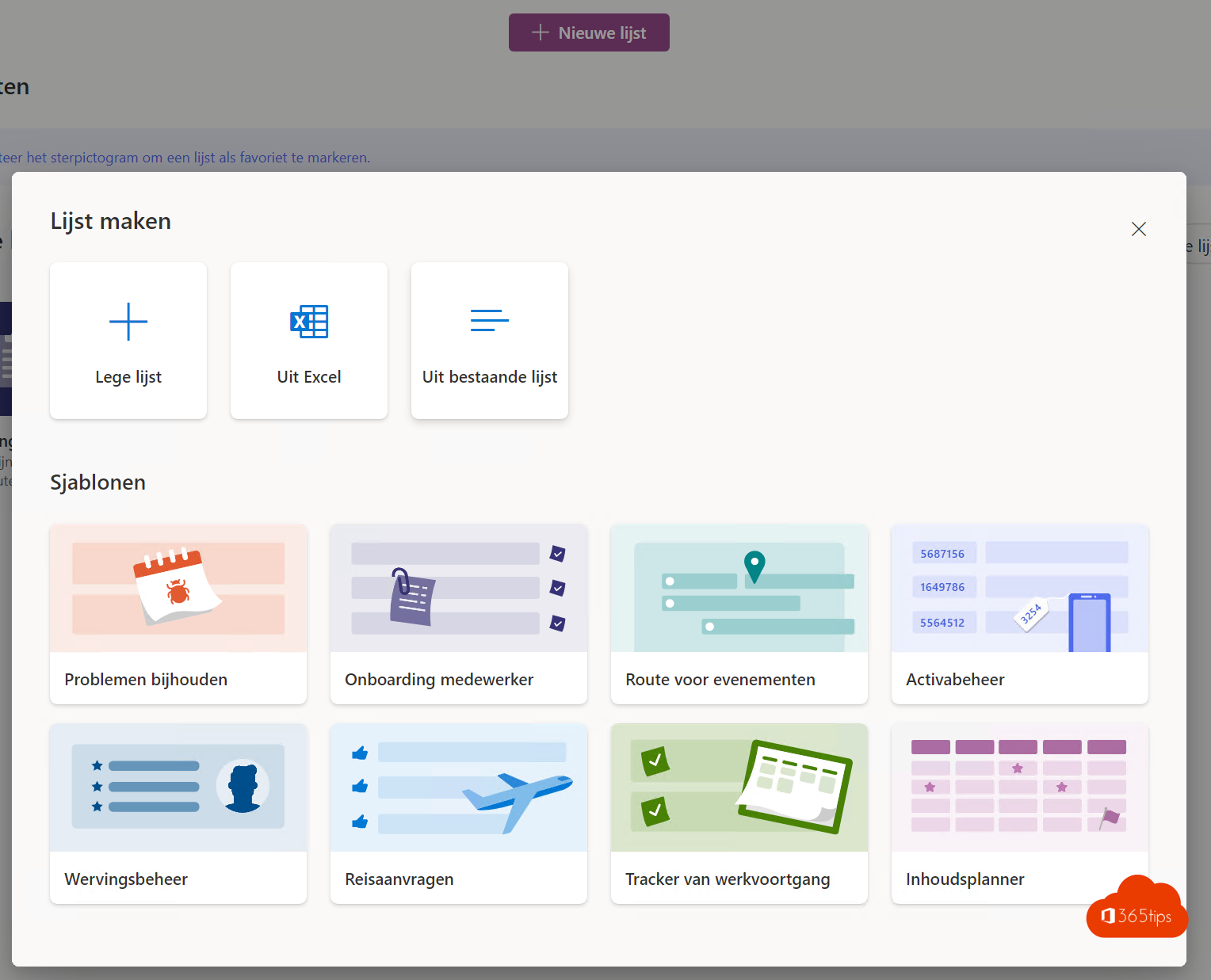
Already have lists in SharePoint, such as a contact list or an equipment overview? You don't need to rebuild them. Microsoft Lists is built on SharePoint, so your existing lists are already there. You can also base a new list on one.
Find your SharePoint lists in Lists
- Open Lists from the Microsoft 365 app launcher, or the Lists app in Teams.
- Under Recent lists and Favorites you see lists you opened recently, including from SharePoint sites.
- Select the star to keep a list as a favorite.
A new list based on an existing one
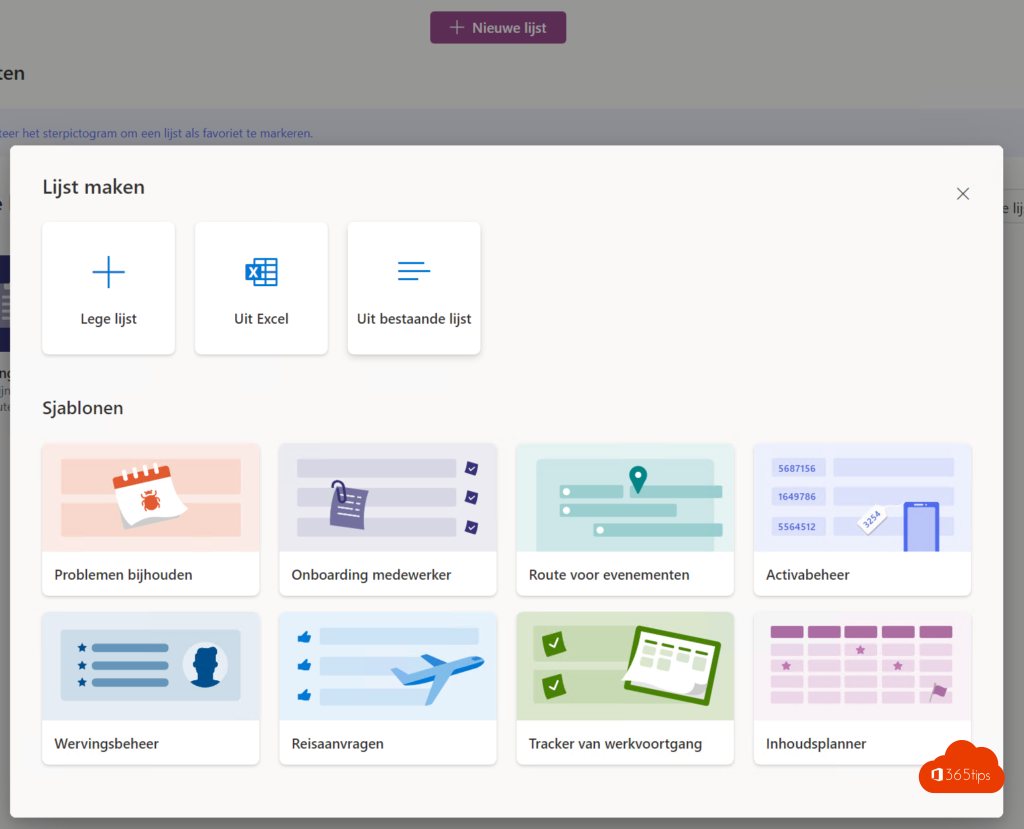
- Select + New list > From existing list.
- Pick the site and the list.
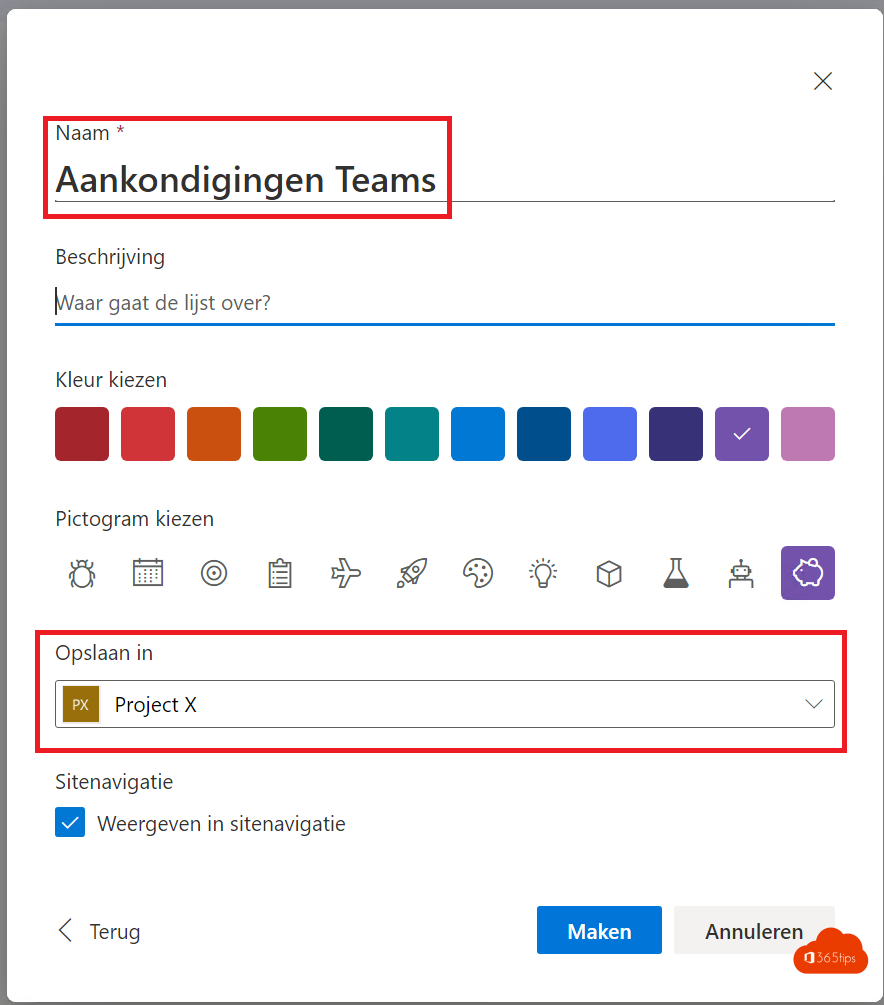
- Name the new list and choose where to save it. Columns, views and formatting are copied; items are not.

What do you gain?
- Modern views: grid, gallery, calendar and board. See board view in Lists.
- Rules and color formatting.
- Adding the list as a tab in Teams.
Also see share a list with colleagues and build a Power App from a SharePoint list.
Read also
Get started with Microsoft Lists in 3 steps
Share a list so colleagues can enter data
Create a Power App from a SharePoint list
Nederlandstalige versie: Een bestaande SharePoint-lijst gebruiken in Microsoft Lists
More in English
▸Create a kanban board with board view in Microsoft ListsTurn a Microsoft Lists list into a kanban board with cards per status. Create a board view, customize the…
▸Convert an Excel file into a list in Microsoft ListsImport an Excel table into Microsoft Lists, pick the right column types and collaborate in one list instead…
▸Get notified when someone changes a SharePoint or Teams fileSharePoint alerts are being retired. Get notified of new or changed files with SharePoint rules or Power…
▸Create a communication site in SharePoint OnlineCreate a communication site for news or an intranet, set it up with web parts and permissions, and add it to…