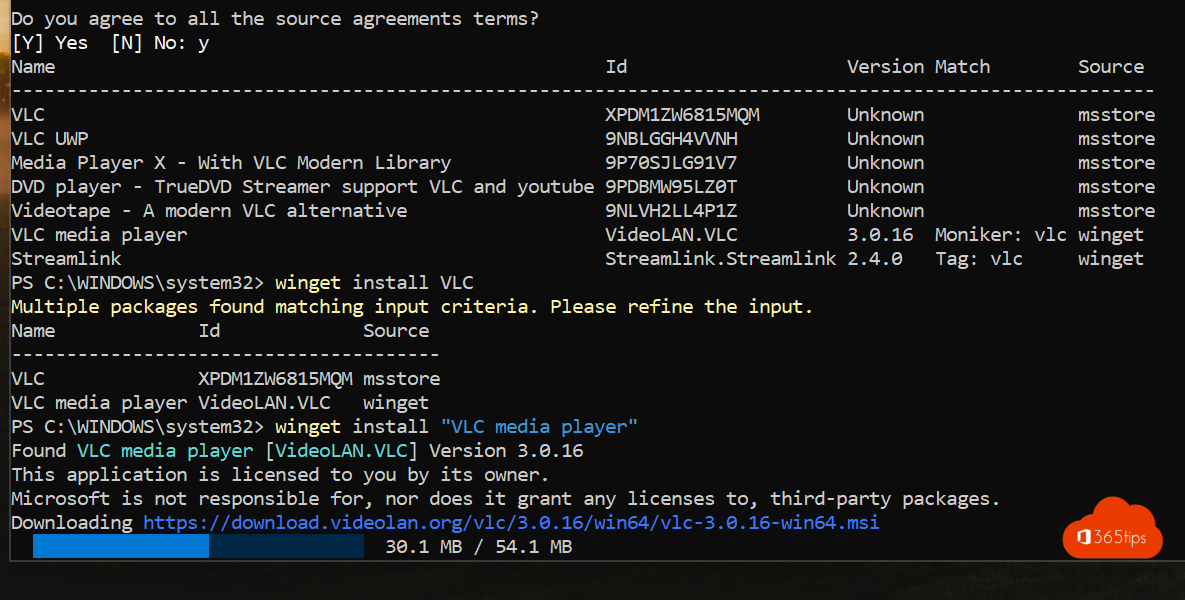
Install software without hunting down websites and clicking through setup wizards? With winget, the Windows package manager, you install and update programs with a single command. Ideal for a new PC or for updating everything in one go. This article shows how winget works.
Do you have winget already?
Open Terminal and type winget --version. On Windows 11 and recent versions of Windows 10, winget comes with the App Installer app. If you get an error, install or update App Installer from the Microsoft Store.

The key commands
| Command | What it does |
|---|---|
| winget search vlc | Search for a program |
| winget install --id VideoLAN.VLC | Install a program |
| winget list | Show all installed programs |
| winget upgrade | Show which programs have an update |
| winget upgrade --all | Update everything at once |
| winget uninstall --id VideoLAN.VLC | Remove a program |
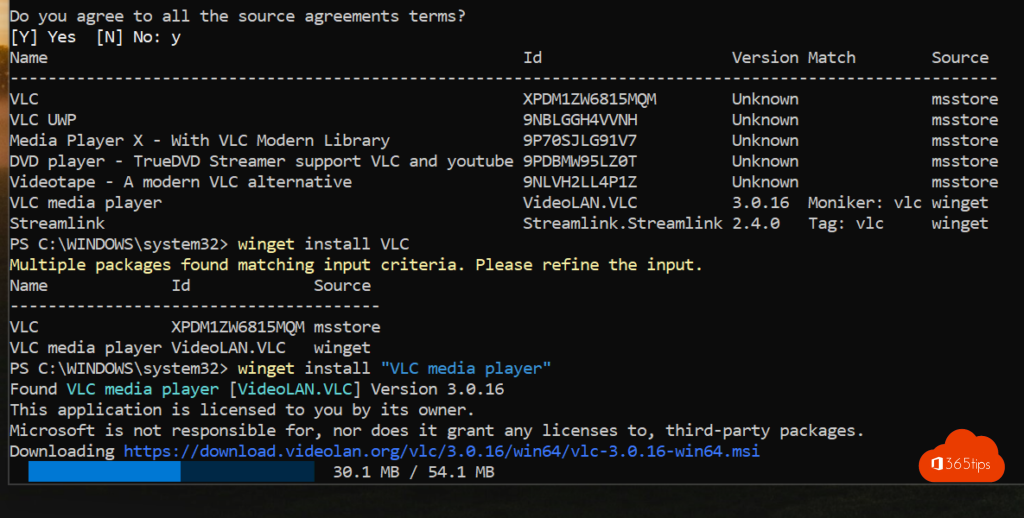
Always use --id with the exact name from winget search, so you get the right package.
Moving to a new PC
- On your old PC: winget export -o apps.json
- Copy apps.json to the new PC.
- On the new PC: winget import -i apps.json
Handy examples
- PowerShell 7: winget install --id Microsoft.PowerShell. Read install PowerShell 7.
- PowerToys: winget install --id Microsoft.PowerToys. Read install PowerToys.
Tips
- Some installs need admin rights; open Terminal as administrator.
- Add --silent for an install without windows.
- On work PCs, IT usually manages software through Intune. Only use winget there if it's allowed.
Read also
Install, update and use PowerShell 7 on Windows
Install PowerToys on Windows 11: the most useful tools
Run Command Prompt as administrator in Windows 11 and 10: 6 ways
Nederlandstalige versie: Software installeren en bijwerken met winget in Windows