A corporate typeface, a nice font from Google Fonts or a special font for an invitation: in Windows 11 and Windows 10 you install it in a few clicks. This article shows how to install a font, for yourself or for all users, how to remove it again, and where to find free fonts safely. You also learn what to keep in mind when you share the font in Word or PowerPoint.
Install a font
- Download the font. It usually comes in a zip file.
- Right-click the zip file > Extract all. You can't install a font that is still inside a zip file.
- Right-click the file with the extension
.ttf,.otfor.ttc. - Choose Install (just for you) or Install for all users (needs administrator rights). In Windows 11 these options are sometimes under Show more options.
A font with several styles (Regular, Bold, Italic) consists of several files. Select them all and install them in one go.
Or through Settings
- Open Settings > Personalization > Fonts.
- Drag the font files onto the Drag and drop to install box.
The same page lists all installed fonts, with a preview and the available styles.
Where do fonts end up?
| Install | Folder | Available to |
|---|---|---|
| Install (default) | %LOCALAPPDATA%\Microsoft\Windows\Fonts | Only your account |
| Install for all users | C:\Windows\Fonts | Everyone on the PC |
Some older programs only see fonts in C:\Windows\Fonts. If a font doesn't appear in such a program, install it for all users and restart the program.
Safe sources for free fonts
- Google Fonts (fonts.google.com): hundreds of free fonts with an open licence, including for commercial use.
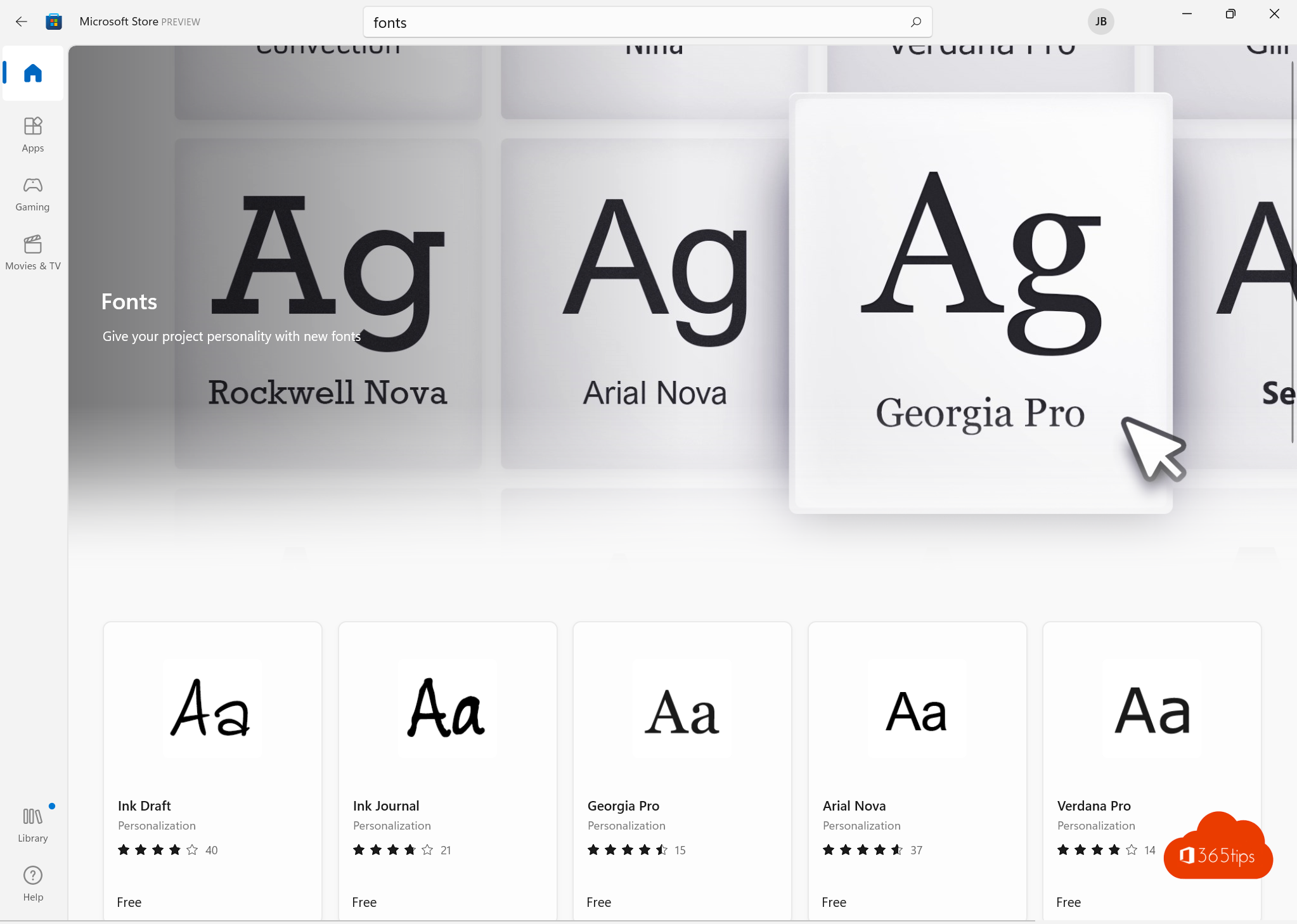
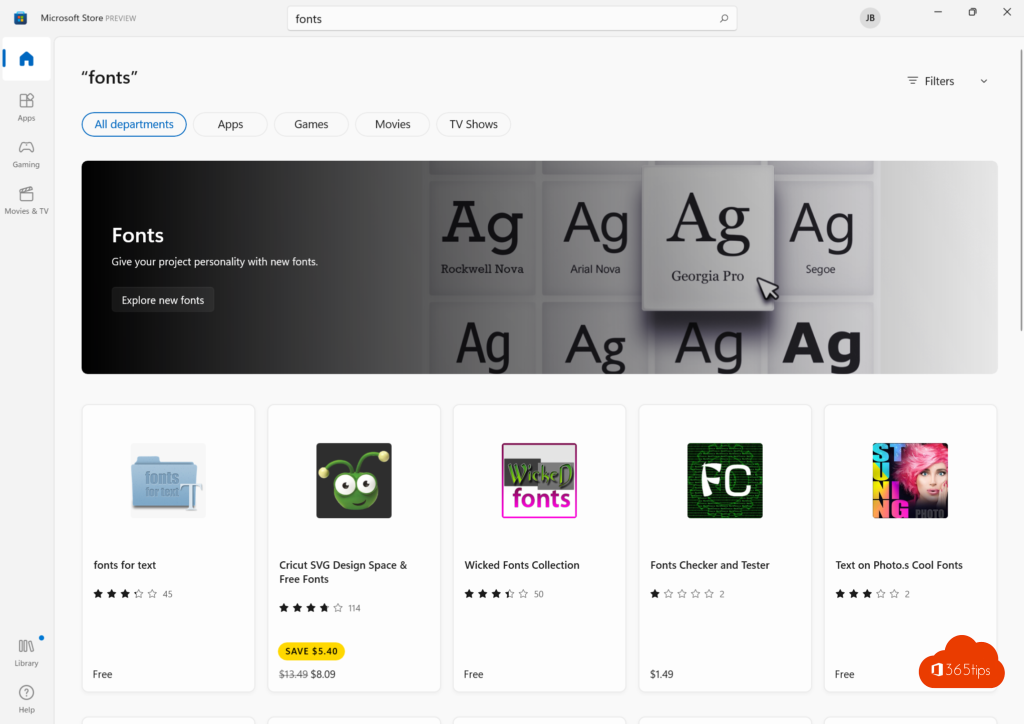
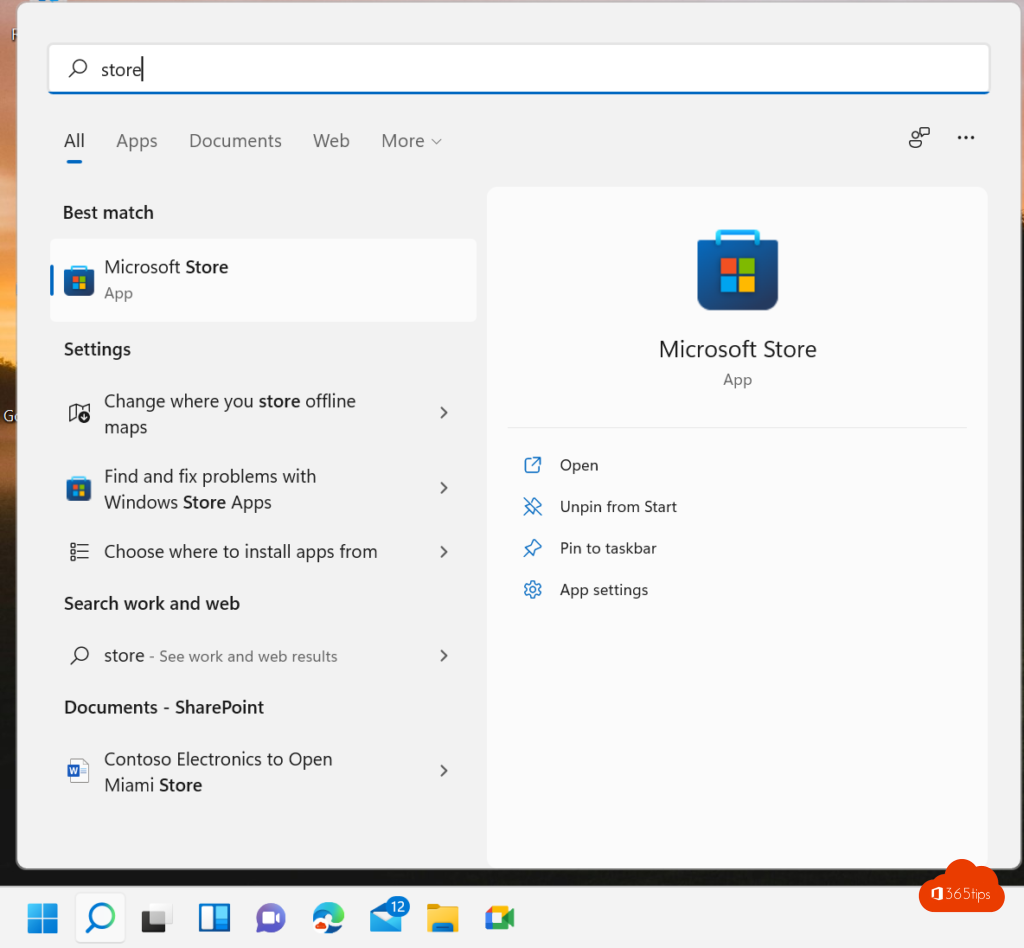
- Microsoft Store: search for "fonts" to install fonts with one click.
- Adobe Fonts: included with an Adobe Creative Cloud subscription.
Don't download fonts from unknown sites or as an .exe file. A font is always a .ttf, .otf or .ttc file. Also check the licence if you use the font for your business or in a logo.
Remove a font
- Go to Settings > Personalization > Fonts.
- Find the font and click it.
- Click Uninstall.
Don't remove Windows' default fonts such as Segoe UI, Arial or Calibri; apps and Windows itself use them.
Sharing fonts in Word and PowerPoint
Using your own font in a document you send to someone? If they don't have the font, they see a different one. Solutions:
- Embed fonts: in Word or PowerPoint: File > Options > Save > Embed fonts in the file. The file gets larger, and not every font may be embedded.
- Export to PDF if the recipient doesn't need to edit the document.
- Cloud fonts: Microsoft 365 has hundreds of extra fonts that download automatically when you pick them. They work on any PC with Microsoft 365.
For administrators: fonts on every PC
Need the corporate font on all company PCs? Package the fonts with a short PowerShell script that copies them to C:\Windows\Fonts and registers them as a Win32 app, and deploy it with Microsoft Intune. The font is then also on new devices, without users needing to be administrators.
Read also
How to turn on dark mode in Windows 11
How to show file extensions in File Explorer in Windows 11 and 10
How to customize the Windows 11 Start menu: left, without Recommended or like Windows 10
Nederlandstalige versie: Een lettertype installeren in Windows 11 en 10