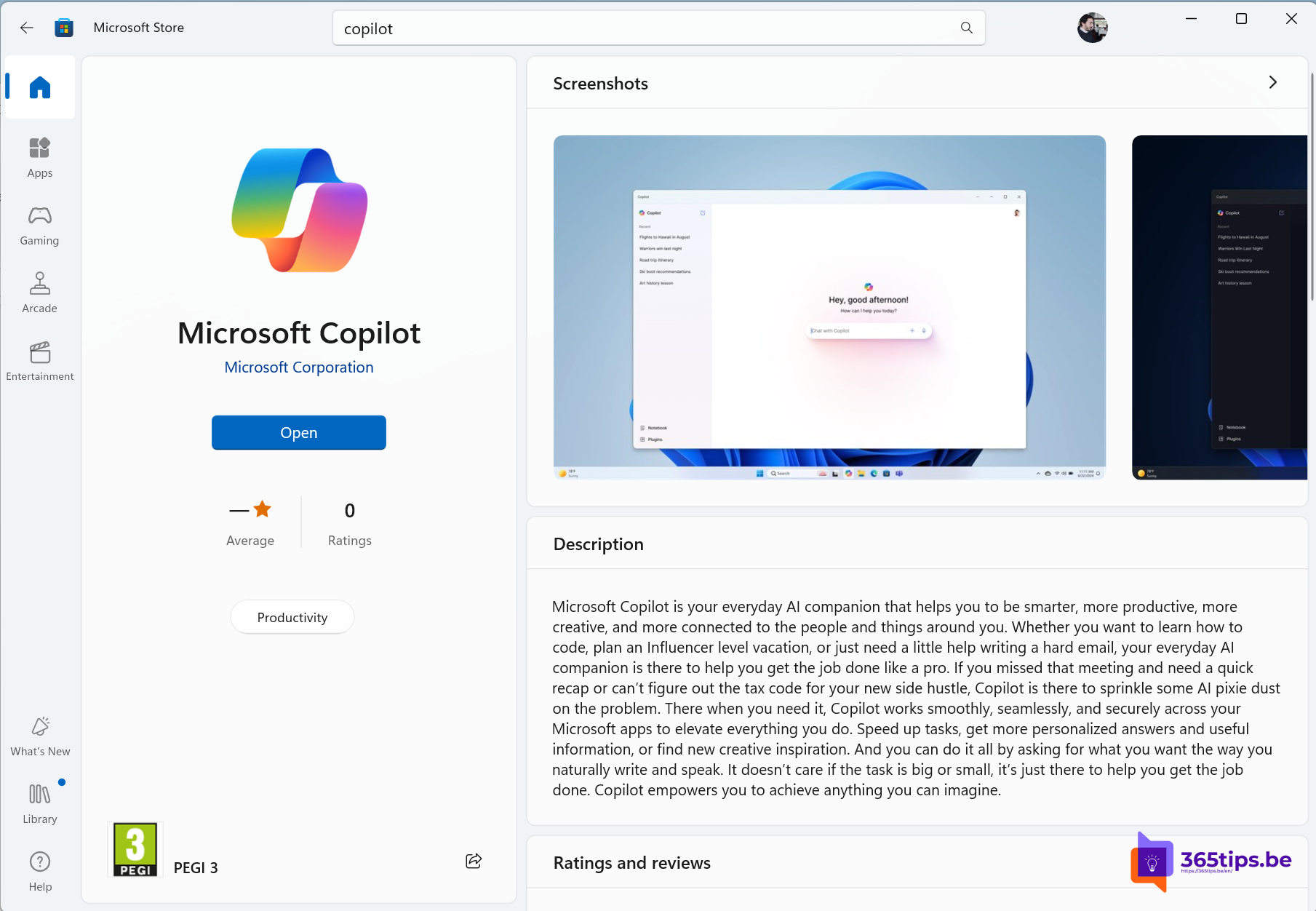
In Windows 11, Copilot is a regular app. On most recent PCs it's already installed; it's no longer a sidebar but an app that updates through the Store. Can't find it, or did you remove it? Then you can reinstall the Copilot app from the Microsoft Store in a few minutes. With a work account you usually use the Microsoft 365 Copilot app instead; your admin decides which one you get.
Step 1: Check whether Copilot is already there
- Select Start and type Copilot.
- If the app shows up in the results, you can open it right away.
- If your keyboard has a Copilot key, press it. On some PCs Windows + C opens Copilot; that depends on your version and settings.
Also check that you're on Windows 11: Start > Settings > System > About. The version is under Windows specifications.
Step 2: Install Copilot from the Microsoft Store
- Select Start, type Microsoft Store and open the app.
- Type Copilot in the search bar at the top and press Enter.
- Choose the Microsoft Copilot app by Microsoft Corporation. Make sure you don't pick an app from another publisher.
- Select Get or Install.

Prefer the command line? You can use winget as well. Look up the right ID first:
winget search CopilotStep 3: Open Copilot and sign in
- Open Copilot from the Start menu.
- Select Sign in and choose your Microsoft account. Without signing in, Copilot is limited.
- Ask your first question, or use voice to talk to Copilot.

On a work PC
- With a work account you use Microsoft 365 Copilot Chat, with your organization's data protection. You can do that through the Microsoft 365 Copilot app.
- On managed PCs, admins can install, hide or remove the Copilot app with Intune and policies. If you can't find the app in the Store, it may be blocked.
- Admins can remap the Copilot key to another app. The exact settings differ per Windows version.
Troubleshooting
- No Install button: update the Microsoft Store and Windows via Windows Update.
- Copilot not available: Copilot isn't available in every country or for every account type.
- App won't start: go to Settings > Apps > Installed apps, select Copilot and use Repair or Reset.
Also see getting started with Microsoft 365 Copilot Chat and Windows 11 keyboard shortcuts.
Read also
Get started with Microsoft 365 Copilot Chat (formerly Bing Chat Enterprise)
The most useful keyboard shortcuts for Windows 11
Copilot at home: from Copilot Pro to Microsoft 365 Personal and Family
Nederlandstalige versie: De Copilot-app installeren in Windows 11 via de Microsoft Store