Microsoft PowerToys is a free set of utilities for anyone who wants more from Windows. Snapping windows into custom zones, copying text from an image, renaming hundreds of files at once or picking a colour off your screen: it's all in there. This article shows how to install PowerToys and which tools are most worthwhile.
Install PowerToys
- With winget: open Terminal and type winget install --id Microsoft.PowerToys --source winget.
- From the Microsoft Store: search for PowerToys and select Install.
- From GitHub: download the installer from Microsoft's PowerToys releases page.
After installation PowerToys sits in the system tray. Double-click it to open settings and turn each tool on or off.

The most useful tools
| Tool | What it does | Shortcut |
|---|---|---|
| Command Palette | Find and launch apps, files and commands (successor to PowerToys Run) | Windows + Alt + Space |
| FancyZones | Create your own window zone layouts | Hold Shift while dragging |
| Text Extractor | Copy text from an image or video on screen | Windows + Shift + T |
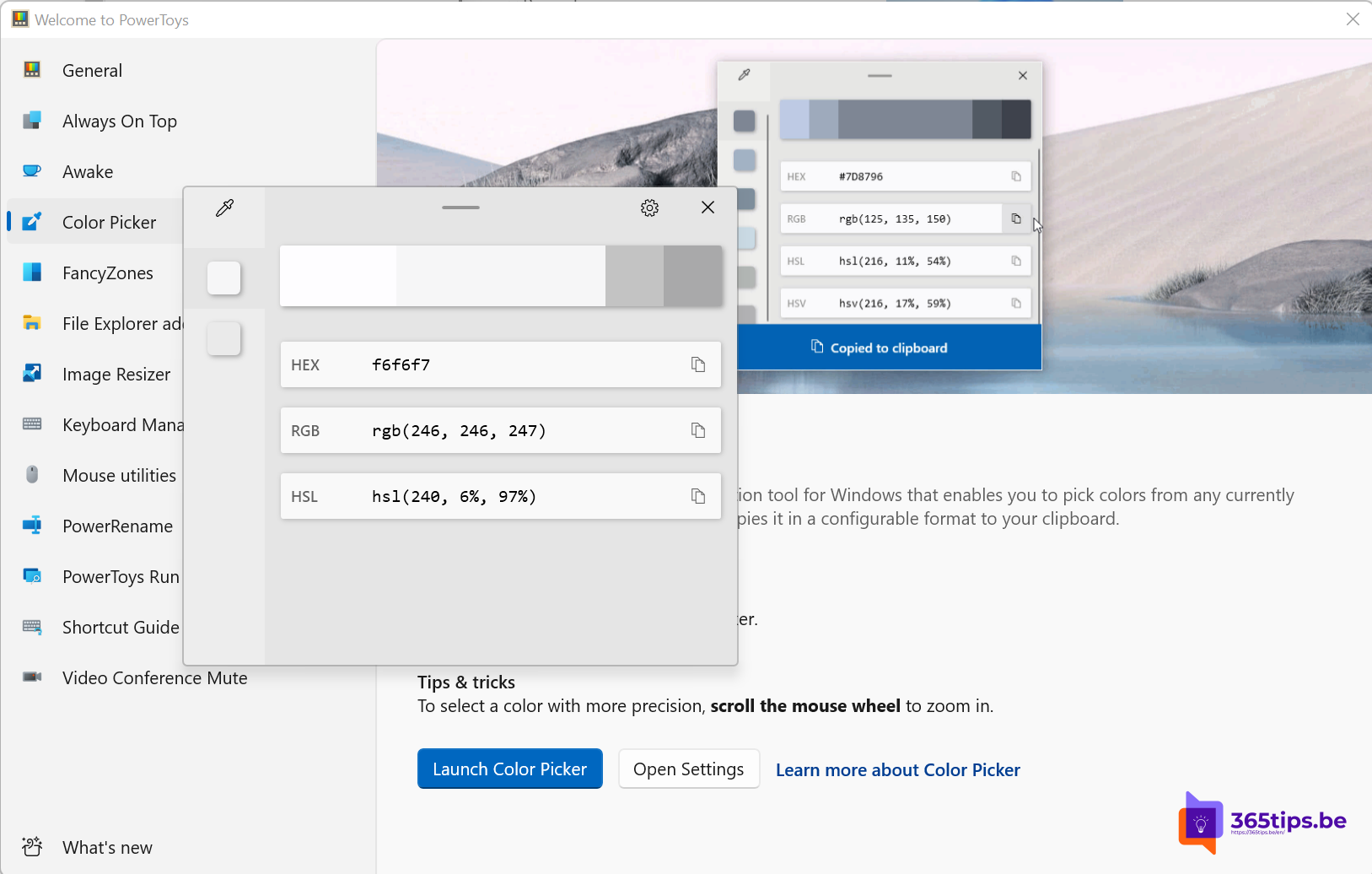
| Color Picker | Get the colour code of any point on screen | Windows + Shift + C |
| Always On Top | Keep a window above all others | Windows + Ctrl + T |
| PowerRename | Rename many files at once, including with regular expressions | Right-click in File Explorer |
| Image Resizer | Resize photos in one go | Right-click in File Explorer |
| Peek | Quickly preview a file | Ctrl + Space |
| Awake | Keep your PC awake temporarily | From the system tray |
| Keyboard Manager | Remap keys and shortcuts | From settings |
You can change each tool's shortcut in settings.
Tips
- Only enable the tools you use. That keeps memory use low and avoids clashing shortcuts.
- FancyZones works alongside the built-in Snap layouts in Windows 11.
- PowerToys updates itself. You'll see a notification in the system tray when a new version is out.
- On a work laptop, IT can deploy PowerToys through Intune and disable tools with Group Policy.
More Windows tips: clipboard history and the classic right-click menu.
Nederlandstalige versie: PowerToys installeren in Windows 11: de nuttigste tools
Related articles
▸How to put windows side by side in Windows 11 with SnapPut two, three or four windows side by side in Windows 11 with snap layouts, dragging, Windows + arrow keys…
▸Seven tips to work more productively in Windows 11Snap layouts, clipboard history, virtual desktops, File Explorer tabs, focus sessions and shortcuts in…
▸The most useful keyboard shortcuts for Windows 11The handiest Windows 11 shortcuts: Start menu, File Explorer, Snap layouts, virtual desktops, Snipping Tool…
▸Install and update software with winget on WindowsInstall, update and remove software with winget on Windows 11 or 10. Key commands, updating everything and…
▸Use tabs in File Explorer in Windows 11Open folders in tabs in Windows 11 File Explorer. Shortcuts, dragging files between tabs and tearing tabs off…