A script or module sometimes only works in a particular version of PowerShell. A Windows PC can even have two versions side by side: Windows PowerShell 5.1, which is built into Windows, and PowerShell 7, which you install separately. This article shows how to check your PowerShell version, the difference between the two, and how to install or update to the latest version.
Check your PowerShell version
- Open PowerShell: click Start, type
powershell(Windows PowerShell) orpwsh(PowerShell 7) and press Enter. Windows Terminal shows both as profiles. - Type this command and press Enter:
$PSVersionTable.PSVersion
You get something like:
Major  Minor  Patch  PreReleaseLabel BuildLabel
-----  -----  -----  --------------- ----------
7      6      0
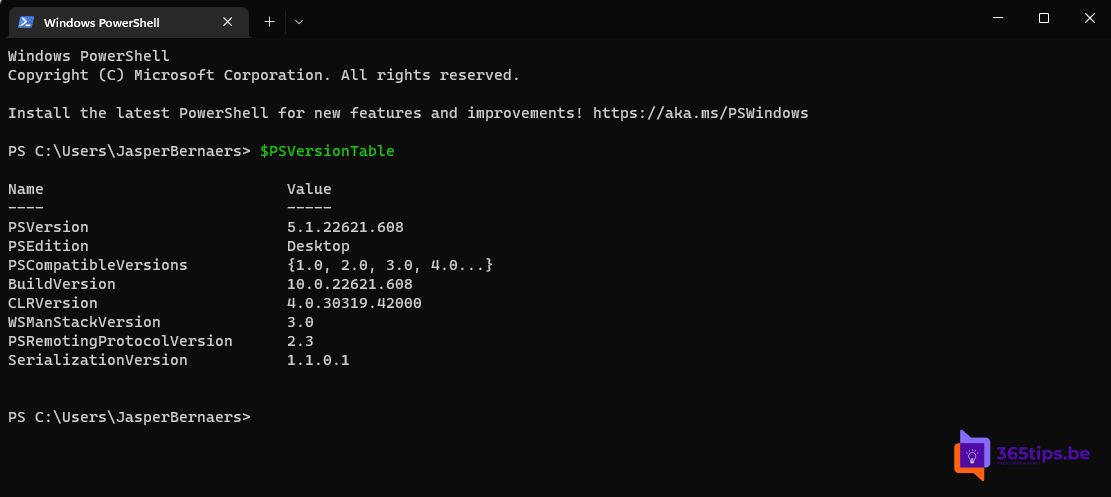
For more detail, such as the edition (Desktop for 5.1, Core for 7) and the operating system, use:
$PSVersionTable
Without opening PowerShell first
- PowerShell 7: type
pwsh -vin Command Prompt. - Windows PowerShell:
powershell -command "$PSVersionTable.PSVersion".
Don't use Get-Host or $Host.Version: they show the version of the program PowerShell runs in (an editor, for example), which is not always the version of PowerShell itself.
Windows PowerShell 5.1 or PowerShell 7?
| Windows PowerShell 5.1 | PowerShell 7 | |
|---|---|---|
| Program | powershell.exe | pwsh.exe |
| Built into Windows | Yes, in Windows 10 and 11 | No, install separately |
| Built on | .NET Framework | .NET (7.6 on .NET 10) |
| Platforms | Windows only | Windows, macOS, Linux |
| New features | No, security fixes only | Yes |
Both can live side by side. PowerShell 7 doesn't replace Windows PowerShell; it installs in its own folder. Most Microsoft 365 modules, such as Exchange Online, Microsoft Graph and Teams, work in PowerShell 7. Some older modules only work in 5.1.
Install or update PowerShell 7
The latest version is PowerShell 7.6, a Long Term Support (LTS) release Microsoft shipped on 18 March 2026. The easiest way to install or update is winget:
winget install --id Microsoft.PowerShell --source wingetUpdate to the latest version:
winget upgrade --id Microsoft.PowerShellYou can also install PowerShell 7 from the Microsoft Store or with the MSI package from the PowerShell page on GitHub. At work, your administrator may deploy it through Intune.
What about PowerShell 2.0?
Windows PowerShell 2.0 remained a Windows feature for years. Microsoft removed it from Windows 11 24H2 from August 2025, because it lacks modern security and attackers used it to bypass protections. Scripts that ask for version 2 now run in 5.1. Read more in turning Windows features on or off.
Check modules and their version
If a command doesn't work, check the module version too:
Get-Module -ListAvailable ExchangeOnlineManagement, Microsoft.Graph, MicrosoftTeams |
  Select-Object Name, Version
Update a module with Update-Module, for example Update-Module ExchangeOnlineManagement. To install a module for all users, open PowerShell as administrator.
Require a minimum version in a script
Put this at the top of your script:
#Requires -Version 7.4PowerShell then refuses to start the script in an older version and gives a clear error, instead of odd failures halfway through.
Read also
Run Command Prompt as administrator in Windows 11 and 10: 6 ways
Turn Windows features on or off in Windows 11 and 10: 4 ways
Security defaults in Microsoft Entra ID: what they do and how to enable them
Nederlandstalige versie: Hoe controleer je de PowerShell-versie in Windows?