
Windows 11 came with a set of sleek wallpapers in themes such as Captured Motion, Flow, Glow and Sunrise, next to the familiar blue bloom. Here they are, with instructions to set them on your PC or as a background in Teams.
The images below are scaled-down previews; the original wallpapers are also already on your PC.
Set a wallpaper in Windows 11
- Save the image, or right-click it and choose Set as desktop background.
- Or open Settings > Personalization > Background and under Personalize your background choose Picture > Browse photos.
- Optionally choose Slideshow to rotate a folder of wallpapers automatically, or Windows Spotlight for a new photo every day.

The original files on your PC
The default Windows 11 wallpapers are stored in high resolution in C:\Windows\Web\Wallpaper, with subfolders per theme. You can copy them from there.
Windows 11 wallpapers





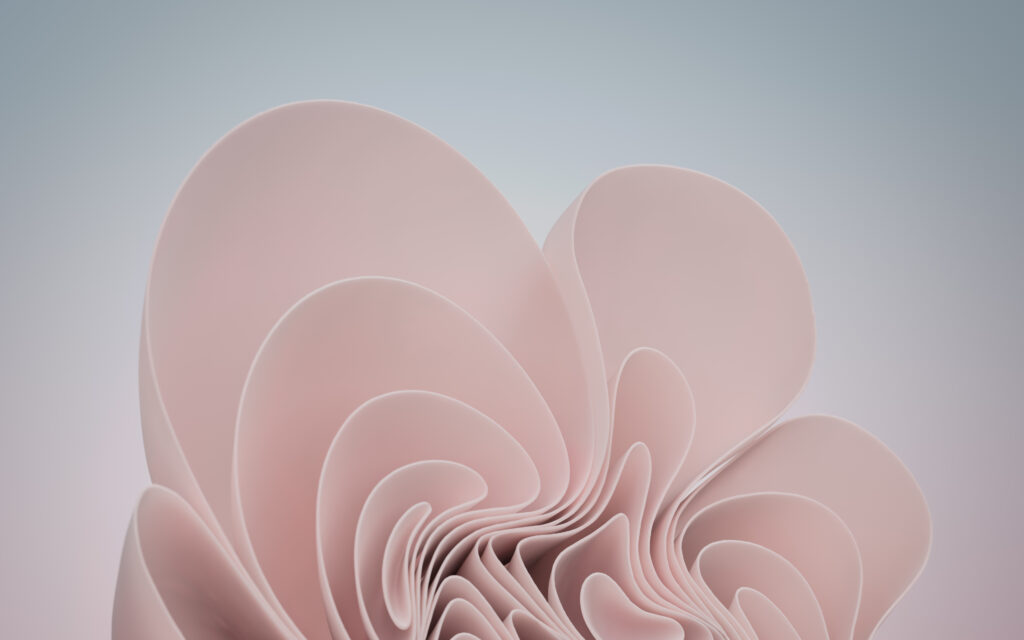




Also as a Teams background
These images also work in Microsoft Teams: Video effects and settings > Backgrounds > Add new. On a managed work PC, your IT department can lock the desktop wallpaper via Intune. Also see themes in Windows 11 and set wallpaper and lock screen with Intune.
Read also
Set or create a theme in Windows 11
How to turn on dark mode in Windows 11
Set the desktop background and lock screen with Microsoft Intune
Nederlandstalige versie: De achtergronden van Windows 11 in 4K: downloaden en instellen