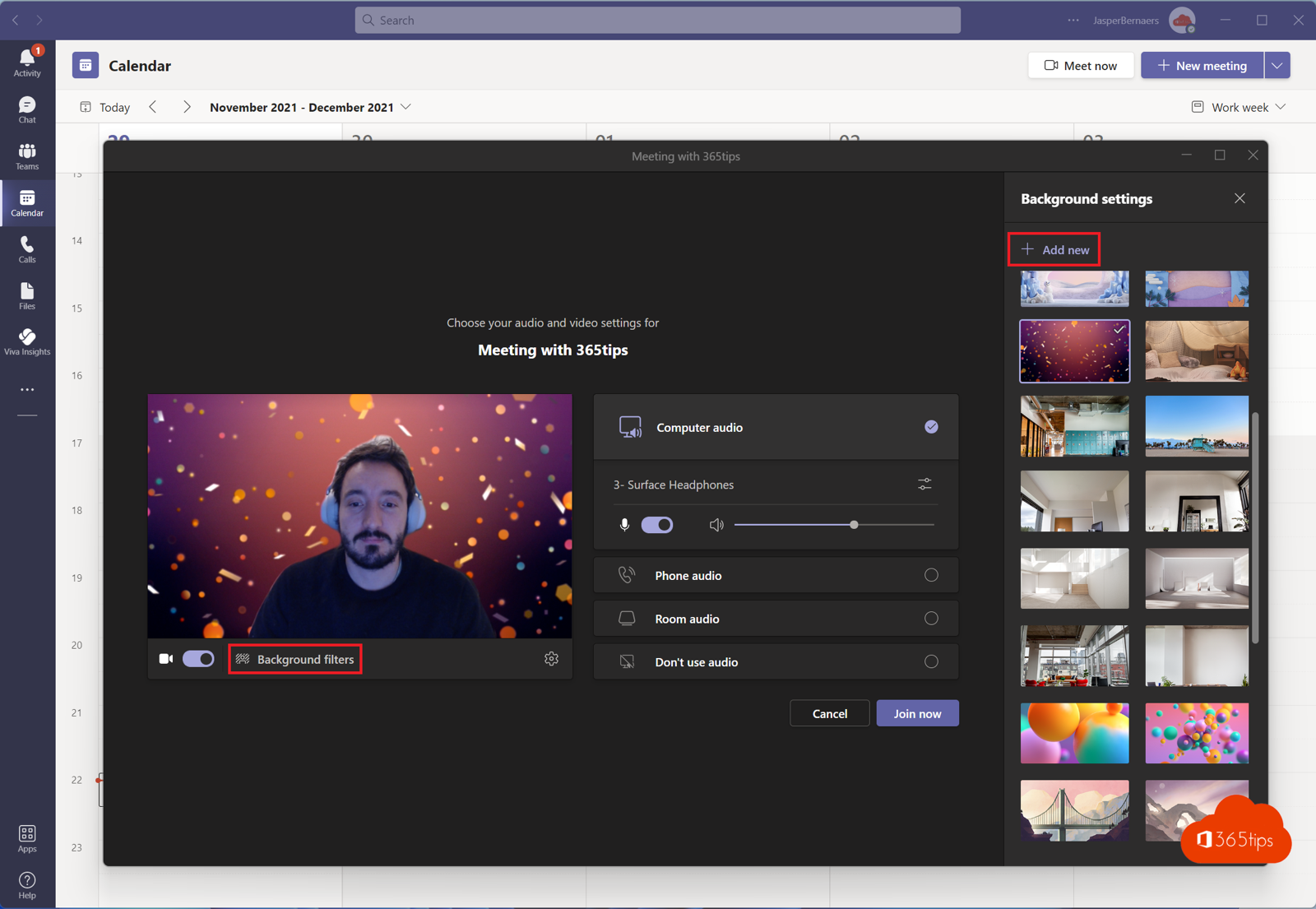
A messy room, a home office or just fancy a change? In Microsoft Teams you can replace your video background with your own image, such as a photo of your office or a background with your organisation's logo. This article shows how, which format works best and what admins can set up.
Before a meeting
- Select Join. You arrive at the pre-join screen.
- Select Video effects and settings (or Effects and avatars).
- Under Backgrounds, choose Add new (the plus sign) and select your image.
- Select the image to use it and join.
During a meeting
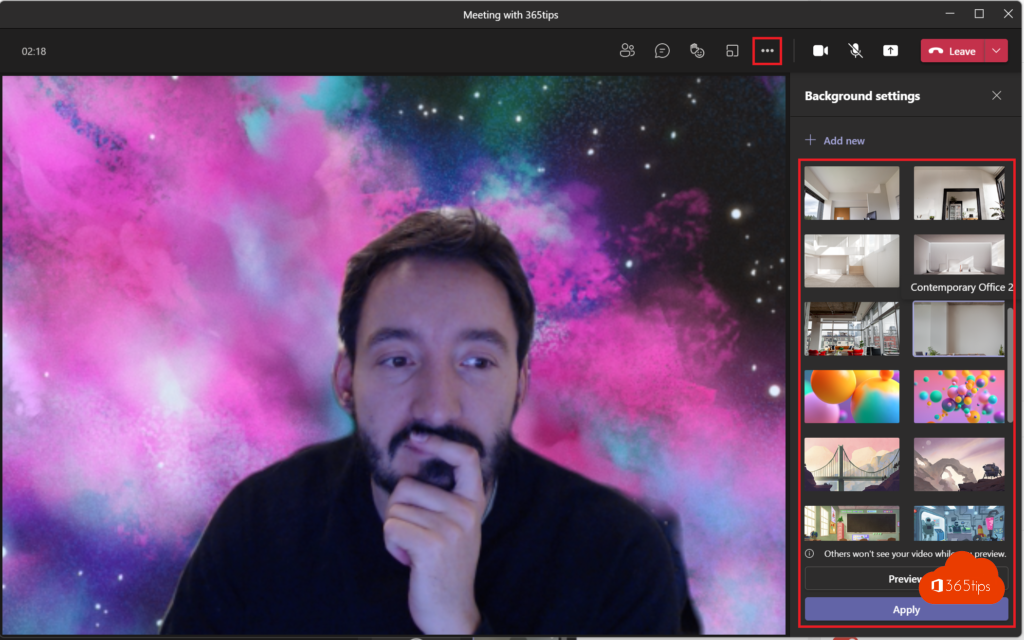
Select the arrow next to Camera > Video effects and settings > Add new. Select Preview to check how it looks first, then Apply.
Which format?
- JPG, PNG or BMP.
- Landscape 16:9, for example 1920 x 1080 pixels.
- Keep the centre calm: that's where you are. Put text or a logo at the top or side.
- Teams mirrors your video for you, but others see text the right way round. Read mirror your video.
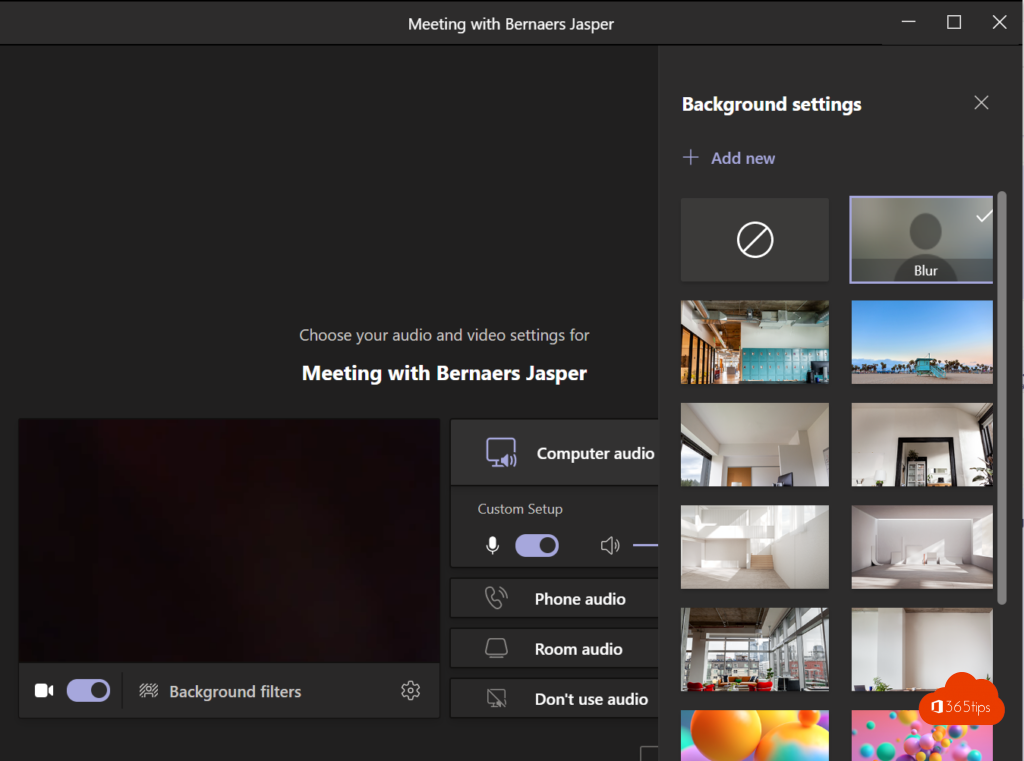
Or just blur
Choose Blur to soften your background without an image. Shortcut: Ctrl + Shift + P. On a Copilot+ PC, Windows can do it too with Studio Effects. Read a better picture in Teams.
Backgrounds for the whole organisation
With Teams Premium, an admin can publish official backgrounds in the Teams admin center > Meetings > Customization policies or Meeting background images. They then appear in everyone's list.
Read also
Turn on brightness correction and soft focus in Microsoft Teams
Mirror or unmirror your video in Microsoft Teams
Use presenter mode (Standout, Side-by-side, Reporter) in Microsoft Teams
Nederlandstalige versie: Een eigen achtergrond instellen in Microsoft Teams