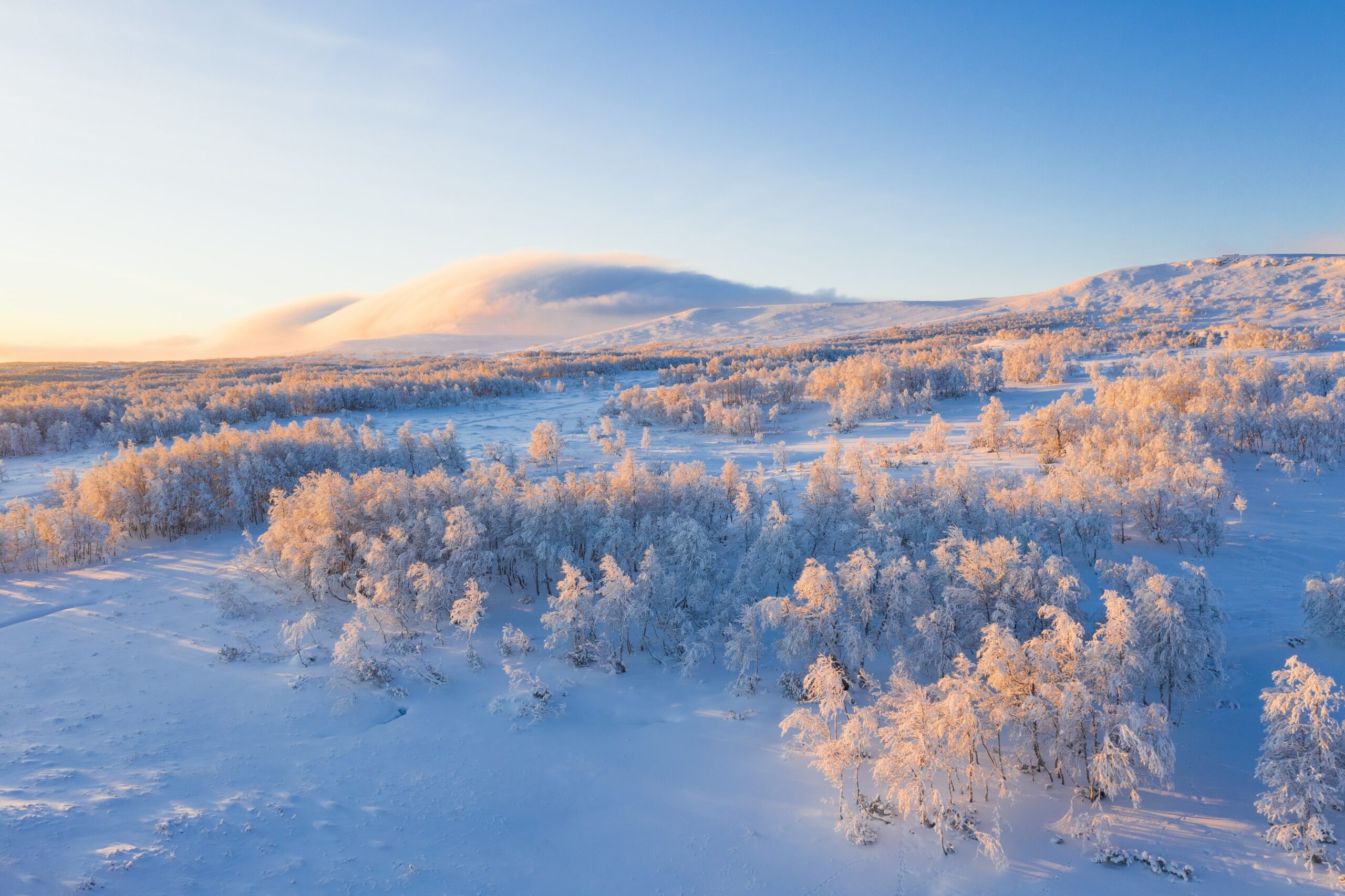
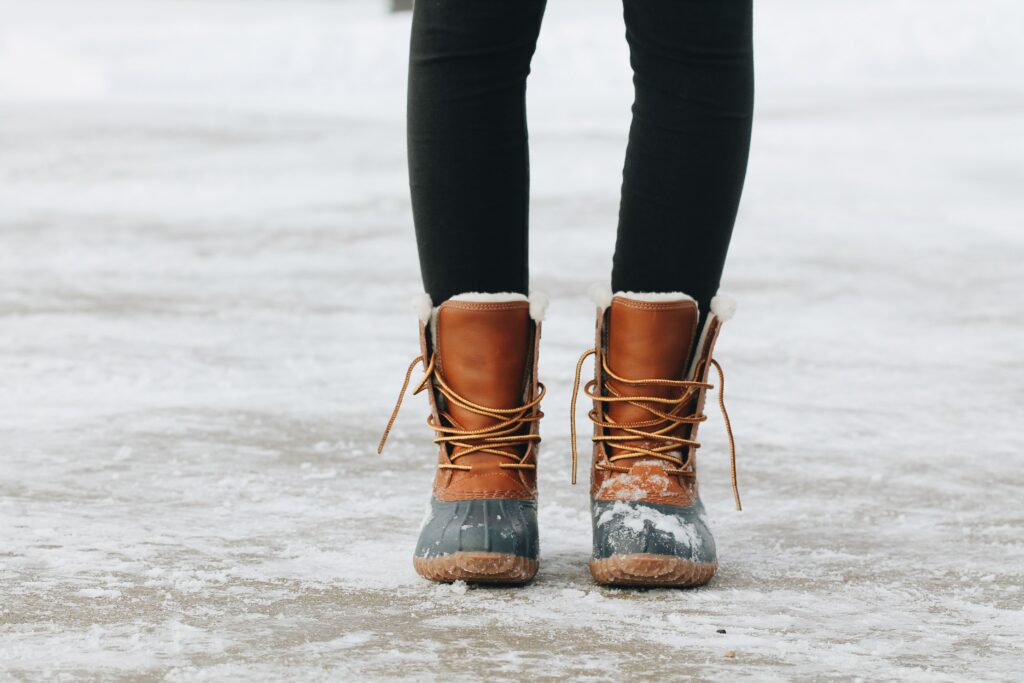
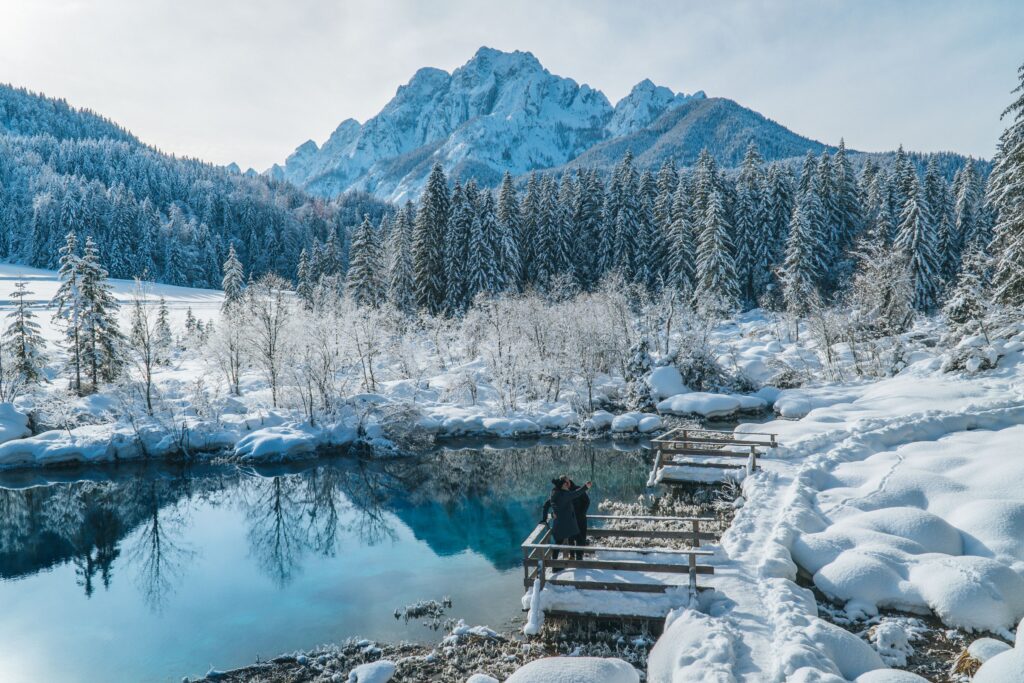
Snow, mountains, ice and a starry sky: with these winter backgrounds you bring the atmosphere of the cold months to your Teams meetings or your desktop.
Set a background in the new Teams
- Right-click an image below and choose Save image as.
- In the meeting pre-join screen, click Video effects and settings. During a meeting you'll find it via the arrow next to Camera.
- Under Backgrounds, choose Add new and select the image.
A landscape image of about 1920 x 1080 pixels gives the best result. Your admin can restrict custom backgrounds or provide organization backgrounds with Teams Premium. The exact names may differ.

Winter backgrounds



As a desktop wallpaper
Right-click a saved image and choose Set as desktop background, or go to Settings > Personalization > Background. Also see set a custom background in Teams and New Year backgrounds for Teams.
Read also
Set a custom background in Microsoft Teams
New Year backgrounds for Microsoft Teams, Zoom and Google Meet
The Windows 11 wallpapers in 4K: download and set them
Nederlandstalige versie: Winterachtergronden voor Microsoft Teams en je bureaublad