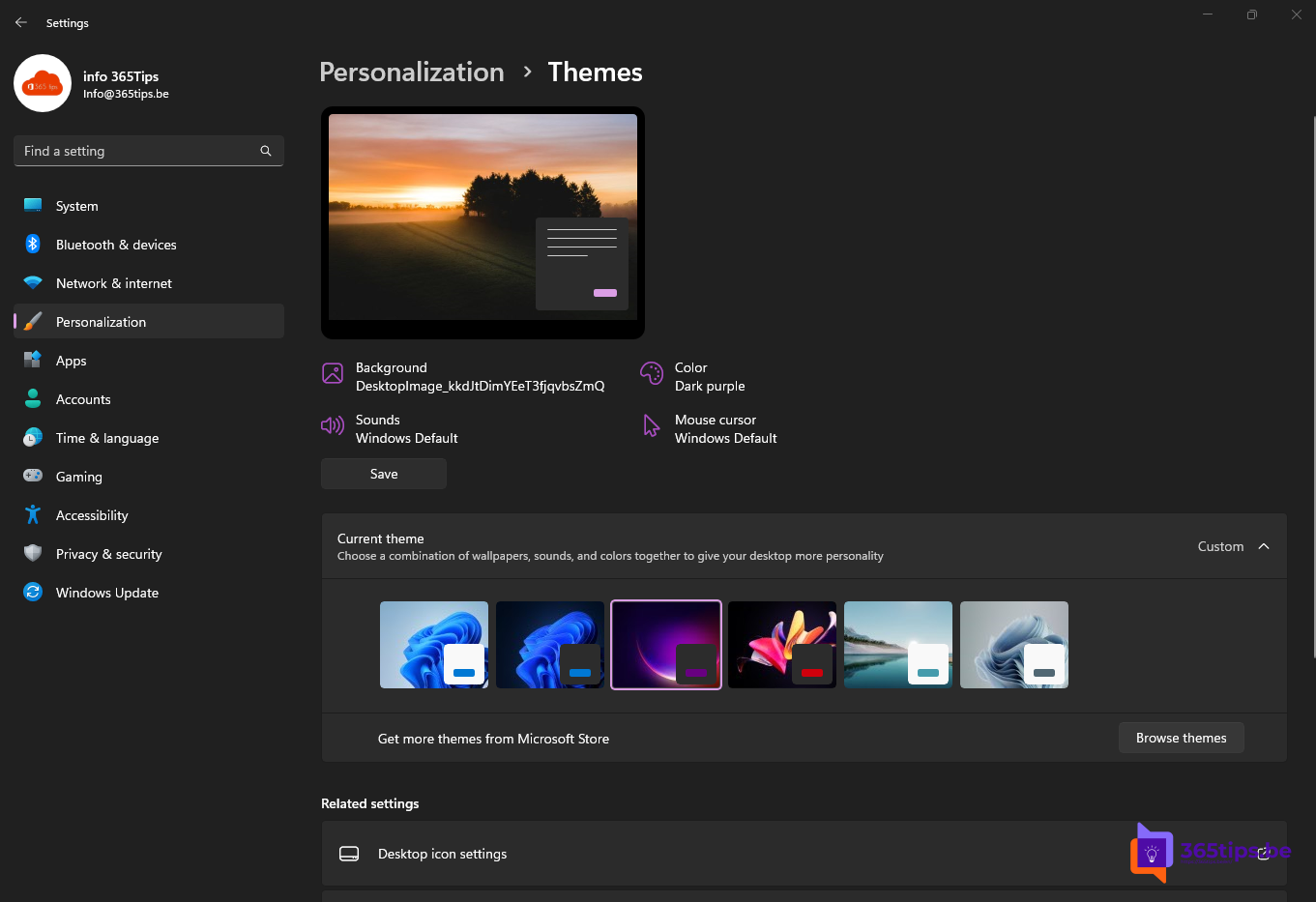
A theme in Windows 11 changes your background, accent color, sounds and mouse pointer in one go. Choose from the built-in themes, download free ones from the Microsoft Store or create your own with your favorite photos. This article shows how, how to set up a background slideshow and how to share a theme with colleagues.
Choose a theme
- Right-click the desktop and choose Personalize, or open Settings > Personalization.
- Pick one of the built-in themes at the top, or select Themes for the full overview.
- Select a theme to apply it immediately.

Free themes from the Microsoft Store
- Go to Personalization > Themes and next to Get more themes from Microsoft Store select Browse themes.
- Pick a theme, for example landscapes, animals or space photos, and select Get.
- Select Open; the theme appears in your list.
Most themes contain dozens of backgrounds that rotate automatically.

Create your own theme
- Go to Personalization > Background and under Personalize your background choose Slideshow.
- Select Browse and pick a folder with your own photos. Set how often the picture changes.
- Under Colors, choose an accent color, or let Windows pick one from your background.
- Optionally change sounds and the mouse pointer.
- Go back to Themes and select Save next to Current theme. Give it a name.
To share the theme, right-click it > Save theme for sharing. You get a .deskthemepack file someone else installs with a double-click.
Light, dark and contrast
- Under Colors, choose Light, Dark or Custom mode. See dark mode in Windows 11.
- For people with low vision, contrast themes (Accessibility > Contrast themes) make text and edges easier to see. Toggle quickly with left Alt + left Shift + Print Screen.
On a work PC
On managed PCs, IT can lock the background or lock screen with Intune. Some options are then greyed out. See also customize the Start menu in Windows 11.
Read also
How to turn on dark mode in Windows 11
How to customize the Windows 11 Start menu: left, without Recommended or like Windows 10
How to install a font in Windows 11 and 10
Nederlandstalige versie: Een thema instellen of maken in Windows 11