Dark mode is easier on your eyes in a dark room, and on an OLED screen it even saves a little battery. In Windows 11 you turn on dark mode in a few clicks for Windows and for the apps that follow it. This article shows how, how to combine a dark Windows with light apps (or the other way round), and how to make Office, Outlook, Teams and Edge dark too.
Turn on dark mode in Windows 11
- Open Settings (
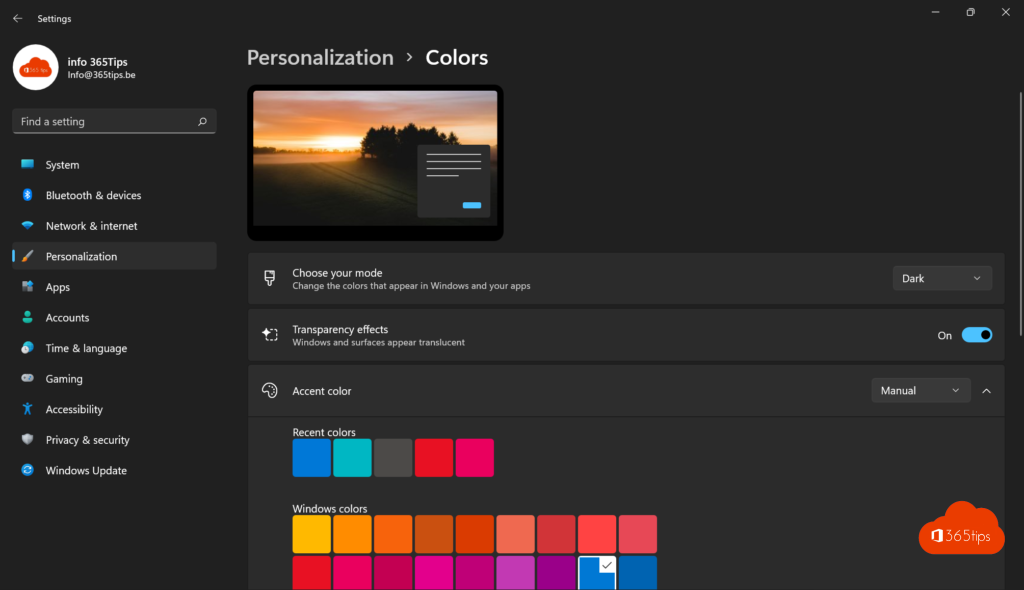
Windows + I). - Go to Personalization > Colors.
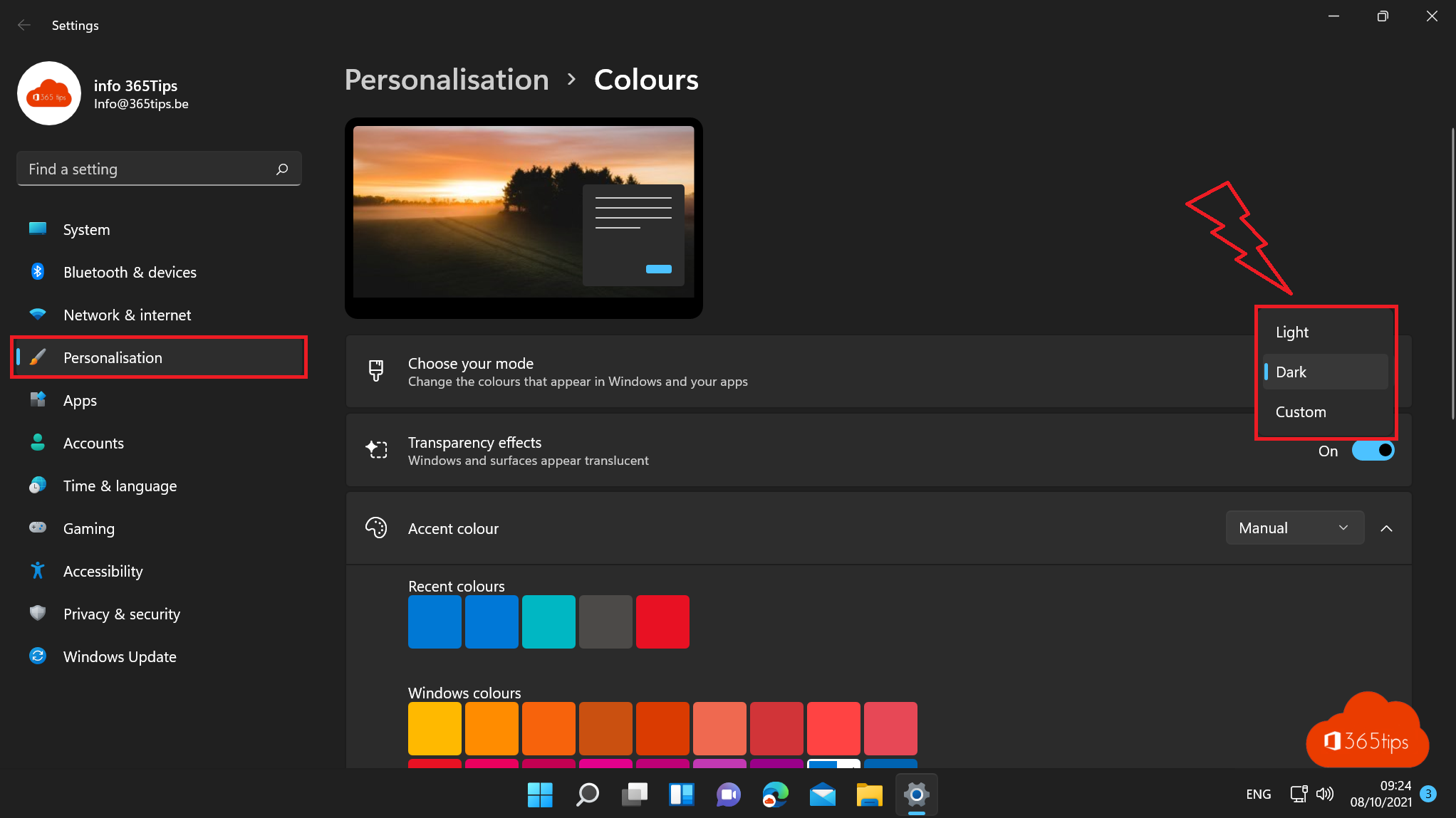
- Under Choose your mode, select Dark.
The Start menu, taskbar, File Explorer, Settings and apps that follow the Windows mode turn dark immediately.
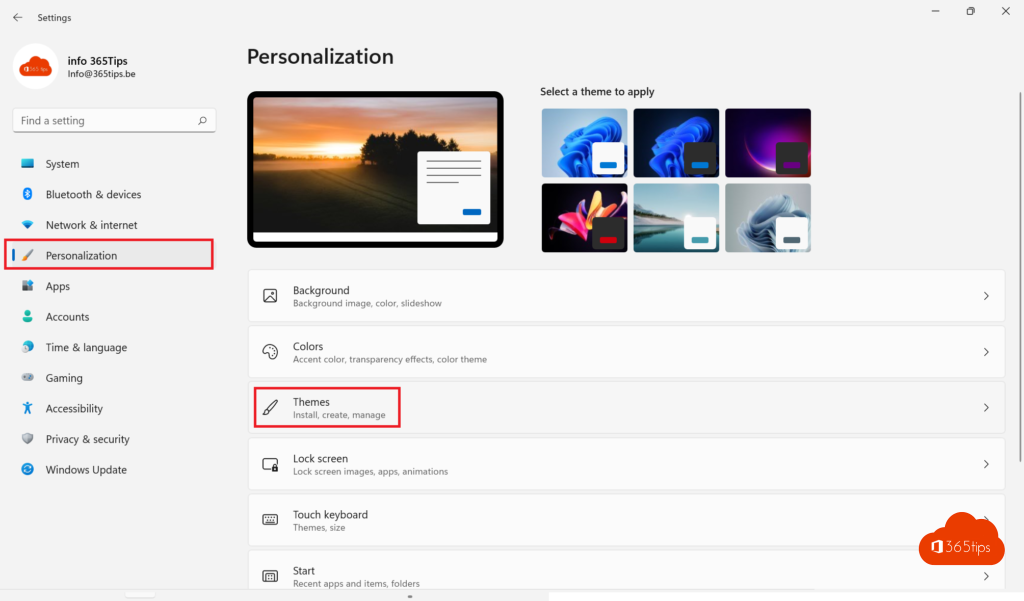
Faster: right-click the desktop > Personalize > Colors.
Dark Windows, light apps (or the other way round)
Under Choose your mode, pick Custom. You get two choices:
- Choose your default Windows mode: for the taskbar and Start menu.
- Choose your default app mode: for apps such as File Explorer, Settings and other programs.
Many people pick a dark taskbar with light apps, since documents and websites are mostly white anyway.
Choose a dark theme
Under Personalization > Themes you'll find ready-made themes with a background, colours and sounds. Windows 11 has a dark default theme and extra themes such as Glow and Captured motion. The Microsoft Store has more.
Make Word, Excel, PowerPoint and Outlook dark
Microsoft 365 apps have their own theme setting:
- Open Word, for example, and go to File > Account.
- Under Office Theme, choose Black (fully dark) or Dark Gray. Use system setting makes Office follow the Windows mode.
The setting applies to all Office apps on your PC. With the Black theme in Word you can still choose whether the page itself stays white: File > Options > General, the option to never change the document page color.
New Outlook and Outlook on the web: click the gear icon > General > Appearance and choose Dark. The sun/moon icon above an open e-mail switches that one message's background to light so it is easier to read.
Teams and Edge
- Microsoft Teams: ... next to your profile picture > Settings > Appearance and accessibility > theme Dark, or Follow operating system theme.
- Microsoft Edge: Settings > Appearance > Dark or System default. Websites that have a dark version then use it automatically.
Switch between light and dark automatically
Windows 11 can't switch by time of day on its own. For light during the day and dark in the evening, use the free open-source app Auto Dark Mode from the Microsoft Store. It switches at set times or at sunrise and sunset. Separately, Night light (Settings > System > Display) reduces blue light in the evening; that makes the screen warmer, not darker.
Contrast themes
Need more contrast, for example because of a visual impairment? Go to Settings > Accessibility > Contrast themes. Those themes are stronger than normal dark mode. Left Alt + left Shift + Print Screen toggles them quickly.
Not working?
- The option is greyed out: Windows isn't activated. Personalization only works on an activated Windows.
- An app stays light: that app doesn't follow the Windows mode; check the app's own settings.
- On a company PC your administrator can lock the mode by policy.
Read also
How to put windows side by side in Windows 11 with Snap
How to view and use clipboard history in Windows 11 and 10 (Windows + V)
How to show file extensions in File Explorer in Windows 11 and 10
Nederlandstalige versie: Donkere modus inschakelen in Windows 11