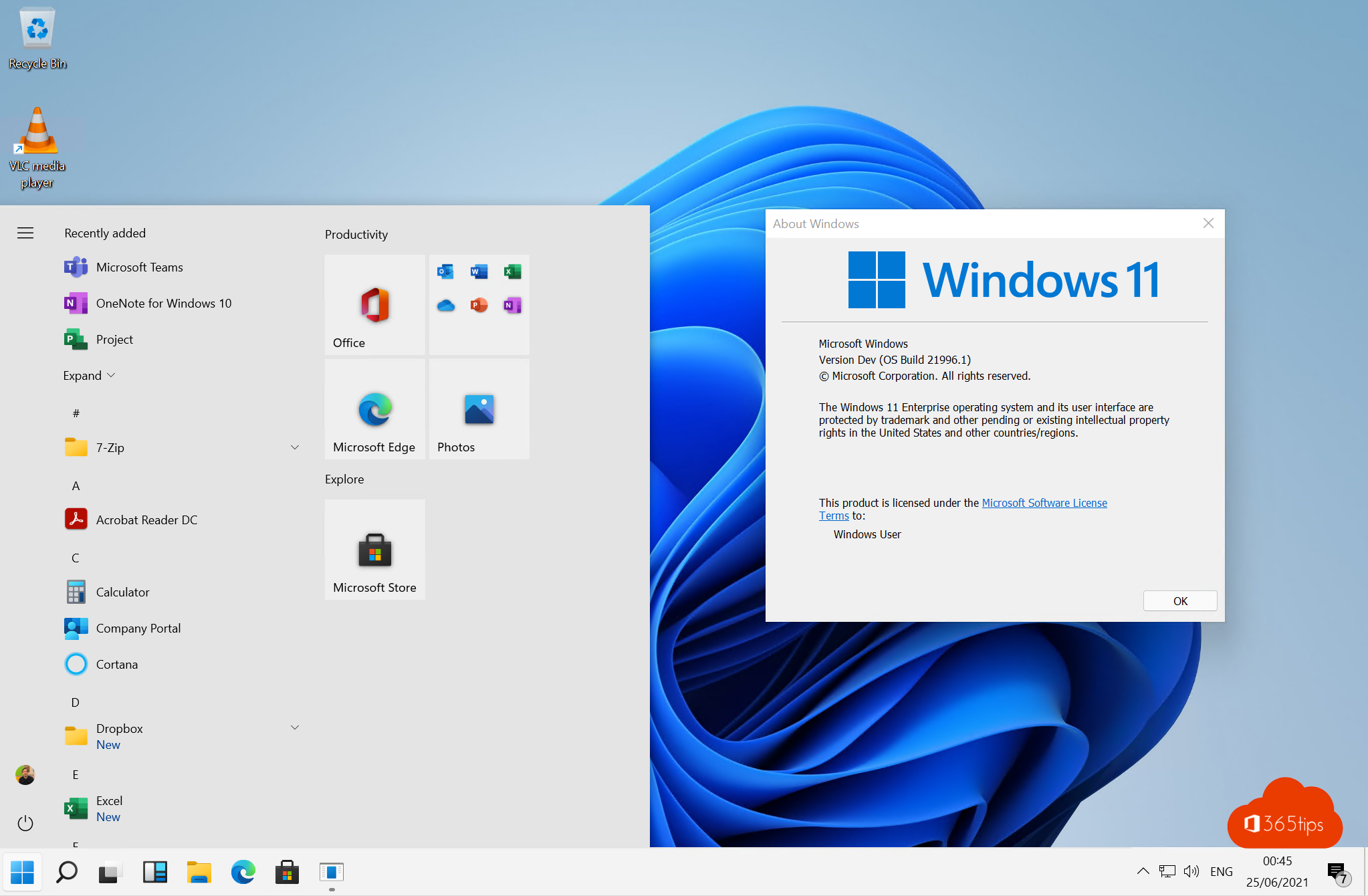
The Windows 11 Start menu sits in the middle, shows pinned apps in a grid and has a Recommended section. Used to Windows 10? Then you may want the Start menu back on the left, without recommendations, or even fully in Windows 10 style. This article shows what Windows 11's own settings can do, what the new 2025 Start menu changes, and which tools bring back the classic Windows 10 menu.
Move the Start menu to the left
- Right-click the taskbar and choose Taskbar settings.
- Expand Taskbar behaviors.
- Set Taskbar alignment to Left.
The Start button and your apps move to the left straight away, like in Windows 10.
Hide the Recommended section
Don't want recent files, new apps and tips in your Start menu?
- Go to Settings > Personalization > Start.
- Turn off Show recently added apps, Show recommended files in Start (or Show recently opened items), Show websites from your browsing history and Show recommendations for tips.
In the new Start menu the section then disappears completely. In older versions an empty area remains; choose More pins under Layout to use that space for your apps.
The new Start menu (Windows 11 24H2 and 25H2)
Since autumn 2025 Microsoft has been gradually rolling out a redesigned Start menu for Windows 11 24H2 and 25H2. It is larger and scrollable, and shows All apps right on the main page. You choose how apps are shown:
- Category: Windows groups apps automatically, for example Productivity, Communication and Games.
- Grid: all apps as icons.
- List: the classic alphabetical list, closest to Windows 10.
Not everyone gets the new menu at the same time; Microsoft enables it step by step. On a company PC your administrator may decide which layout you get.
Pin and organize your own apps
- Right-click an app in All apps > Pin to Start.
- Drag pinned apps to move them. Drop one app on another to make a folder.
- Under Settings > Personalization > Start > Folders you add shortcuts next to the power button, such as Settings, File Explorer, Downloads and Documents.
The real Windows 10 Start menu back
Windows 11 has no built-in option to bring back the Windows 10 Start menu with tiles. The registry trick from the first Windows 11 builds stopped working long ago. If you still want the classic style, use one of these programs:
- Open-Shell: free and open source. Offers a Start menu in Windows 7, Windows XP or classic style. Install with
winget install Open-Shell.Open-Shell-Menu. - Start11 by Stardock: paid, with a faithful Windows 10 style including tiles, and many taskbar options.
- ExplorerPatcher: free, also restores the Windows 10 taskbar. Because it hooks deep into Windows, it can cause temporary problems after a major Windows update.
On a company computer you usually may not install such tools. Ask your IT department first.
Tip: search instead of click
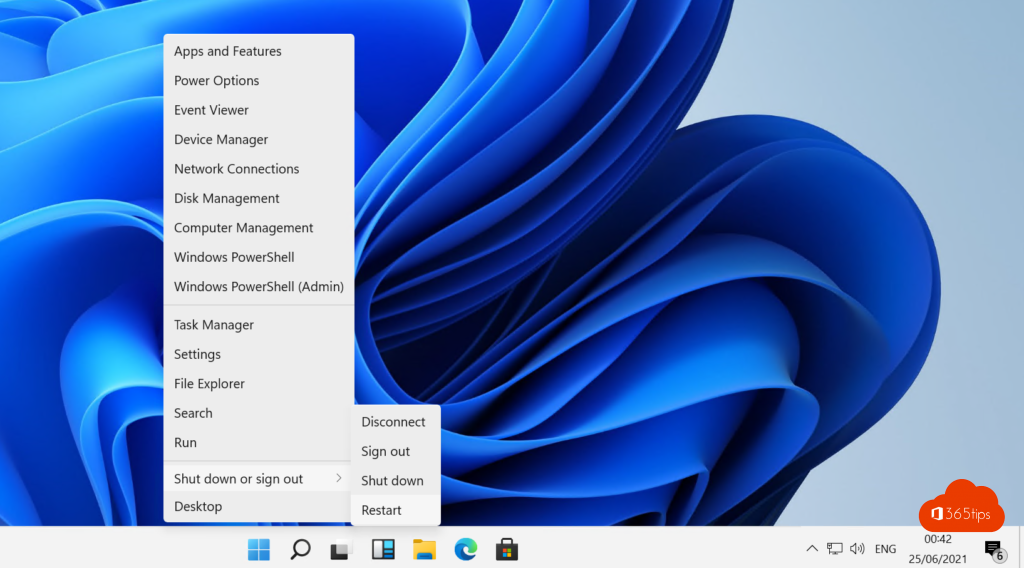
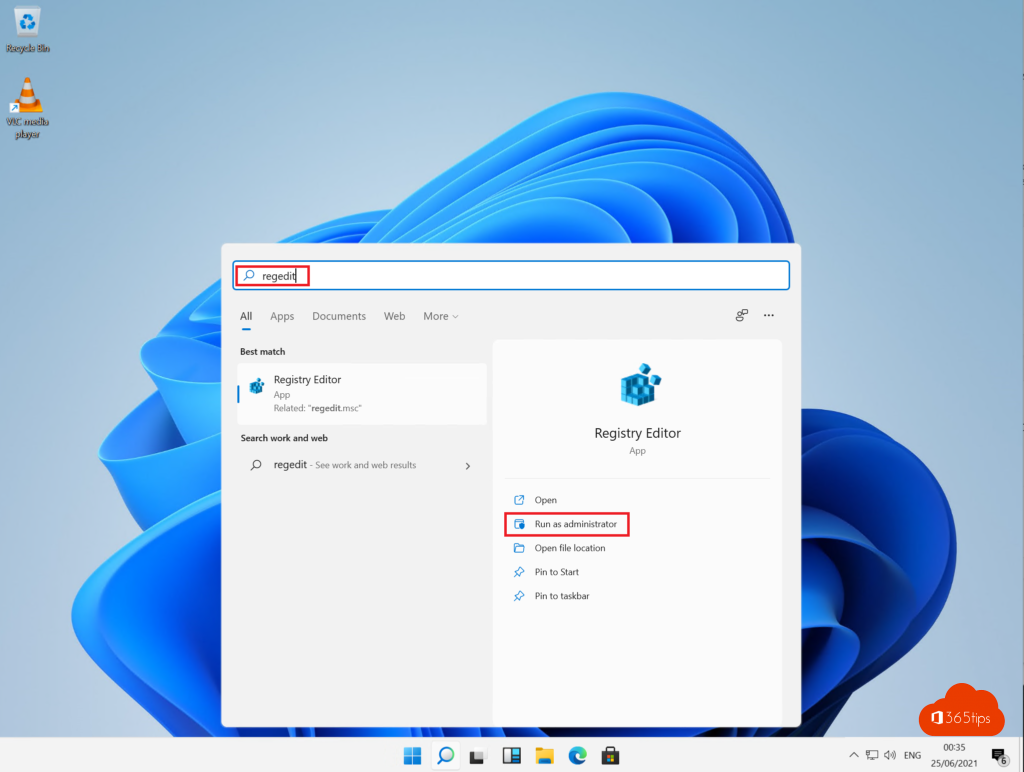
The fastest way to open an app is still to press the Windows key and start typing. Windows searches apps, settings and files. Windows + X also opens the quick menu with Task Manager, Terminal, Device Manager and Settings.
Read also
How to get the full (classic) right-click menu back in Windows 11
How to put windows side by side in Windows 11 with Snap
How to turn on dark mode in Windows 11
Nederlandstalige versie: Het Startmenu van Windows 11 aanpassen: naar links, zonder Aanbevolen of zoals Windows 10