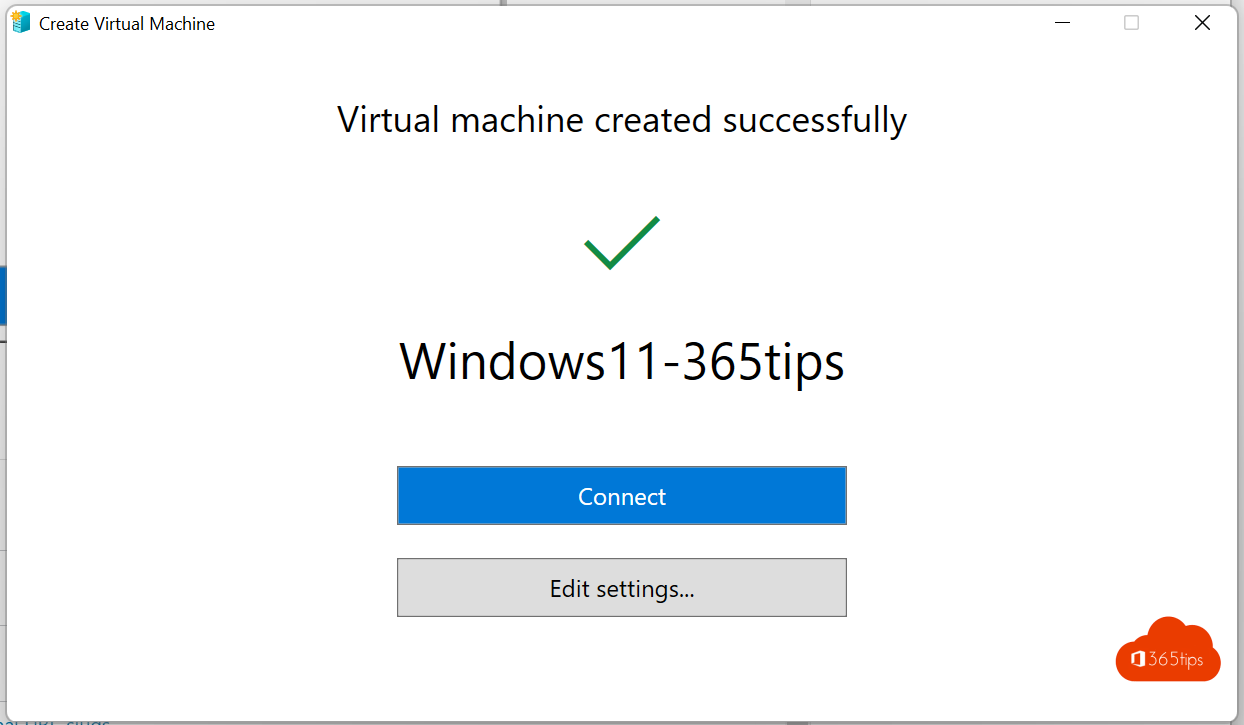
Testing a new Windows version, running an old app safely or building a demo environment? With Hyper-V, Windows' built-in virtualisation, you create a virtual machine on your own PC. This article shows how to turn on Hyper-V and install Windows 11 in a virtual machine, including the virtual TPM that Windows 11 requires.
What do you need?
- Windows 11 Pro, Enterprise or Education. Windows 11 Home has no Hyper-V.
- Virtualisation enabled in BIOS/UEFI (Intel VT-x or AMD-V). Check in Task Manager > Performance > CPU > Virtualization: Enabled.
- At least 16 GB RAM is recommended, so you can give the VM 4 GB or more.
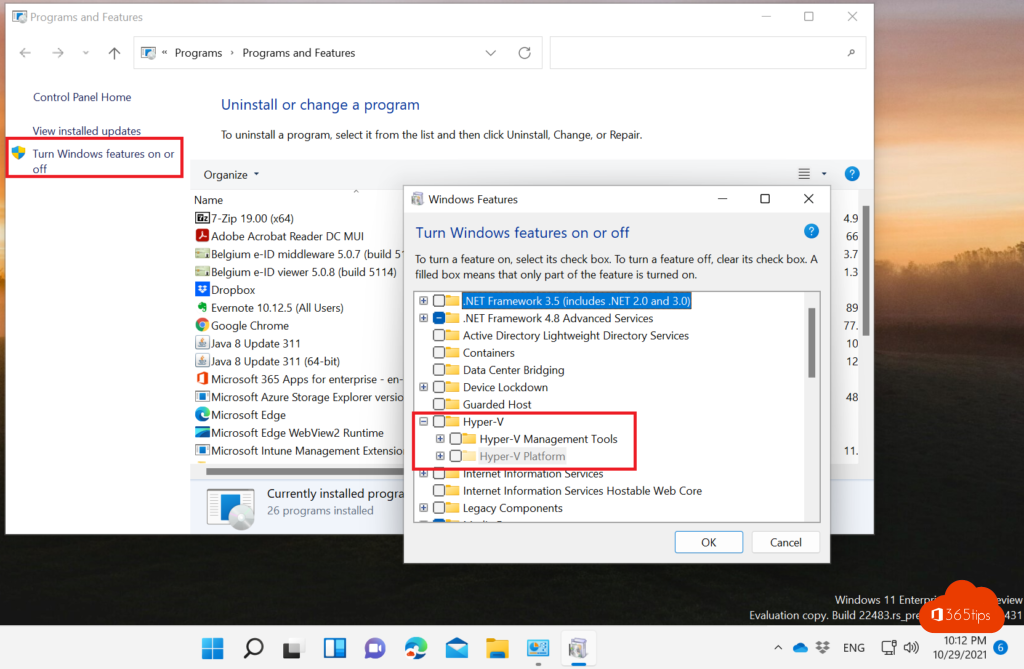
Turn on Hyper-V
- Through Turn Windows features on or off: tick Hyper-V and restart. Read turn Windows features on or off.
- Or with PowerShell as administrator: Enable-WindowsOptionalFeature -Online -FeatureName Microsoft-Hyper-V -All
Create a Windows 11 VM
- Download the Windows 11 ISO file from the Microsoft website.
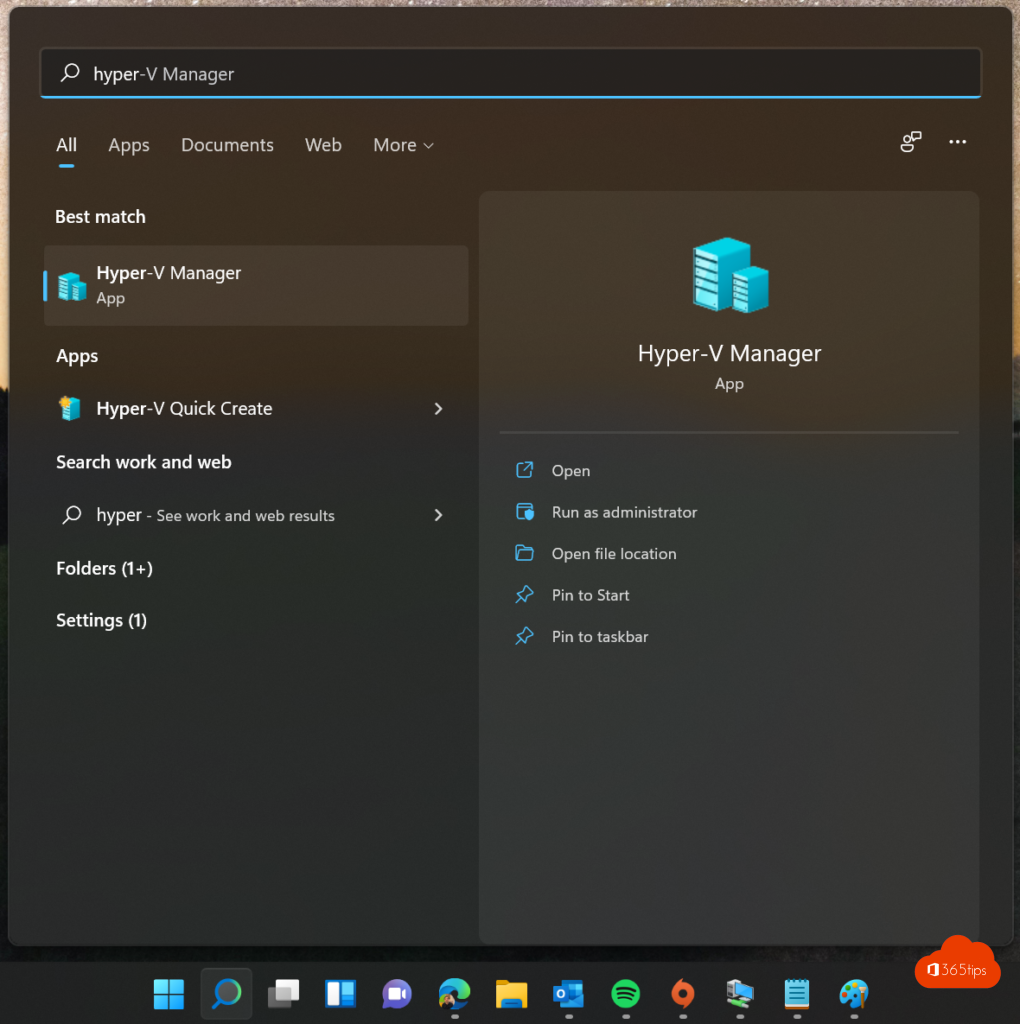
- Open Hyper-V Manager and choose New > Virtual Machine.
- Choose Generation 2. Generation 1 supports neither Secure Boot nor TPM.
- Assign at least 4096 MB of memory and a virtual disk of 64 GB or more.
- For networking, choose the Default Switch for internet through your PC.
- Select the ISO file as installation media and choose Finish.
Turn on TPM and Secure Boot
- Right-click the VM > Settings > Security.
- Tick Enable Secure Boot with the Microsoft Windows template.
- Tick Enable Trusted Platform Module.
- Under Processor, set at least 2 virtual processors.
Start the VM, press a key to boot from the DVD and follow the Windows 11 setup.
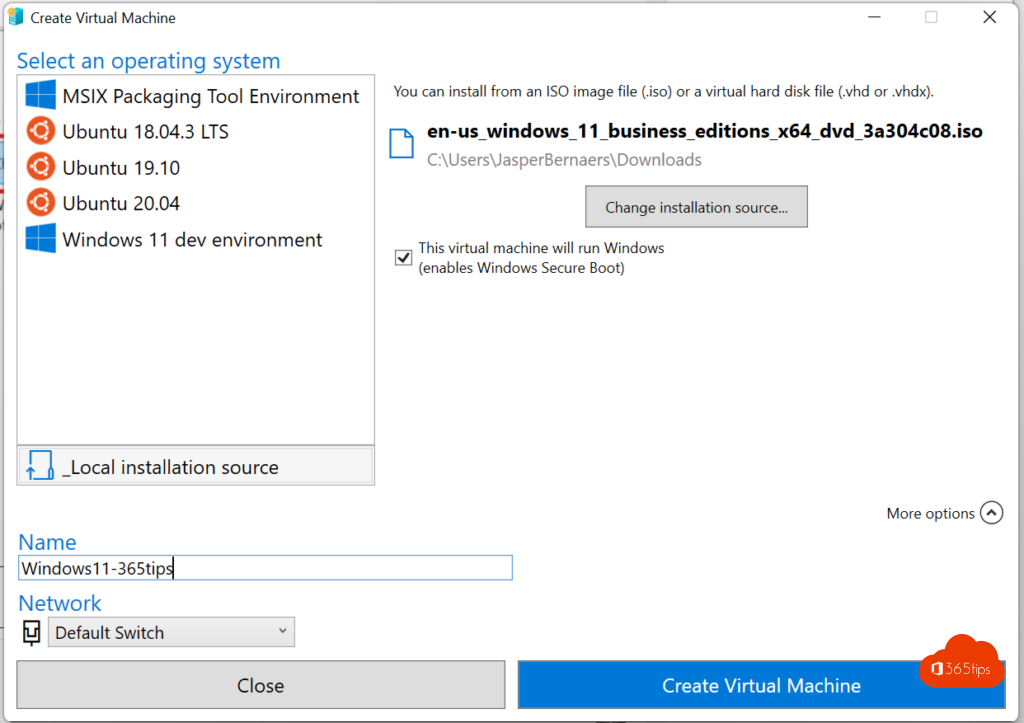
Faster: Quick Create
Hyper-V Manager also has Quick Create. Pick a local ISO file and Hyper-V sets the basics for you. Check the TPM setting afterwards.
Tips
- Take a checkpoint before testing something, so you can go back in one click.
- Hyper-V can clash with other virtualisation software. Recent versions of VirtualBox and VMware do run alongside it.
- Want to try preview builds? See the Windows Insider Program.
Read also
Turn Windows features on or off in Windows 11 and 10: 4 ways
Join the Windows Insider Program for Windows 11
Create a bootable Windows 11 USB drive
Nederlandstalige versie: Hyper-V aanzetten en Windows 11 installeren in een virtuele machine