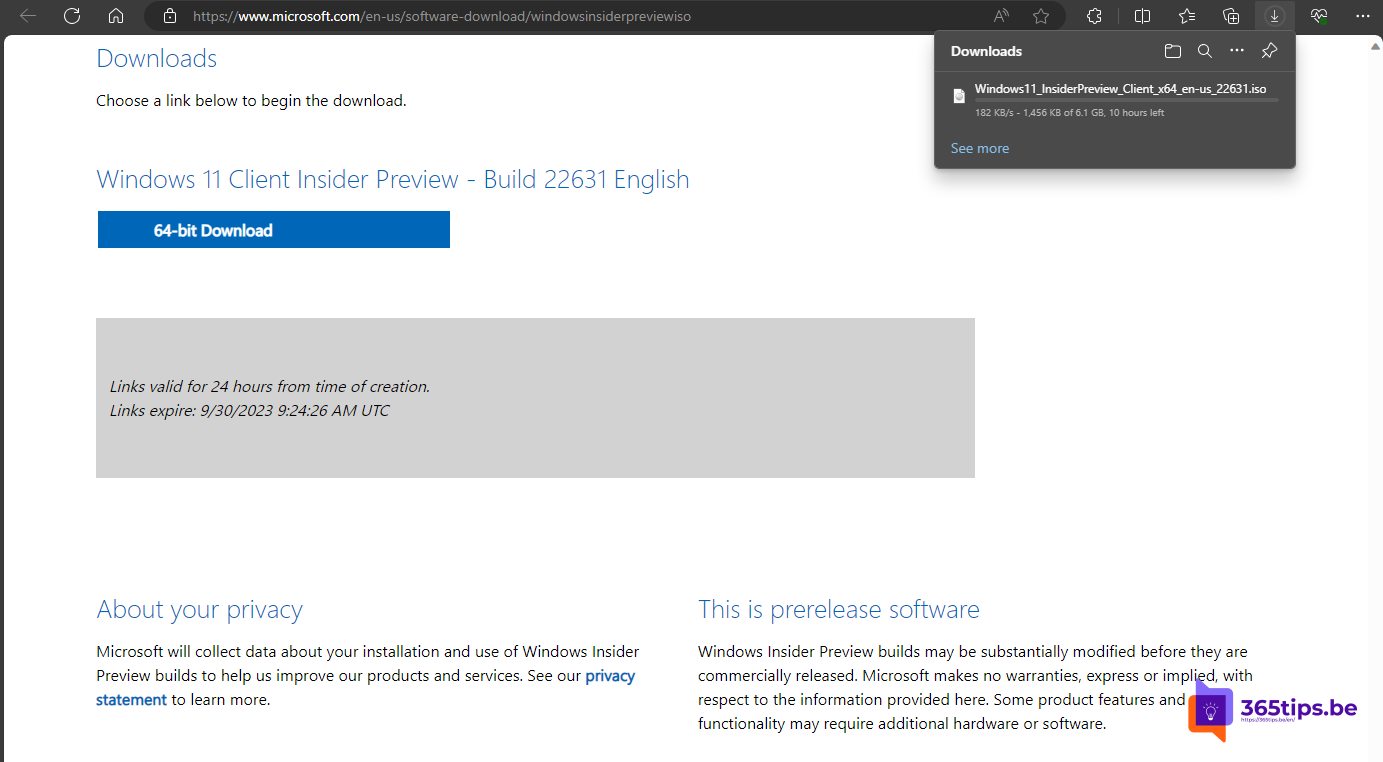
Want to try new Windows 11 features before everyone gets them? Through the Windows Insider Program you install preview builds of Windows. You can enroll your PC via Settings or download an Insider ISO for a clean install. This article originally covered the Windows 11 23H2 preview; that version has long been released and the Home and Pro editions are no longer supported, so the steps now apply to current Insider builds.
1. Check the system requirements
Your PC must meet the Windows 11 requirements, including a supported 64-bit processor, 4 GB RAM, 64 GB storage, TPM 2.0 and Secure Boot. The PC Health Check app tells you whether your PC qualifies.
2. Choose an Insider channel
- Canary: the very newest and least stable builds. For experienced testers only.
- Dev: new features early, not yet stable.
- Beta: more stable, features closer to release.
- Release Preview: the next version just before it ships. The safest.
3. Enroll your PC
- Sign in on the official Windows Insider Program website with your Microsoft account.
- On your PC open Settings > Windows Update > Windows Insider Program.
- Select Get started, link your account and choose a channel.
- Restart the PC and check for updates.
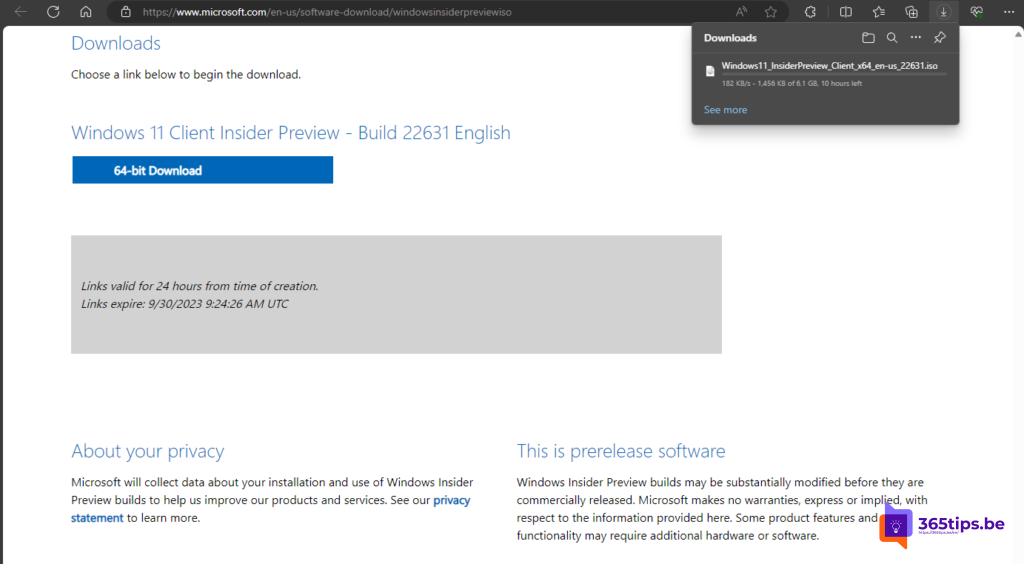
4. Or: download an Insider ISO
- Go to the Windows Insider Preview Downloads page on microsoft.com and sign in with your Insider account.
- Choose the edition, build and language and download the ISO.
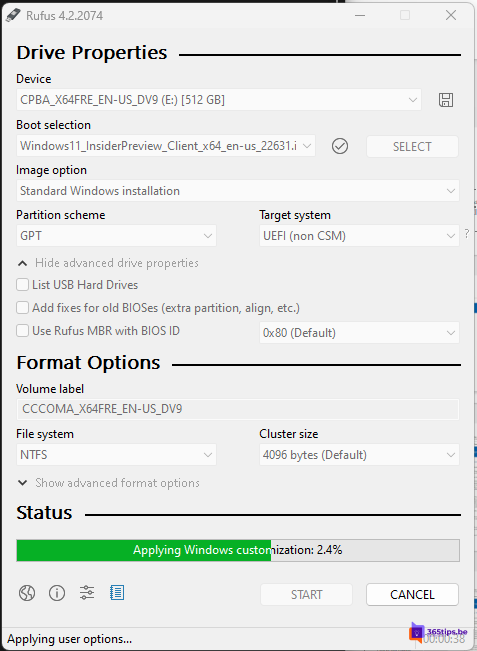
- Create a bootable USB drive, for example with Rufus (download it only from its official website), or mount the ISO in a virtual machine.
Good to know
- Test on a test device or virtual machine, not on your only work computer.
- Make a backup before you start.
- Going back from Canary or Dev to a stable version often requires a clean install.
- On work devices your IT department usually manages this via Intune.
- Report bugs via the Feedback Hub app.
Also see join the Windows Insider Program and install Windows 11 from an ISO.
Read also
Join the Windows Insider Program for Windows 11
Install or upgrade Windows 11 with an ISO file
Test Windows Insider builds with an update ring in Intune
Nederlandstalige versie: Windows 11 Insider Preview downloaden via instellingen of ISO