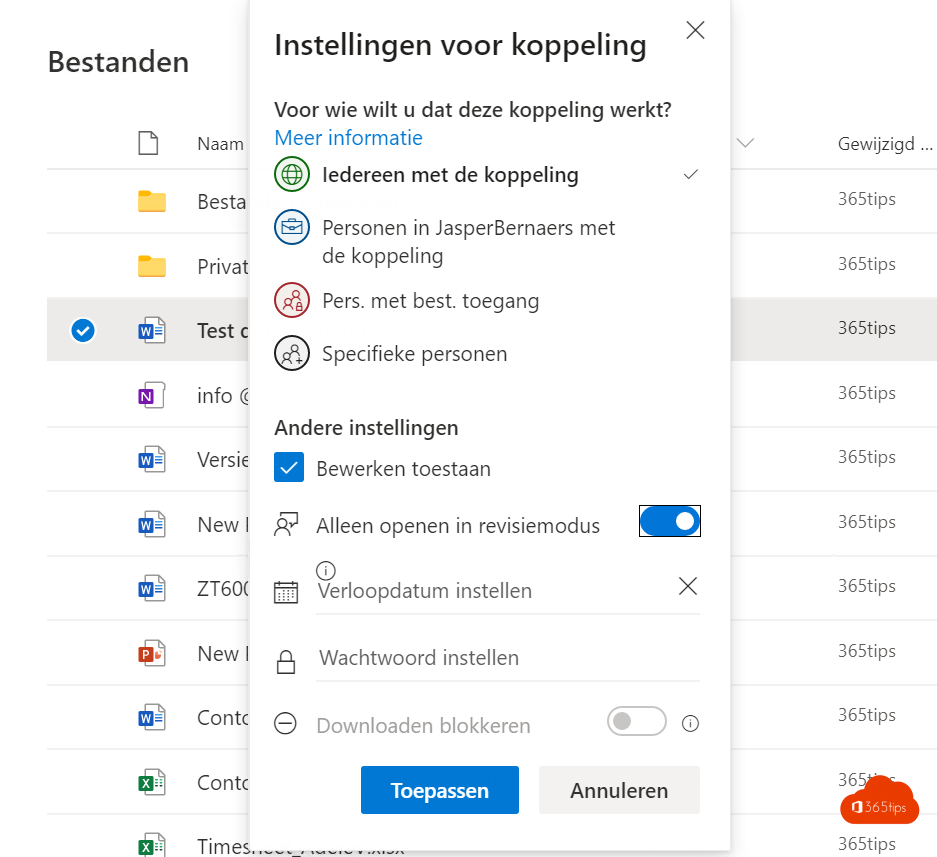
You want feedback on a Word document, but you don't want others writing straight into your text. Share it in review mode with the Can review permission. Recipients can add comments and suggestions, but every change appears as a tracked change that you accept or reject. This article shows how.
Share a document for review
- Open the Word document in OneDrive or SharePoint, or select it in the list.
- Select Share.
- Select the pencil icon or the permission drop-down and choose Can review.
- Type names or email addresses and select Send, or copy the link.
The Can review option only exists for Word documents. For other files, choose Can view or Can edit.
What does the recipient see?
Word opens the document in Reviewing mode. Everything the recipient types or deletes is tracked as a suggestion with their name. They can also add comments and mention colleagues with @.
Process the suggestions
- Open the document and go to the Review tab.
- Select Next to move from change to change.
- For each change choose Accept or Reject, or accept all at once.
- Reply to or close comments with Resolve.
Work in review mode yourself
Want your own changes tracked too? Choose the Reviewing mode at the top right in Word instead of Editing, or turn on Track Changes on the Review tab.
Tips
- Set an expiry date on the link if the review has a deadline.
- Something went wrong anyway? Use version history.
- Done? Save the final version as PDF. Read save a Word document as PDF.
Read also
Restore an earlier version with version history in OneDrive and SharePoint
Save a Word document as PDF on Windows, Mac and the web
Share files in Microsoft 365 and Teams: all the options
Nederlandstalige versie: Een Word-document delen in revisiemodus met Kan controleren