With Walkie Talkie in Microsoft Teams your smartphone becomes a two-way radio: hold a button, speak, and everyone tuned in to the same channel hears you straight away. Ideal for staff in a shop, warehouse, hospital, school or on a building site. This article explains how Walkie Talkie works, how an admin makes the app available, how to use it on Android and iPhone and which devices support a physical push-to-talk button.
How does Walkie Talkie work?
- Walkie Talkie is an app inside the Teams mobile app for Android and iOS. It doesn't work on the desktop.
- You connect to a channel of a team. All members of that team connected to the same channel hear you.
- One person talks at a time: push-to-talk. You see who is speaking at the top.
- It works over Wi-Fi or mobile data, so at any distance, without the range limits of a regular radio.
- No extra license is needed: Walkie Talkie is part of Teams for both office and frontline licenses (F1, F3).
For admins: make Walkie Talkie available
- Go to the Teams admin center > Teams apps > Manage apps and check that Walkie Talkie is allowed.
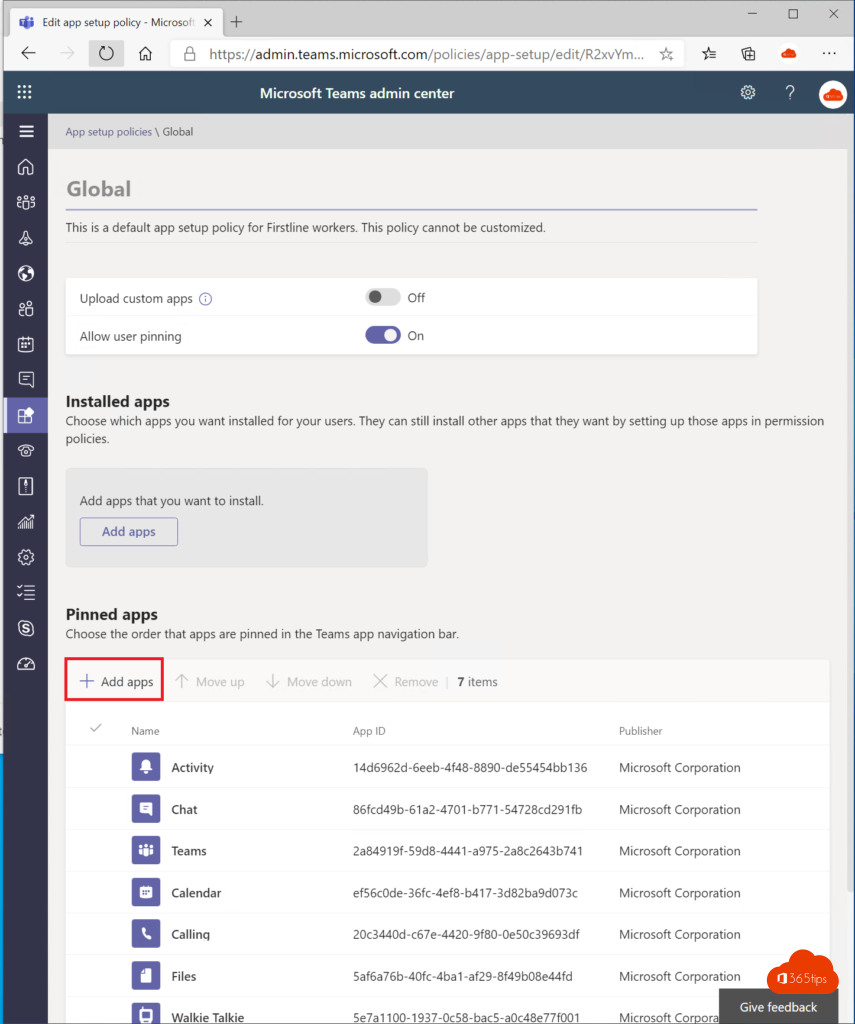
- Go to Teams apps > Setup policies and open the policy, for example Global or a separate policy for frontline workers.
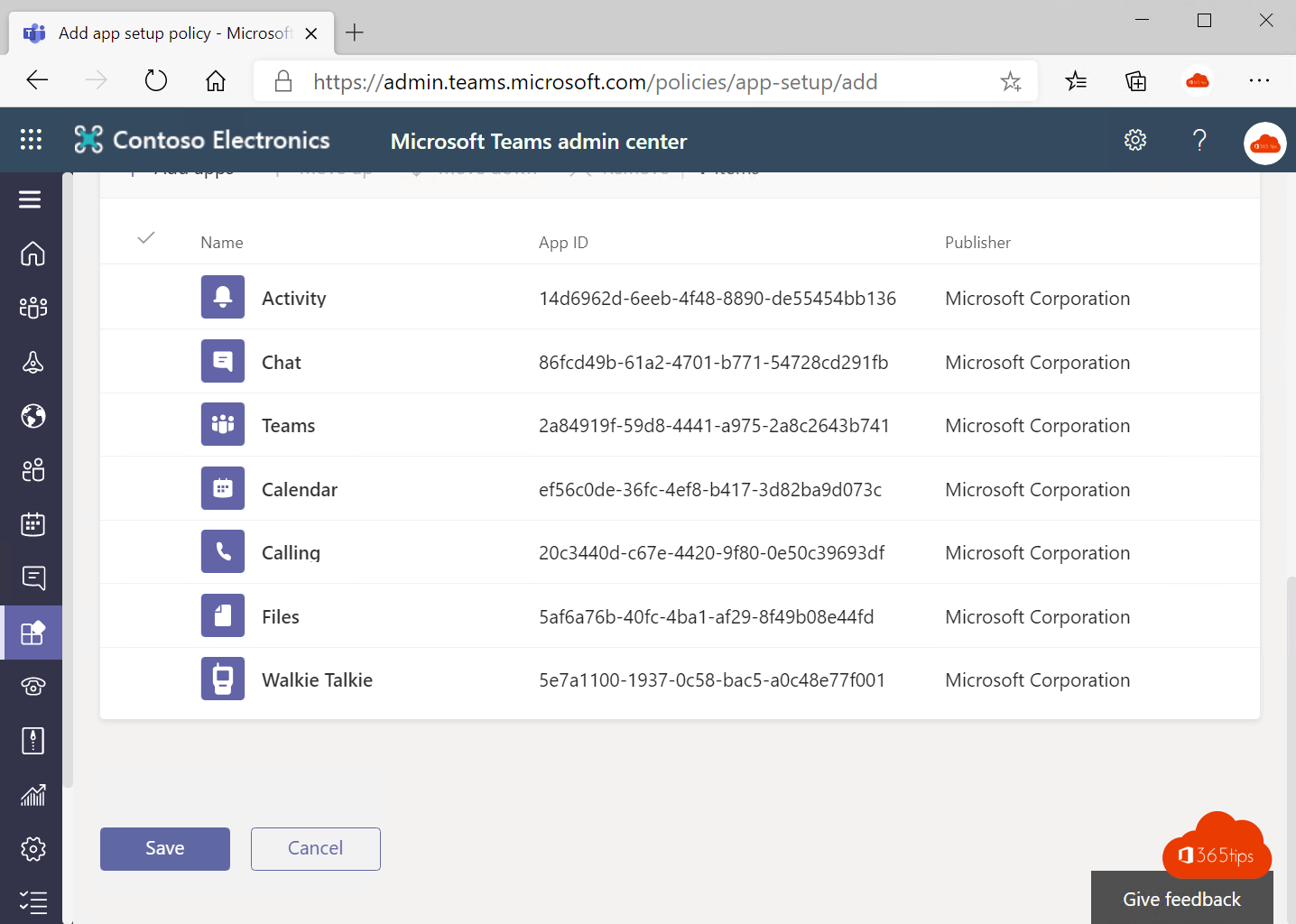
- Under Installed apps and/or Pinned apps, select Add apps, search for Walkie Talkie and add it.
- Move Walkie Talkie to the top of the pinned apps, so it appears in the bottom bar of the mobile app.
- Select Save. It can take up to 24 hours before users see the app.

Use Walkie Talkie
- Open the Teams app on your phone and tap Walkie Talkie. If it isn't there, tap More.
- Pick the team and channel you want to talk to at the top.
- Tap Connect. You see who else is connected.
- Hold the large talk button, speak, and let go when you're done.
You stay connected when you switch to another app or lock the screen, so you keep hearing messages. Tap Disconnect when you stop working.

Devices with a physical talk button
On rugged Android devices, such as some Samsung (XCover) and Zebra devices, you can set a physical button as the talk button, so you don't have to unlock the screen. Some headsets with a talk button are supported too. Use a headset in noisy places, and turn on auto-connect in the Walkie Talkie settings so staff are reachable as soon as their shift starts.
Tips
- Create a separate channel per location or department, for example Warehouse and Checkout, so not everyone hears everything.
- Walkie Talkie conversations aren't recorded or stored.
- Not working? Check that the user is a member of the team, that the app is allowed and that the phone gave Teams microphone and notification permissions.
Read also
Request and give approvals with the Approvals app in Teams
How to add external guests in Microsoft Teams
How to create a free Microsoft Teams account
Nederlandstalige versie: Walkie Talkie in Microsoft Teams activeren en gebruiken