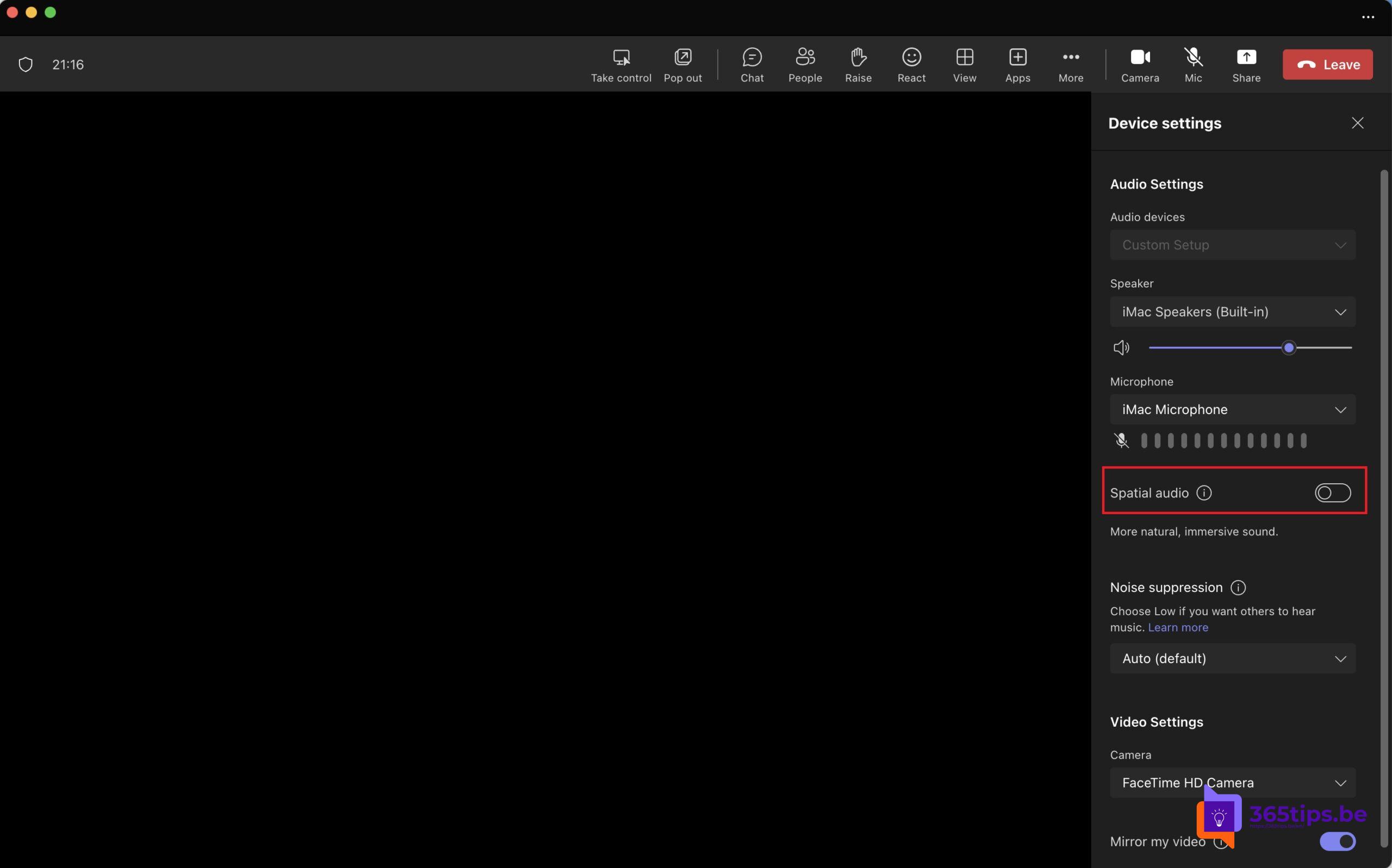
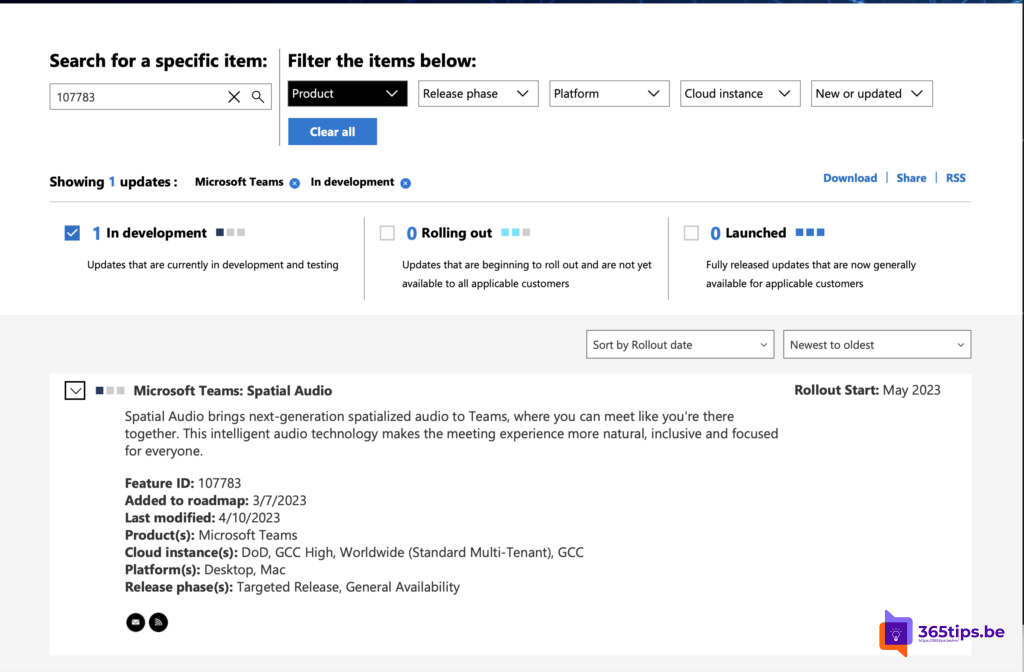
In a regular Teams meeting everyone seems to speak from the same spot. With spatial audio, you hear voices from the direction where that person appears on your screen, which makes it easier to tell who is talking. Spatial audio is now a regular setting in the new Teams on Windows and Mac.
What is spatial audio?
Teams places each participant's voice to the left, right or center, depending on where their video sits in the gallery. It feels more natural and is less tiring in long meetings.
What do you need?
- The Teams app for Windows or Mac.
- A stereo headset or stereo speakers. Microsoft mainly recommends a wired headset; with some wireless headsets it doesn't work or works less well.
- A meeting in gallery view, so there are positions to place the sound.
Turn spatial audio on or off
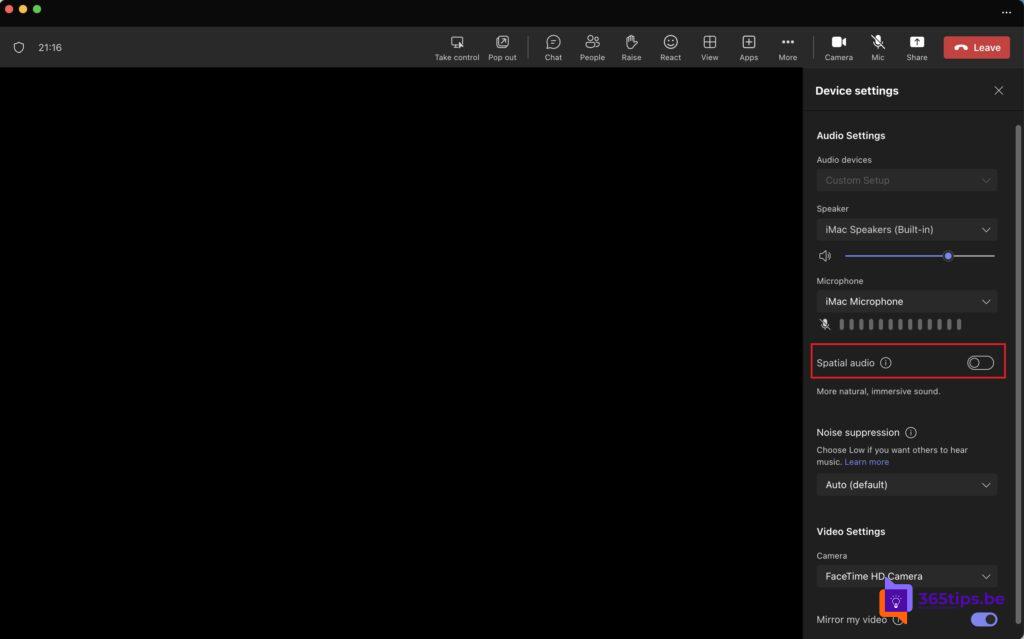
- In Teams, click ... > Settings > Devices.
- Choose your headset or speakers under Audio devices.
- Turn Spatial audio on or off.
During a meeting you'll also find the option in the meeting's audio settings. The exact name may differ between Teams versions. If you don't see the option, your device probably doesn't support it.
Also see noise suppression in Teams and getting rid of echo in Teams.
Read also
Set up noise suppression and voice isolation in Microsoft Teams
No more echo in Microsoft Teams thanks to howling detection
Share your screen with computer sound in Microsoft Teams
Nederlandstalige versie: Spatial audio (ruimtelijke audio) in Microsoft Teams