With the Teams app for iPhone and iPad you stay reachable and join meetings, even when you're away from your desk. In this article you install the app, sign in and learn the handiest features.
Install and sign in
- Download Microsoft Teams from the App Store.
- Open the app and sign in with your work account.
- Allow notifications, the microphone and the camera when the app asks.
Asked to install an app like Microsoft Authenticator or Company Portal? Then your organization uses extra security. Follow the steps on screen.
Find your way
- Activity: mentions, reactions and missed calls.
- Chat and Teams: your conversations and channels.
- Calendar: your meetings. Tap Join to get in.
- More (...): Calls, OneDrive, Planner and other apps.
On an iPad you see the list and the conversation side by side, just like on a computer.
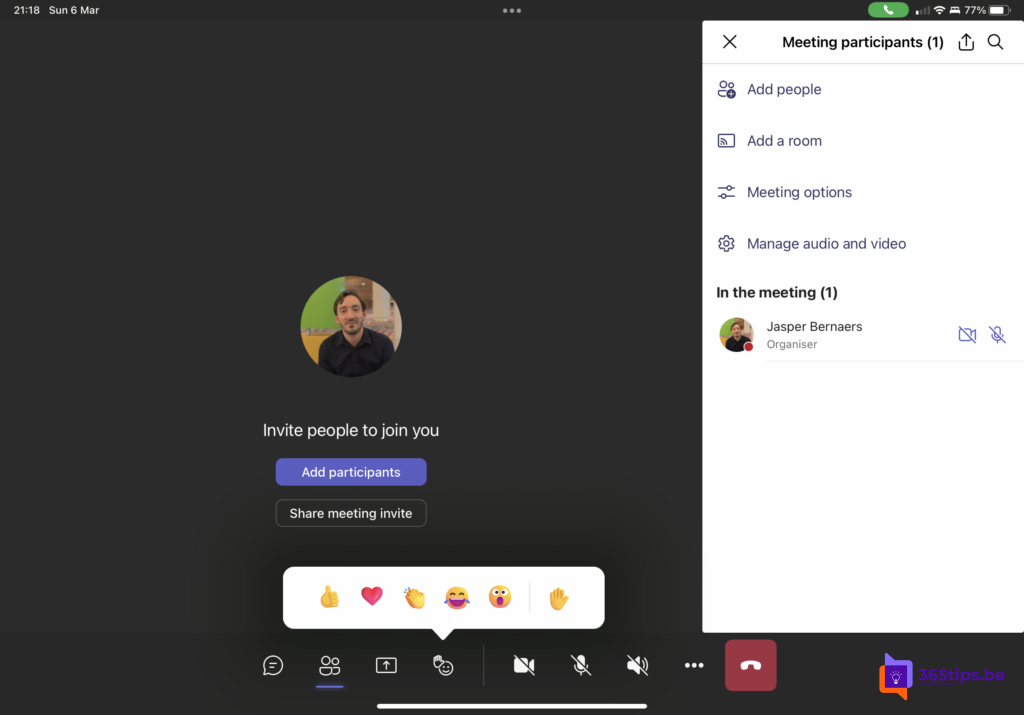
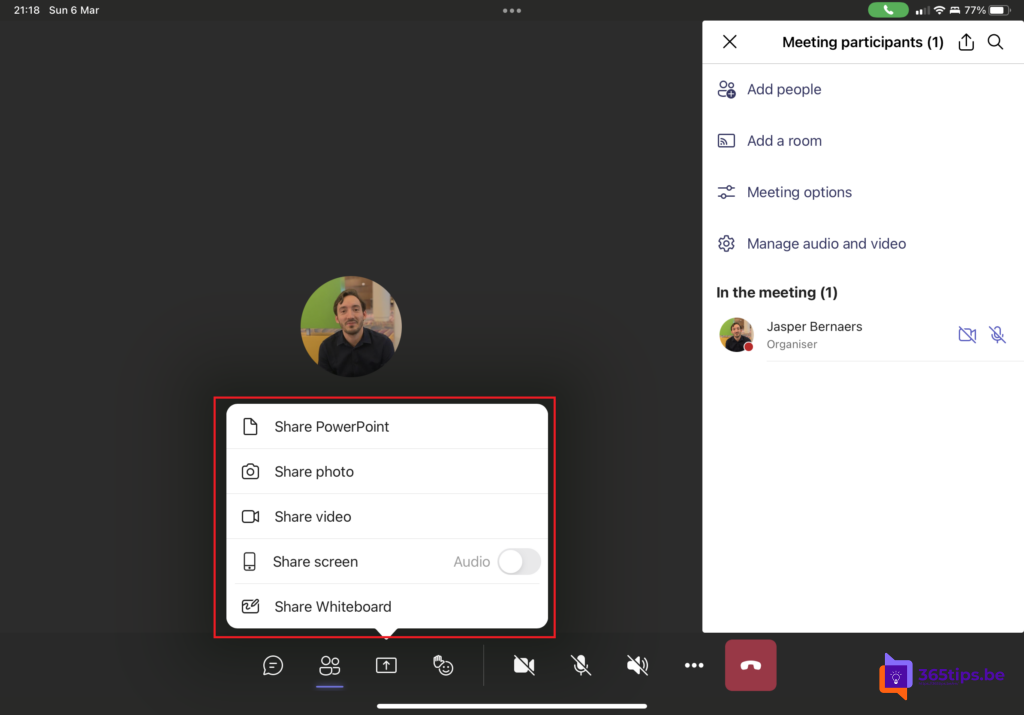
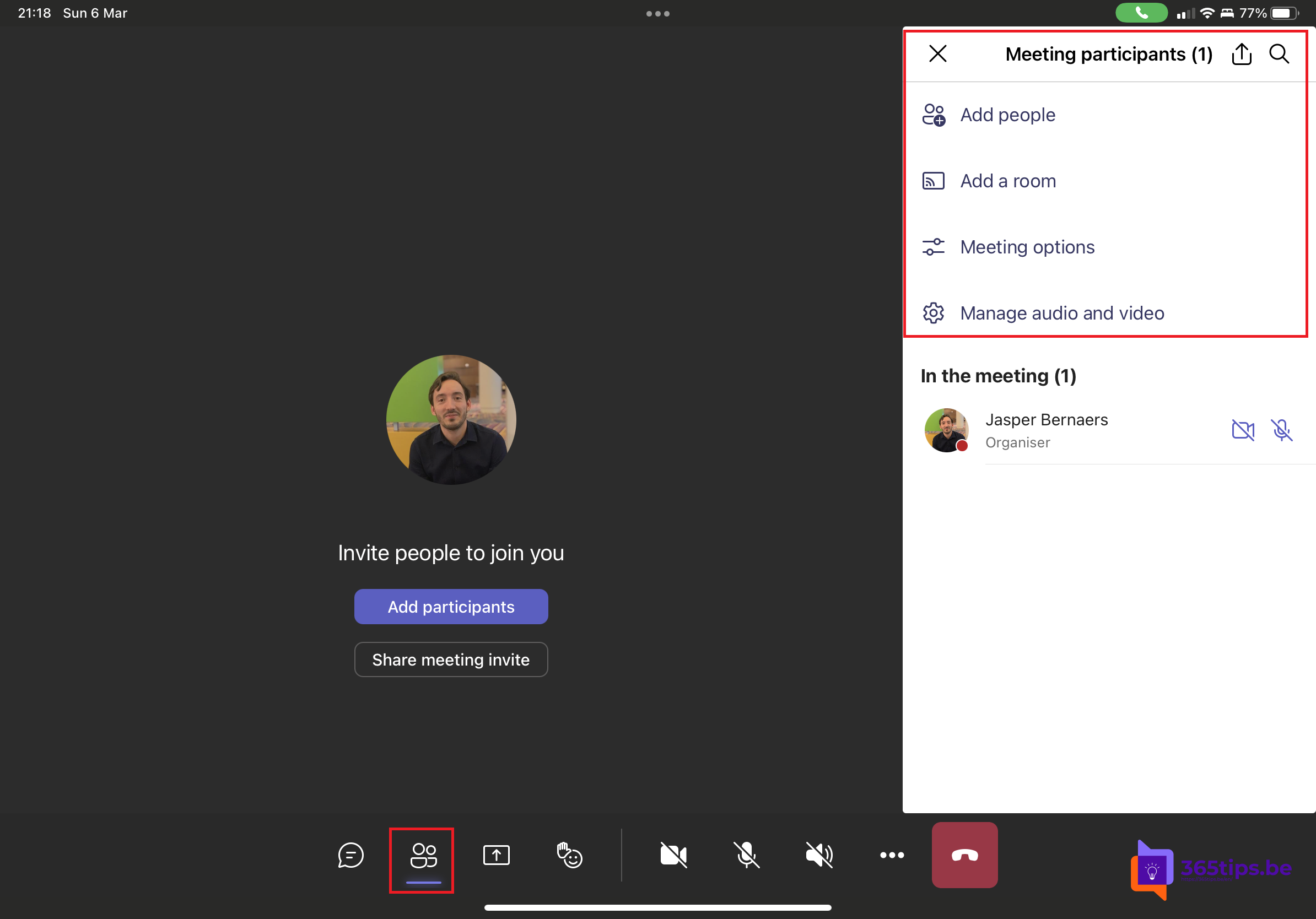
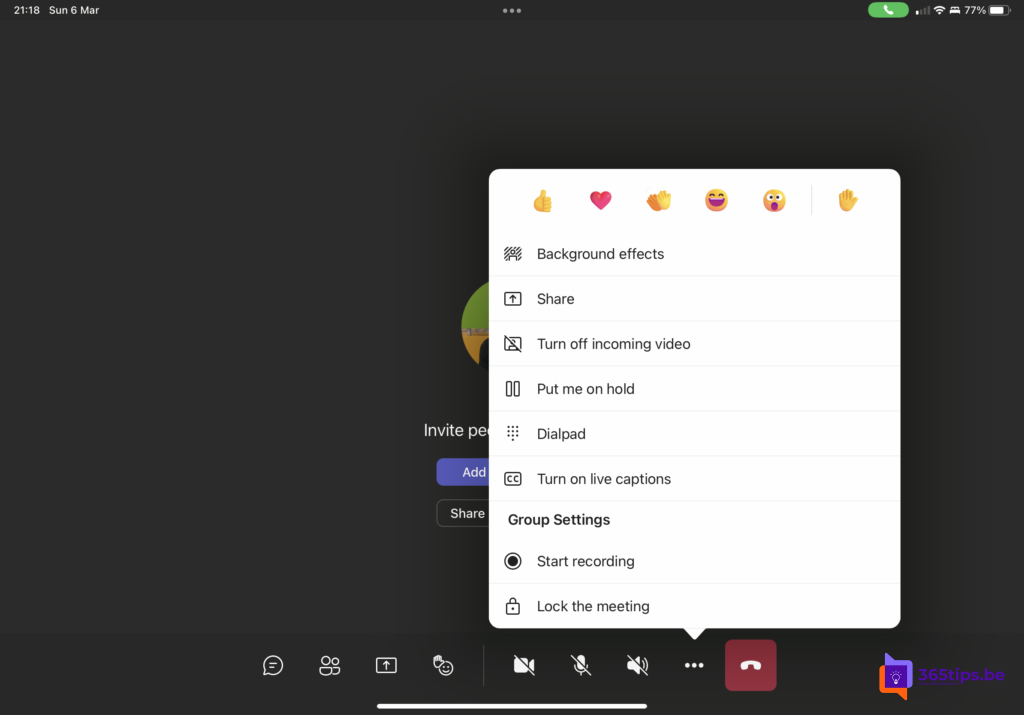
Meetings
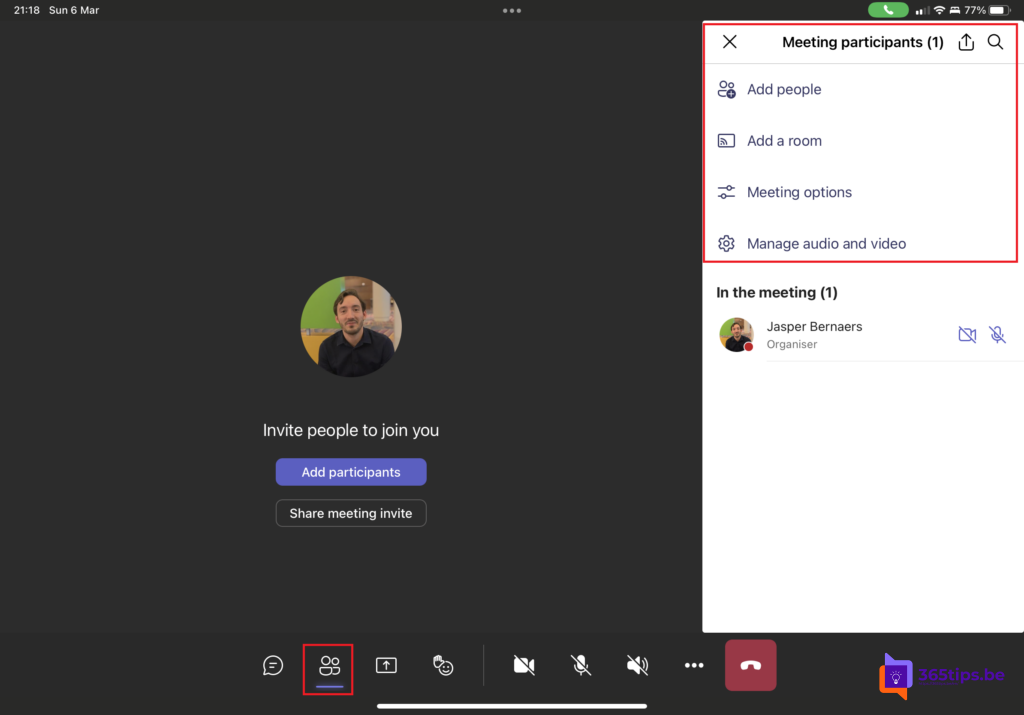
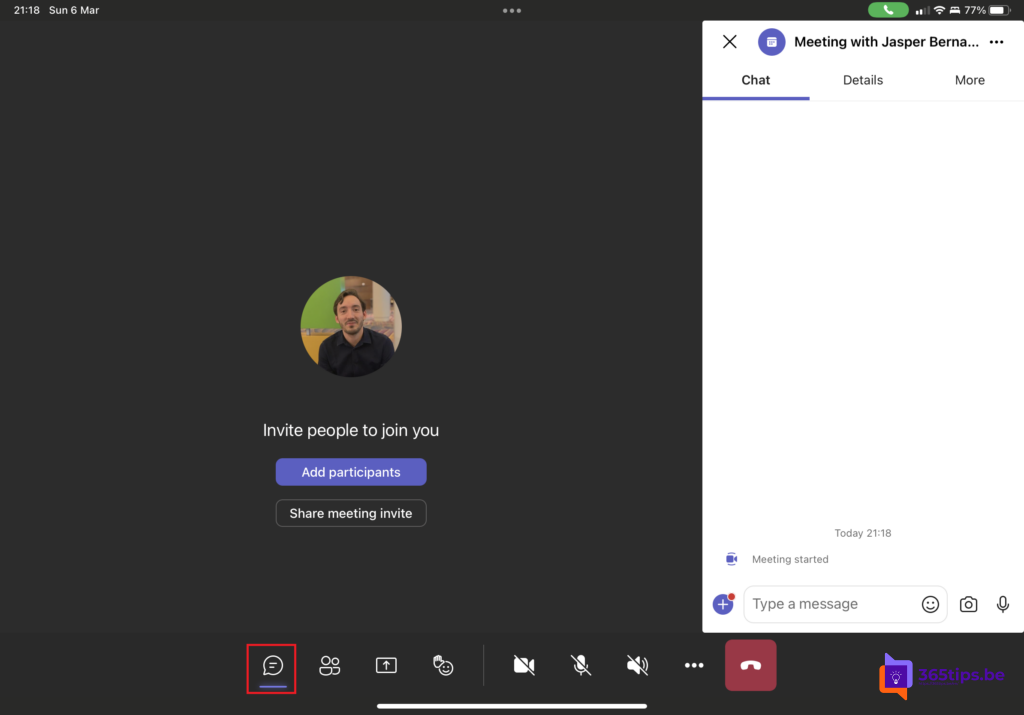
During a meeting you can share your screen, set a background and open the chat. On an iPad with a keyboard, the familiar shortcuts work too.
Notifications and quiet time
Tap your profile picture > Settings > Notifications. Set quiet hours there so you don't get notifications in the evening and at weekends. Read quiet hours in Teams mobile.
Also see fix a slow Teams mobile app and multiple accounts in Teams.
Read also
Set quiet hours in Microsoft Teams so you're not disturbed in the evening
Make a slow Teams mobile app faster on Android and iPhone
Use multiple accounts at once in Microsoft Teams
Nederlandstalige versie: Aan de slag met Microsoft Teams op iPhone en iPad