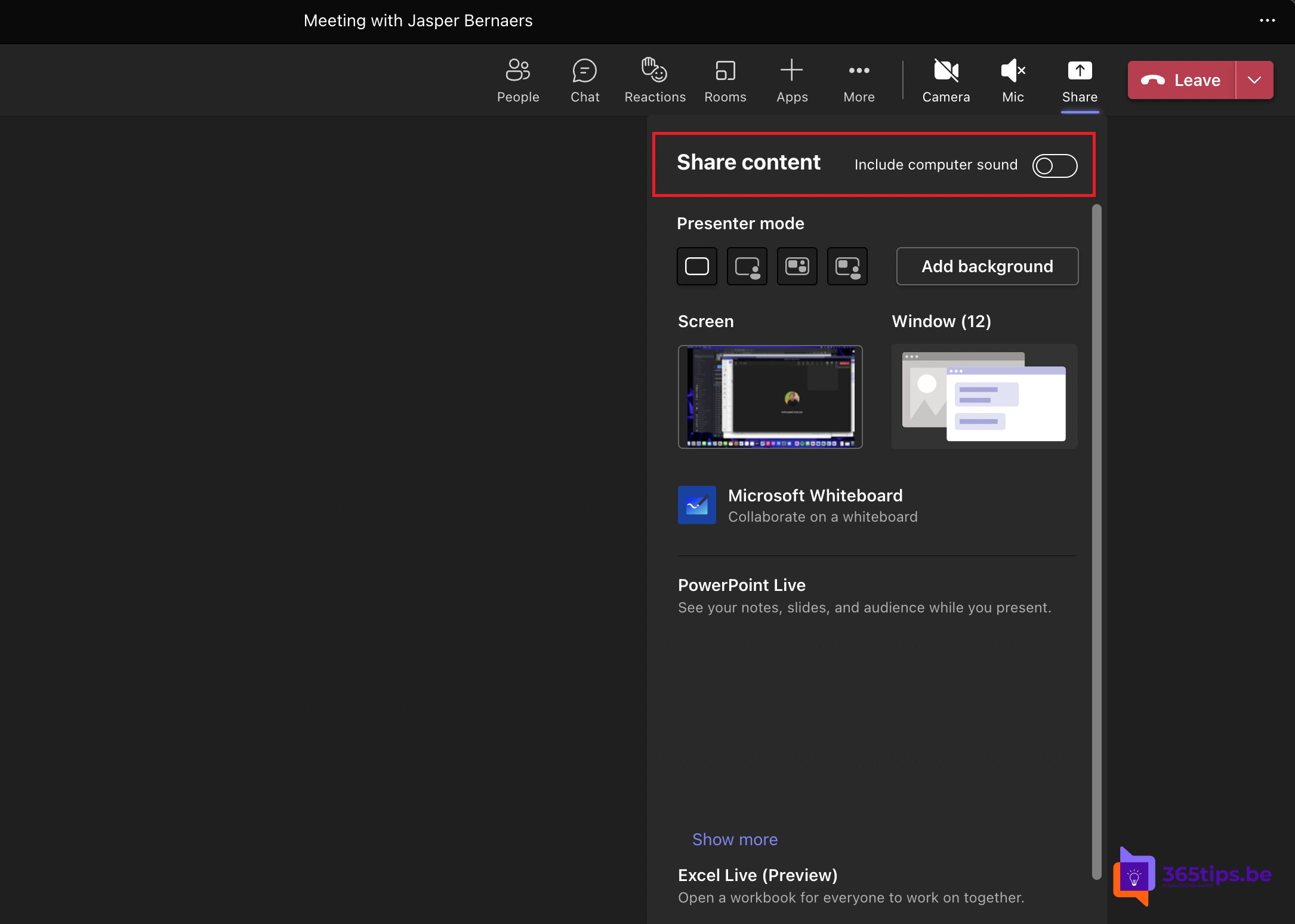
When you show a video or a demo with sound in a Teams meeting, attendees hear only your microphone by default. To send your computer's audio along, turn on Include sound when sharing your screen. This article shows how it works on Windows and Mac, and what to do if it doesn't.
On Windows
- In the meeting, select Share.
- Turn on Include sound at the top.
- Choose your screen or window and start the video.
Already sharing? Select Include sound in the presenter toolbar at the top.

On a Mac
The first time, Teams asks you to install an audio driver. Select Install and enter your password. After that it works the same as on Windows.
Tips for video
- Share the video's window instead of your whole screen, so others don't see your notifications.
- Video choppy for others? Upload it beforehand to the chat or a channel and let everyone watch it themselves. Or use a PowerPoint with the video embedded through PowerPoint Live.
- Wear headphones, so the video's sound doesn't come back in through your microphone.
- Sharing audio from another app? Check in Windows Sound settings that the right output device is selected.
Not working?
- Check that Include sound is really on in the presenter toolbar.
- Use the desktop app: sound sharing is limited in the browser.
- Restart Teams or clear the cache.
- Black screen when sharing? Read black screen when sharing in Teams.
- Want to stay visible while presenting? See presenter mode.
Read also
Black screen when sharing your screen in Microsoft Teams: causes and fixes
Use presenter mode (Standout, Side-by-side, Reporter) in Microsoft Teams
Clear the Microsoft Teams cache on Windows and Mac
Nederlandstalige versie: Je scherm delen met computergeluid in Microsoft Teams