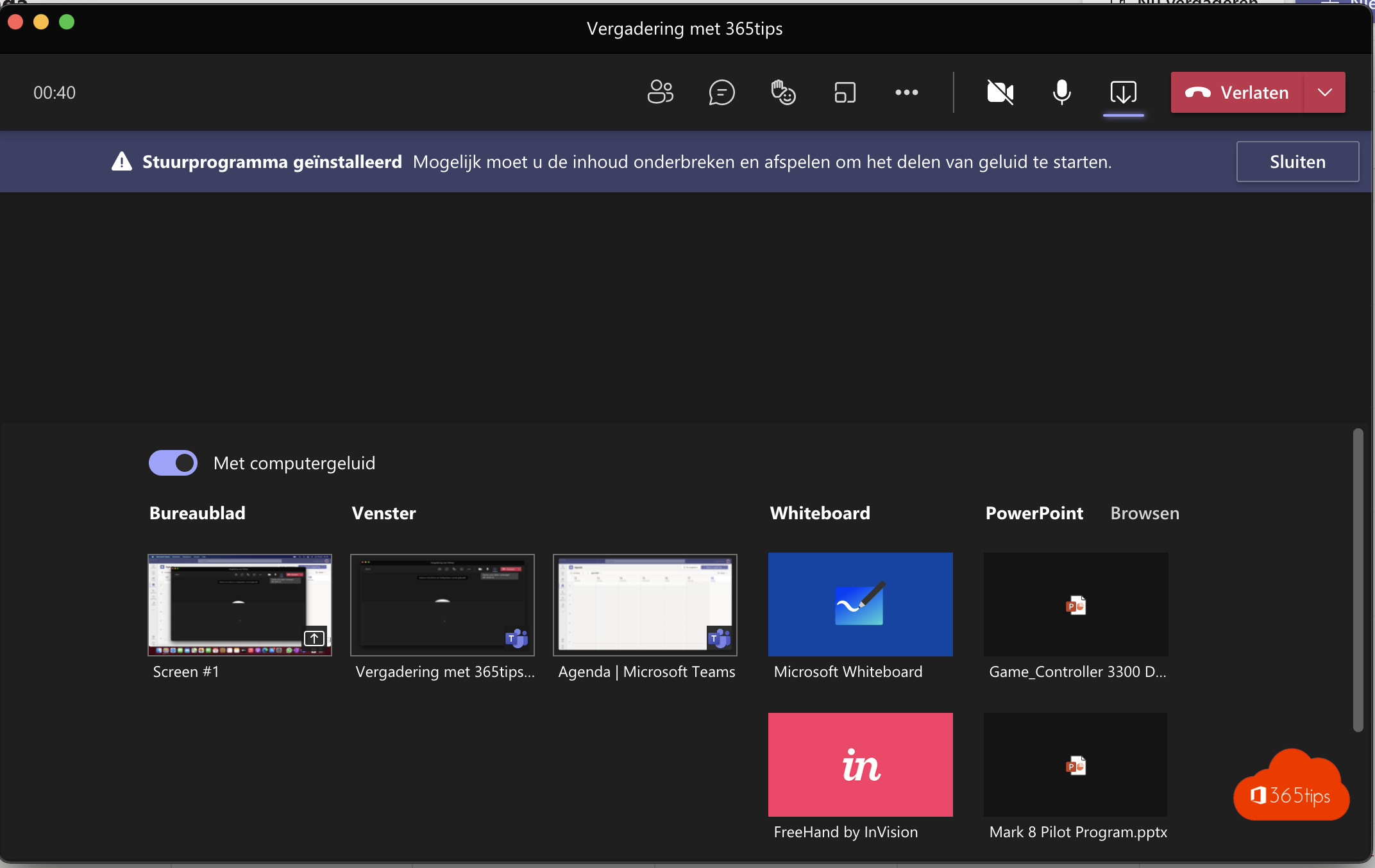
You want to show a video in a Teams meeting on your MacBook or iMac, but the others hear no sound. On a Mac, Teams has to install an audio driver the first time before it can share computer sound. Here's how.
Share computer sound
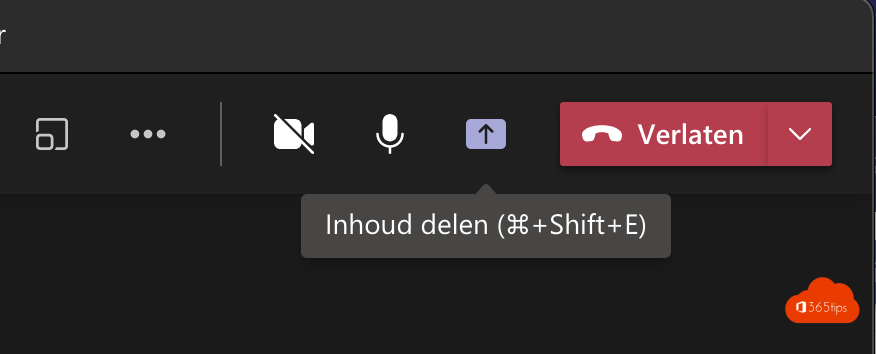
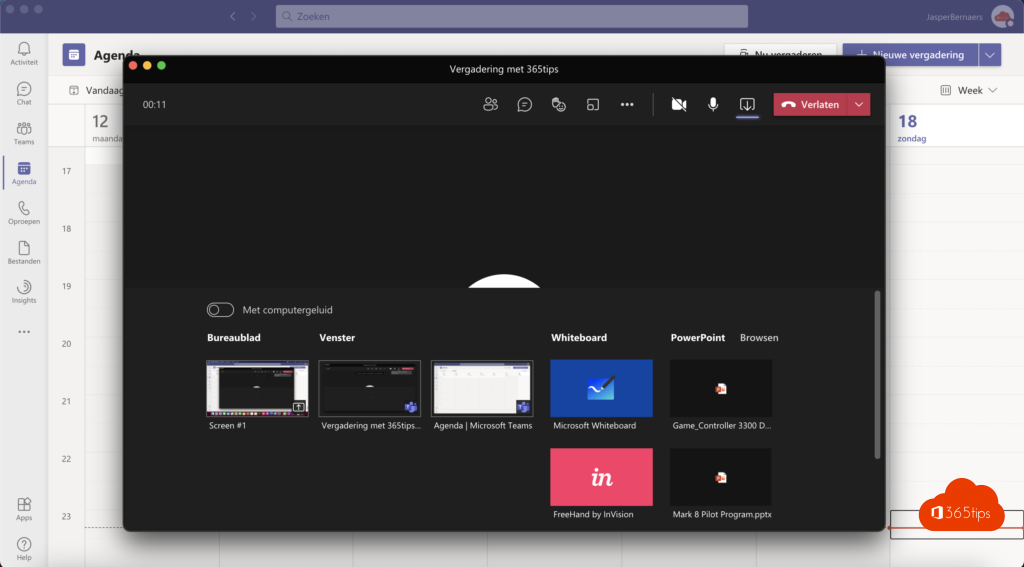
- In the meeting, select Share.
- Turn on Include computer sound.
- The first time, Teams asks to install an audio driver. Select Install and enter your Mac password.
- Choose the screen or window to share. The sound now goes along.

macOS permissions
Teams needs permission to share your screen. Go to System Settings > Privacy & Security > Screen & System Audio Recording and turn on Microsoft Teams. Then restart Teams.
Still no sound?
- Check that your Mac isn't muted and that the video plays in the right app.
- Stop sharing and start again with computer sound on.
- Update Teams and macOS, and restart your Mac after installing the driver.
On Windows, see share computer sound in Teams. Also read share your screen in Teams.
Read also
Share your screen with computer sound in Microsoft Teams
Share your screen, a window or a whiteboard in Teams
Black screen when sharing your screen in Microsoft Teams: causes and fixes
Nederlandstalige versie: Computergeluid delen in Teams op een MacBook of iMac
More in English
▸Force quit a frozen app on a Mac: 5 waysForce quit an unresponsive app on your Mac with Command + Option + Esc, the Apple menu, the Dock, Activity…
▸How to use an iPad as a second screen for your Mac with SidecarUse your iPad as a second screen for your MacBook or iMac with Sidecar, wirelessly or with a cable. Plus…
▸Present a PowerPoint in Teams with PowerPoint LiveShare your presentation with PowerPoint Live instead of your screen: with notes, laser pointer, Cameo and…
▸Install the Microsoft 365 apps (Office) on a MacInstall Word, Excel, PowerPoint, Outlook and Teams on your Mac from microsoft365.com or the Mac App Store,…