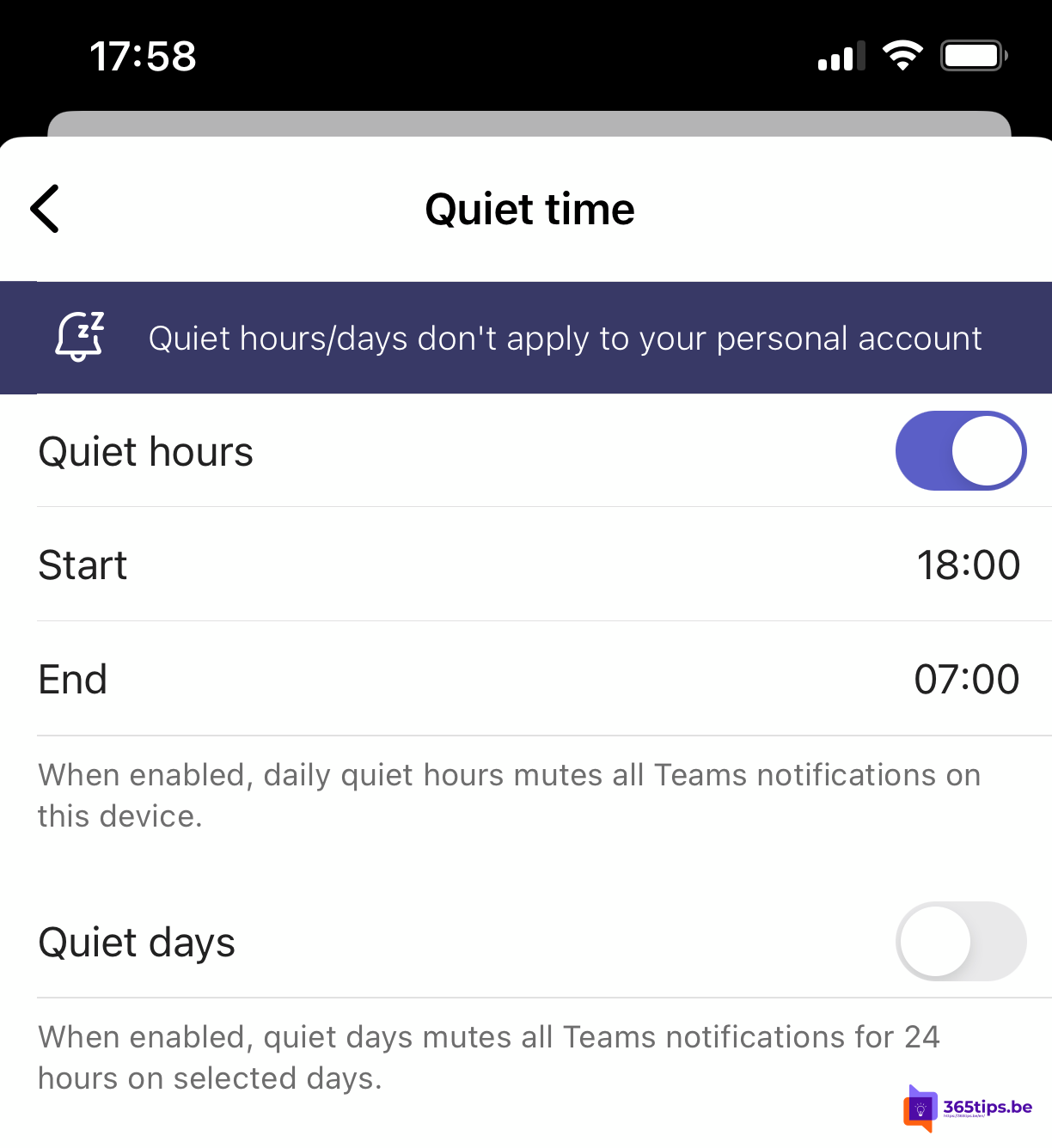
Teams is on your phone, so colleagues' messages arrive in the evening and at weekends too. With quiet hours and quiet days in the Teams mobile app, you get no notifications outside your working hours. This article shows how to set it up and how to keep things calm on your computer too.
Quiet hours on your phone
- Open the Teams app and tap your profile picture.
- Tap Settings > Notifications.
- Choose Block notifications (or Quiet time).
- Turn on Daily quiet hours and choose, for example, 6 pm to 8 am.
- Turn on Quiet days and choose Saturday and Sunday.
You can also choose to block notifications while you're active on your computer.

On your computer
- Set your status to Do not disturb or Appear offline until tomorrow. Read set your status.
- Quit Teams completely rather than just closing the window. Read stop Teams starting automatically.
- Use Focus or Do not disturb in Windows 11 and macOS to pause all notifications.
Working hours for others
Set your working hours in Outlook and Teams. Colleagues then see that you're outside your working hours when they message you.
Don't send messages in the evening yourself
Like working late? Schedule your message for the next morning, so your colleagues get some rest too.
Fine-tune notifications
Want fewer notifications during the day as well? Choose per channel or chat what you receive. Read adjust Teams notifications.
Nederlandstalige versie: Stille uren instellen in Microsoft Teams om 's avonds niet gestoord te worden