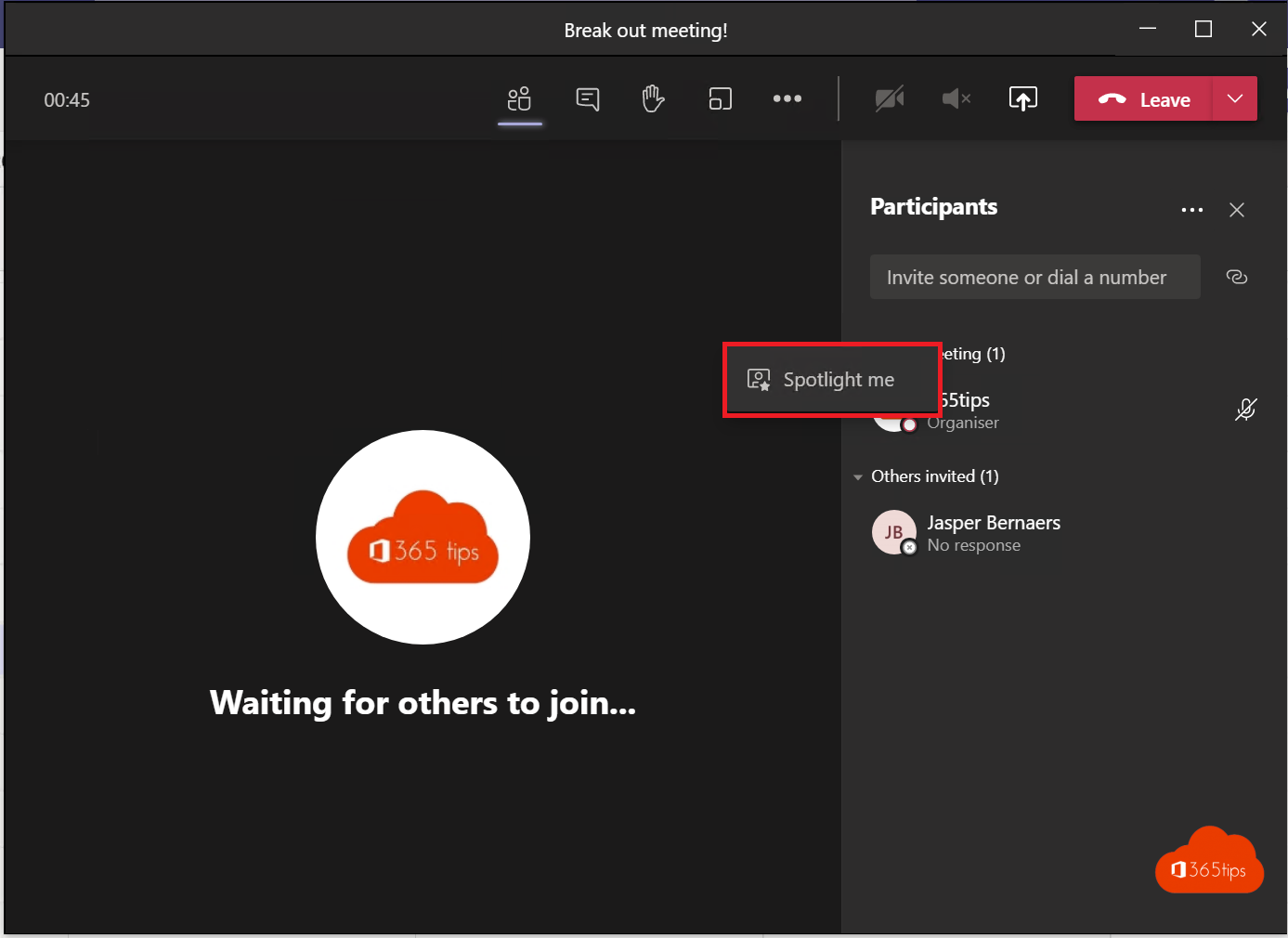
In a meeting with many attendees, the speaker often disappears among dozens of small tiles. With Spotlight you make one or more people large on screen, for everyone. Ideal for a guest speaker, a panel discussion or an interpreter. This article shows how it works and how it differs from Pin.
Spotlight someone
- Select People.
- Hover over the name > More options (...) > Spotlight for everyone.
Or right-click the person's video tile. You can spotlight up to seven people at once.
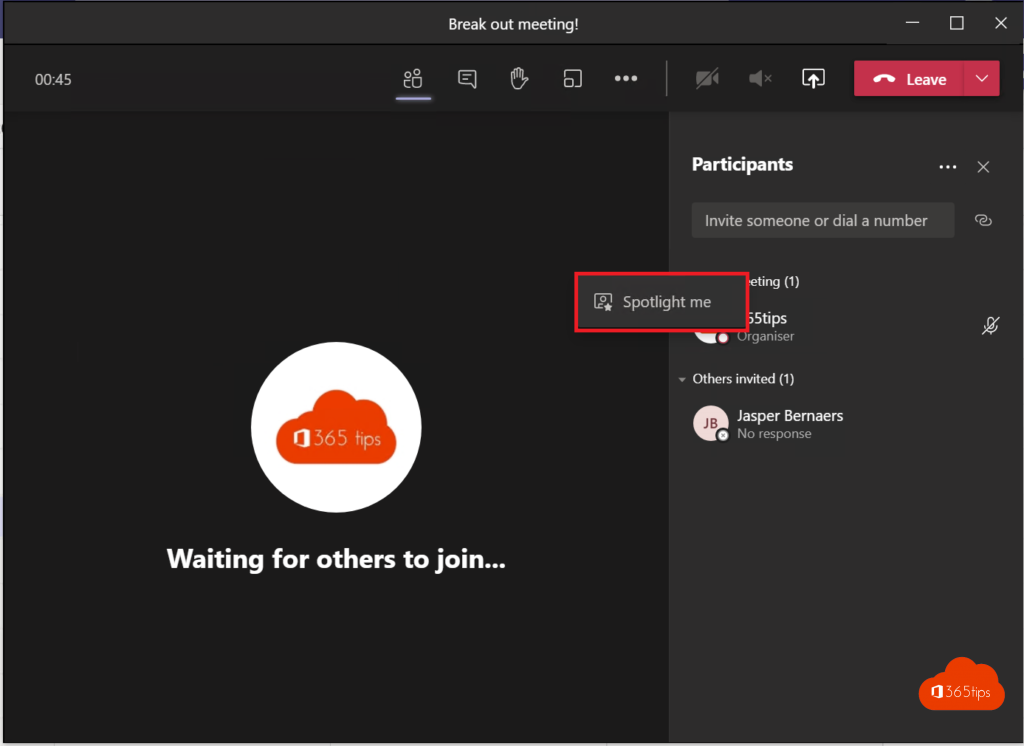
Spotlight yourself
Right-click your own video tile > Spotlight me. Or turn it on in People next to your own name.
Who can do it?
- Organizers, co-organizers and presenters can spotlight others.
- The person needs their camera on.
- To stop: More options > Stop spotlighting, or Stop spotlight for everyone.
Spotlight or pin?
| Spotlight | Pin | |
|---|---|---|
| For whom? | Everyone in the meeting | Only you |
| Who can do it? | Organizer and presenters | Anyone |
| When? | A speaker, panel or interpreter | You want to keep seeing one person yourself |
Tips
- Spotlight or pin a sign language interpreter so they're always visible.
- Running a panel? Spotlight the speakers and turn off attendee cameras.
- Presenting yourself? Use presenter mode.
Read also
Use presenter mode (Standout, Side-by-side, Reporter) in Microsoft Teams
Raise your hand in a Microsoft Teams meeting
The co-organizer role in a Microsoft Teams meeting
Nederlandstalige versie: Spotlight gebruiken in Microsoft Teams: de spreker groot in beeld
More in English
▸Use presenter mode (Standout, Side-by-side, Reporter) in Microsoft TeamsStay visible with your slides using the Standout, Side-by-side and Reporter presenter modes in Teams. Plus…
▸Raise your hand in a Microsoft Teams meetingRaise your hand in a Teams meeting with a click or Ctrl + Shift + K. The organizer sees the order and lowers…
▸Schedule and host a webinar with Microsoft TeamsRun a webinar in Microsoft Teams with a registration page, speakers, Q&A and reports. Plus how it compares to…
▸Set a custom background in Microsoft TeamsUse your own image as a background in Teams, before or during a meeting. Best format, blur and…