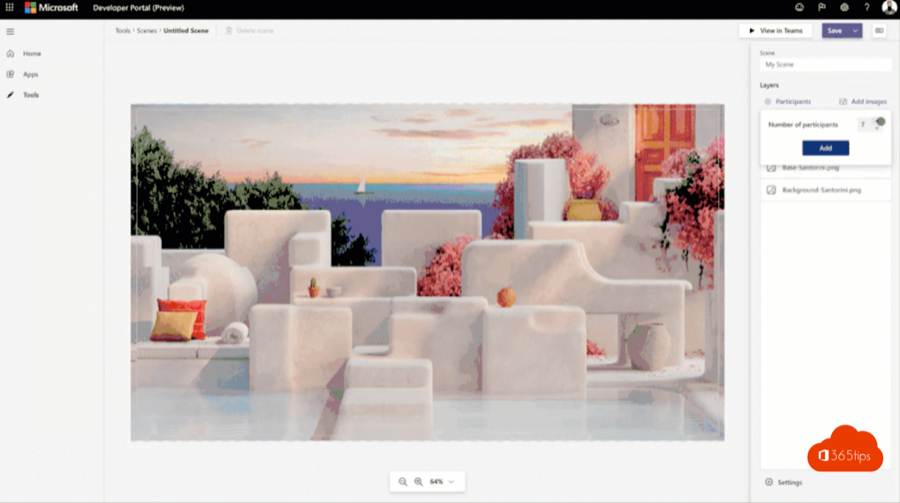
Together mode in Microsoft Teams puts all participants together in one virtual space, such as an auditorium or a coffee shop. Want your own scene, for example with your organization's logo? You can design one in the Teams Developer Portal. Here's how it works and what to watch out for.
Together mode still exists in the new Teams, but the availability of custom scenes via the scene designer in the Developer Portal can vary, and Microsoft may still change it. Check the current documentation before you start.
What is Together mode?
Teams cuts participants out of their own video and places them together in a shared scene. That feels more like sitting in one room than a grid of separate tiles. You choose the mode during a meeting via View > Together mode. Then you can pick another space via Change scene.
Create your own scene
- Go to the Developer Portal at dev.teams.microsoft.com and sign in with your work account.
- Open the scene designer (Scenes) and create a new scene.
- Upload a background image, for example 1920 x 1080 pixels, and optionally separate layers such as chairs or tables.
- Drag the participant seats to the right place and set their size.
- Save the scene. You can share it or export it as a package so colleagues can use it too.

The exact button names may differ. A scene is actually distributed in Teams as a small app, so your admin decides via app policies whether you can use or share it.
Ideas
- A meeting room with your organization's logo and branding.
- A festive scene for an end-of-year get-together.
- A classroom for a training session or a lesson.
Good to know
- How many people fit in a scene depends on the scene. With a custom scene you decide the number of seats yourself.
- By default the organizer can choose the scene for everyone. Your admin can set who may change the view via meeting policies.
- Only want to change your own background? Just use Video effects and settings > Backgrounds.
Also see Together mode in Microsoft Teams and set a custom background in Teams.
Read also
Together mode in Microsoft Teams: one shared virtual space
Set a custom background in Microsoft Teams
Dynamic view in Microsoft Teams meetings
Nederlandstalige versie: Eigen scènes maken voor de Together-modus in Microsoft Teams