Like writing on a classic whiteboard during meetings? With a content camera in a Microsoft Teams Room, remote attendees can see what you write on the board as well. Here is how it works and what you need.
What is a content camera?
A content camera is an extra camera pointed at an analog whiteboard. Teams enhances the image and can make the person standing in front of the board translucent, so the writing stays readable. Remote attendees see the board as shared content in the meeting.
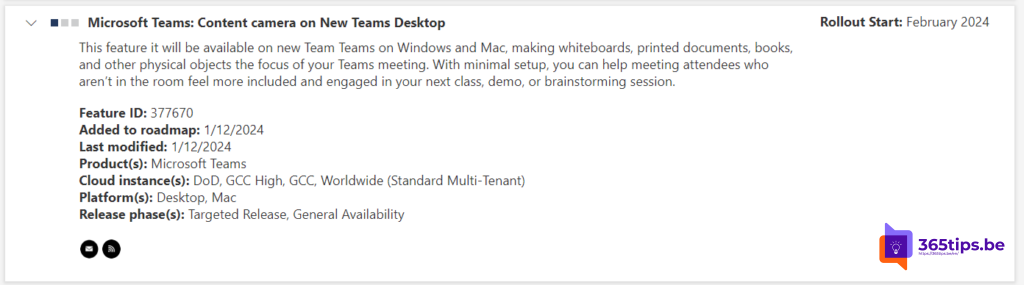
What do you need?
- A Microsoft Teams Rooms system with a certified content camera.
- A Teams Rooms Pro license for the room (check Microsoft's current licensing terms).
- A whiteboard in a fixed location, with the camera centered in front of it.
Placing the camera
Mount the camera centered horizontally and vertically on the board. Microsoft's documentation gives distance recommendations based on the width of the whiteboard. Make sure the lighting is good, without glare on the board.
Setting up the content camera
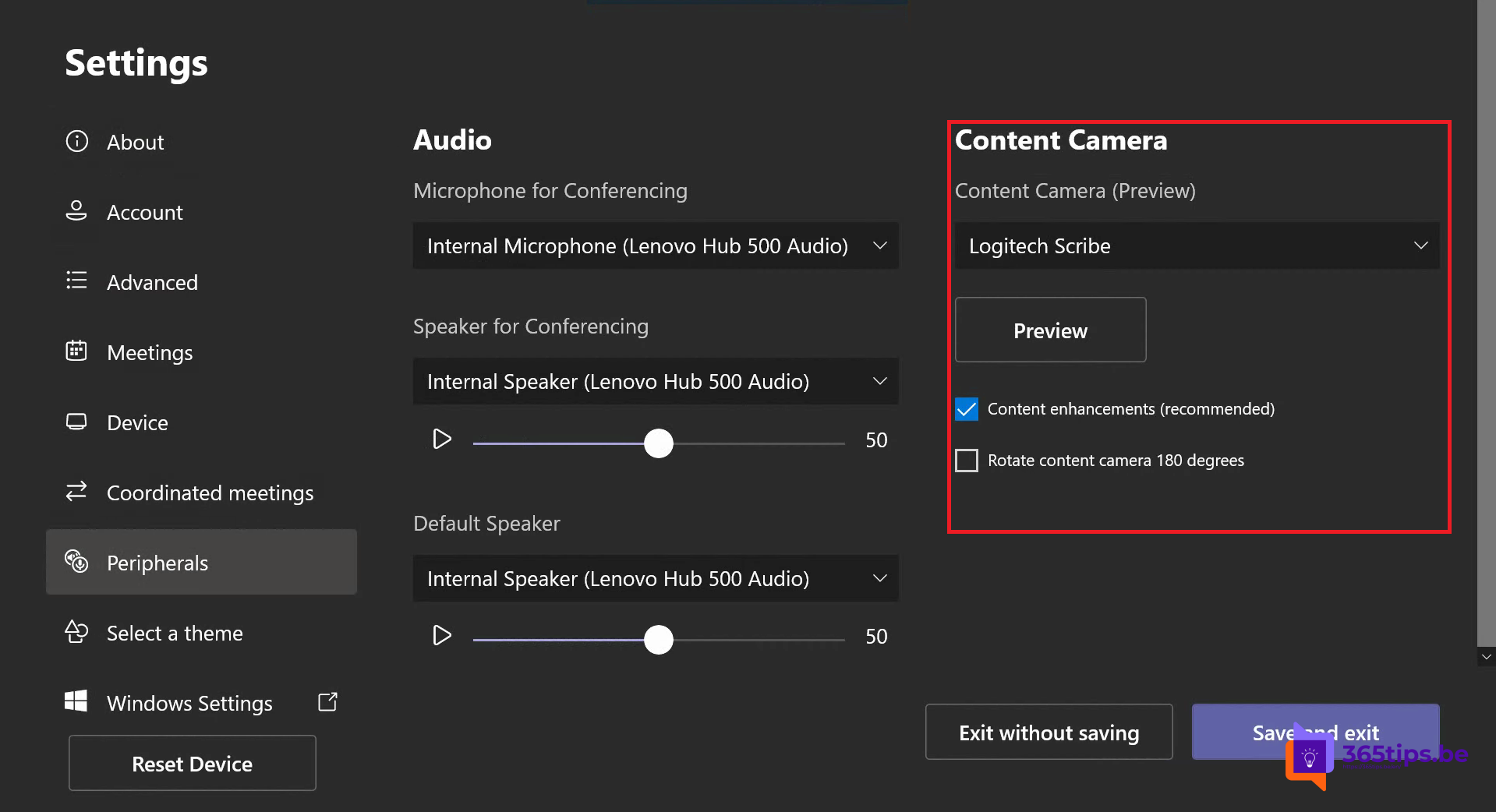
- On the Teams Room console, open Settings (admin rights required).
- Select the content camera under peripherals.
- Turn on content enhancements so the image is sharper and the presenter becomes translucent.
- Camera mounted upside down? Use the option to rotate the image 180°.
Exact option names may differ between Teams Rooms versions.
During the meeting
Choose Share on the console and select the whiteboard or content camera. Depending on your hardware, the room camera can keep showing the presenter at the same time.
Also see casting to a Teams Room and Whiteboard in Teams.
Read also
Cast content from your phone to a Microsoft Teams Room
Use Microsoft Whiteboard in Teams channels and meetings
Share your screen, a window or a whiteboard in Teams
Nederlandstalige versie: Een contentcamera gebruiken in Microsoft Teams Rooms