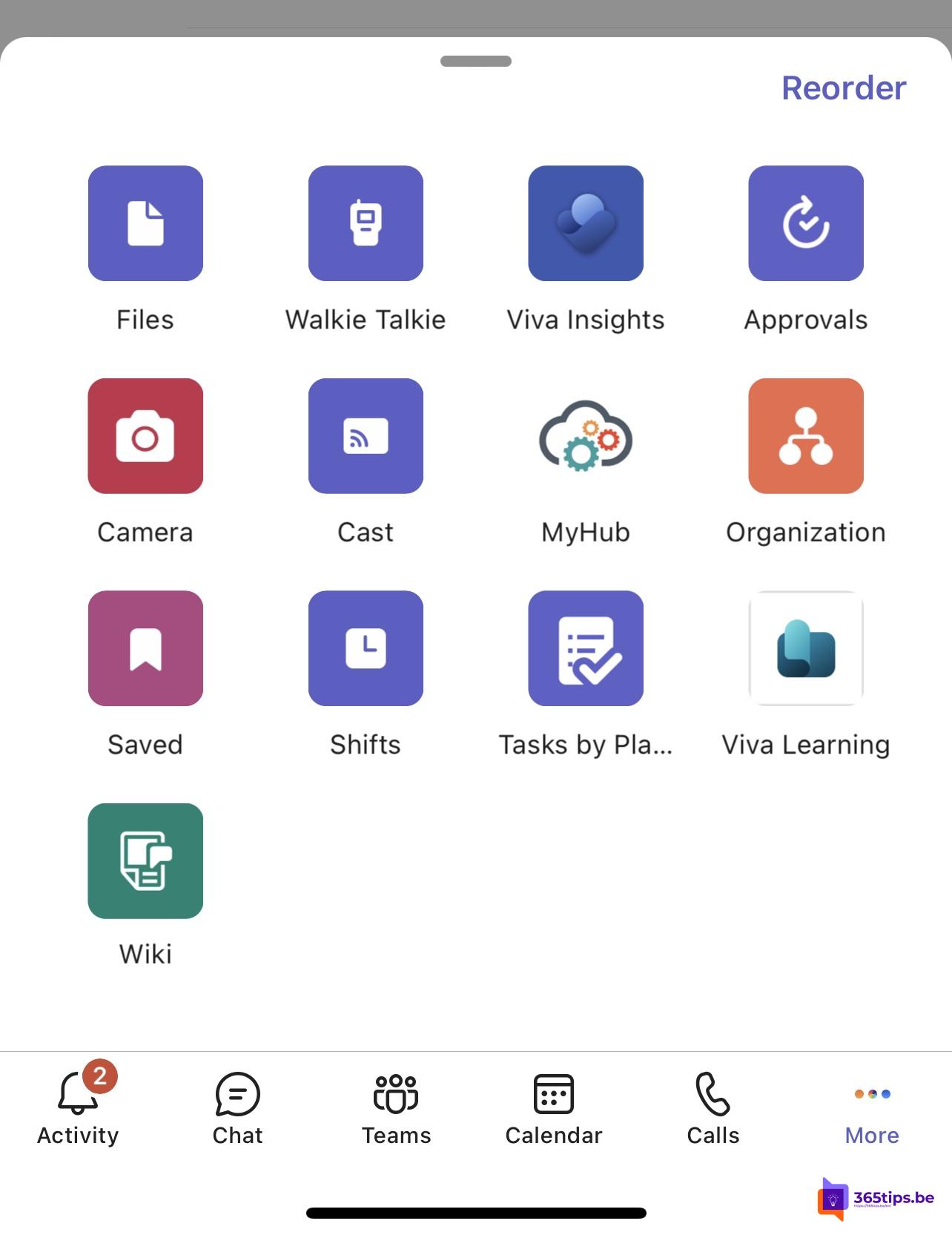
Sitting in a meeting room with a Microsoft Teams Room and want to quickly show something from your phone? With casting you put your screen or a file on the room's big screen, without a laptop or cable. Handy if you work on the go a lot and want to share a document or photo.
What you need
- The Teams app on your iPhone, iPad or Android device, signed in with your work account.
- Bluetooth turned on on your device.
- Your device and the Teams Room connected to the internet.
- You're near the Teams Rooms device, in the same room.
- Casting enabled on the Teams Rooms device. Your admin takes care of that.
Cast your screen
- Open the Teams app and tap More (the three dots) or your profile picture, depending on your version.
- Tap Cast.
- Choose the Teams Rooms device from the list of nearby devices.
- Choose what to share, for example Project my screen, a file or a photo.
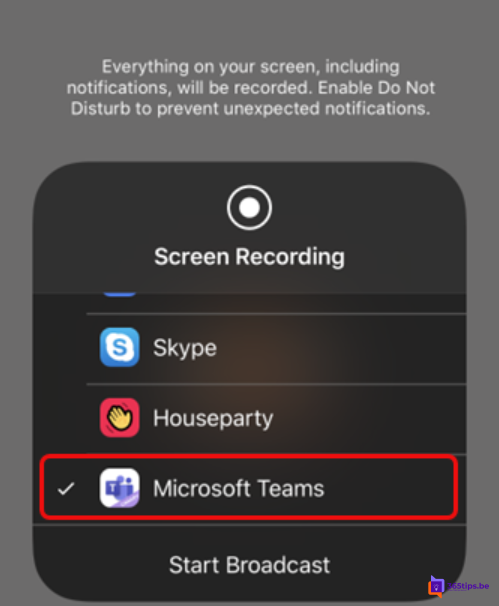
- On an iPhone or iPad, confirm once more that you want to broadcast with Microsoft Teams.
To stop, tap Stop casting in the app. Exact buttons can differ by device and version.
Casting or joining the meeting?
Casting only shares your content on the screen; you don't join an online meeting. If a Teams meeting is running in the room, you can also simply join from your phone and share your screen in that meeting.

Casting to a regular TV?
Casting in Teams only works with Teams Rooms devices. To cast to a regular TV, use your device's own features such as AirPlay or Chromecast, or connect a laptop.
Also see share your screen in Microsoft Teams and Teams on iPhone and iPad.
Read also
Share your screen, a window or a whiteboard in Teams
Get started with Microsoft Teams on iPhone and iPad
Use presenter mode (Standout, Side-by-side, Reporter) in Microsoft Teams
Nederlandstalige versie: Inhoud casten van je gsm naar een Microsoft Teams Room