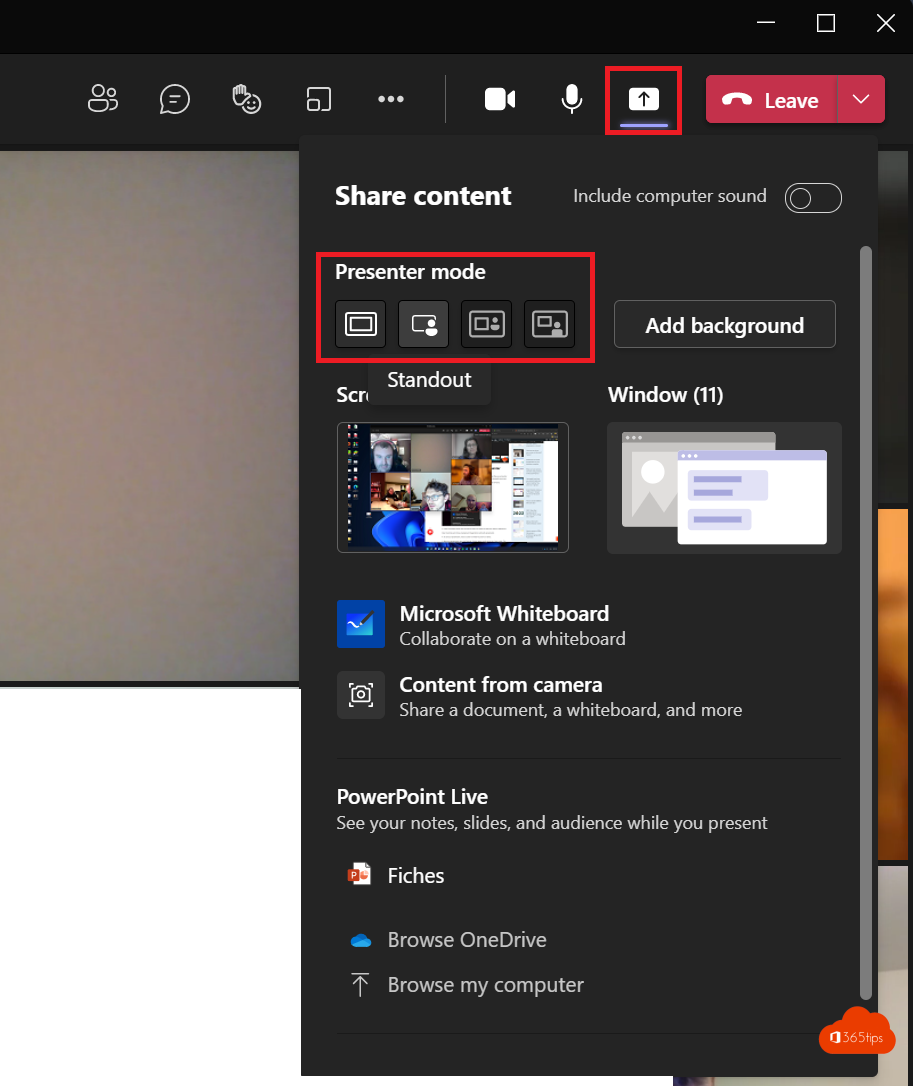
When you share your screen in Teams, you often shrink to a small tile in the corner. With presenter mode you stay visible next to or in front of your slides, like a weather presenter in front of the map. It makes your presentation more personal and keeps people's attention. This article explains the modes and how to use them.
The presenter modes
| Mode | What do attendees see? |
|---|---|
| Content only | Just your screen, without you |
| Standout | Your silhouette in front of your content, like a weather presenter |
| Side-by-side | Your video next to your content |
| Reporter | Your content over your shoulder, like a news anchor |
How to use it
- Turn on your camera.
- Select Share at the top.
- Under Presenter mode, choose a mode, for example Standout.
- Choose the screen or window to share.
- While sharing, switch modes from the presenter toolbar at the top.
In Standout mode you can move your own silhouette and make it larger or smaller.
Tips
- Leave space on your slides on the side where you appear.
- Make sure you're well lit. Read adjust brightness in Teams.
- Present slides with PowerPoint Live (Share > PowerPoint Live): attendees can browse slides themselves and you see your notes. There you can bring yourself on screen with Cameo.
- Sharing a video? Turn on Include sound. Read share your screen with computer sound.
Don't see the option?
Presenter modes only work in the Teams desktop app for Windows and Mac, with your camera on. In the browser or on mobile they're limited or unavailable.
Read also
Share your screen with computer sound in Microsoft Teams
Turn on brightness correction and soft focus in Microsoft Teams
Black screen when sharing your screen in Microsoft Teams: causes and fixes
Nederlandstalige versie: De presentatormodus (weermanmodus) gebruiken in Microsoft Teams