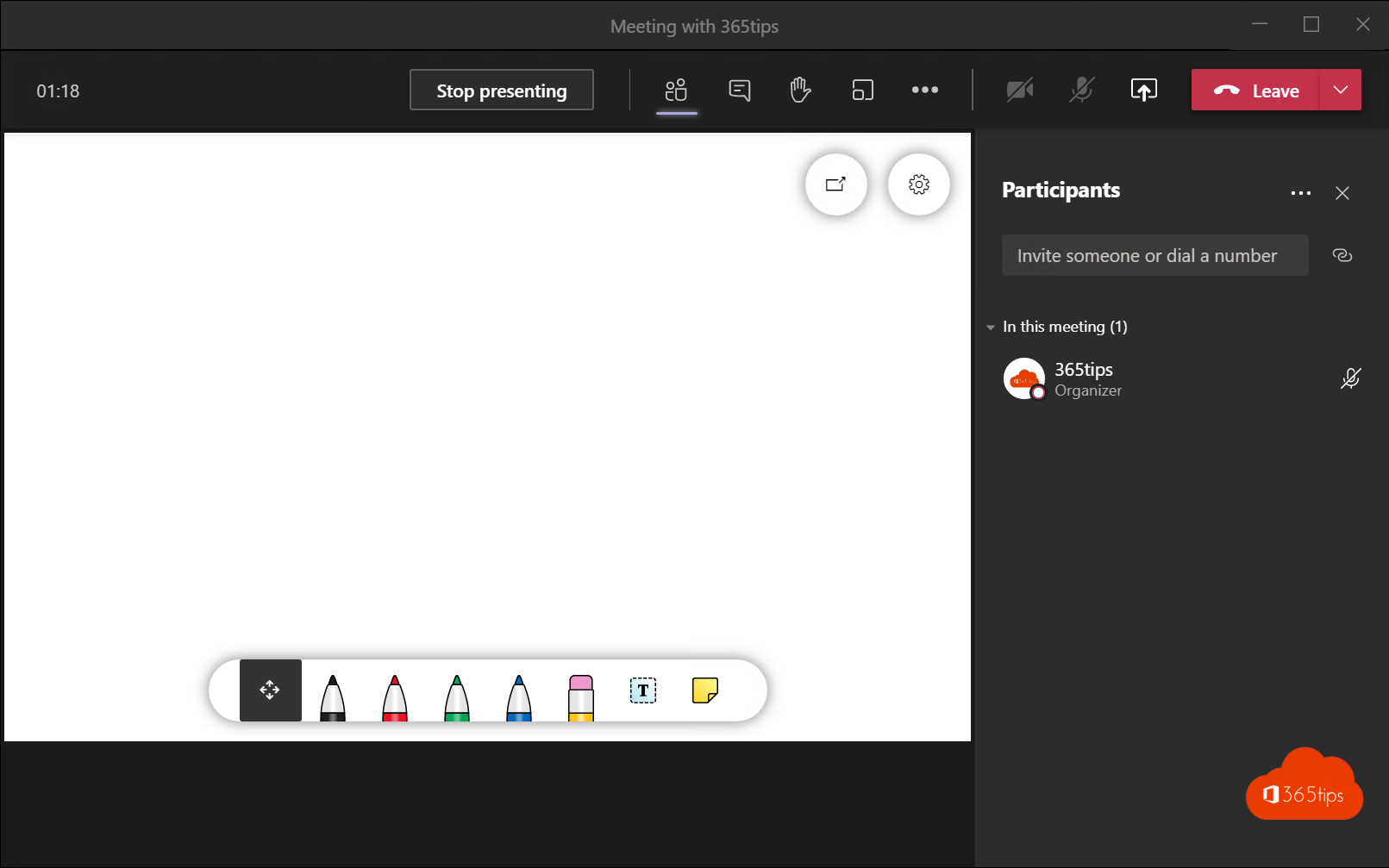
Brainstorming, drawing a process or grouping ideas with sticky notes: with Microsoft Whiteboard you do that together in Teams, like a real whiteboard but infinitely large and always saved. This article shows how to add a whiteboard to a channel, use it in a meeting, which templates exist and where the board is stored.
A whiteboard in a channel
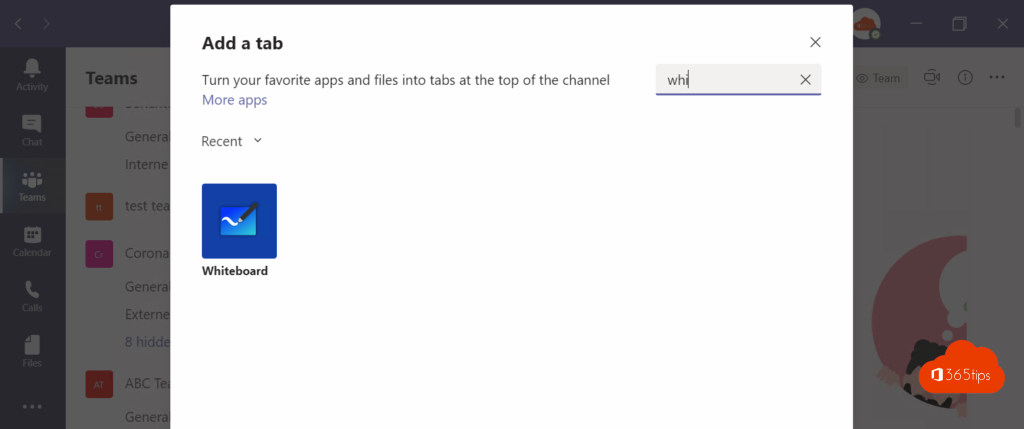
- Go to the channel and select + (Add a tab) at the top.
- Search for and choose Whiteboard.
- Name the tab, for example Q4 brainstorm, and select Save.
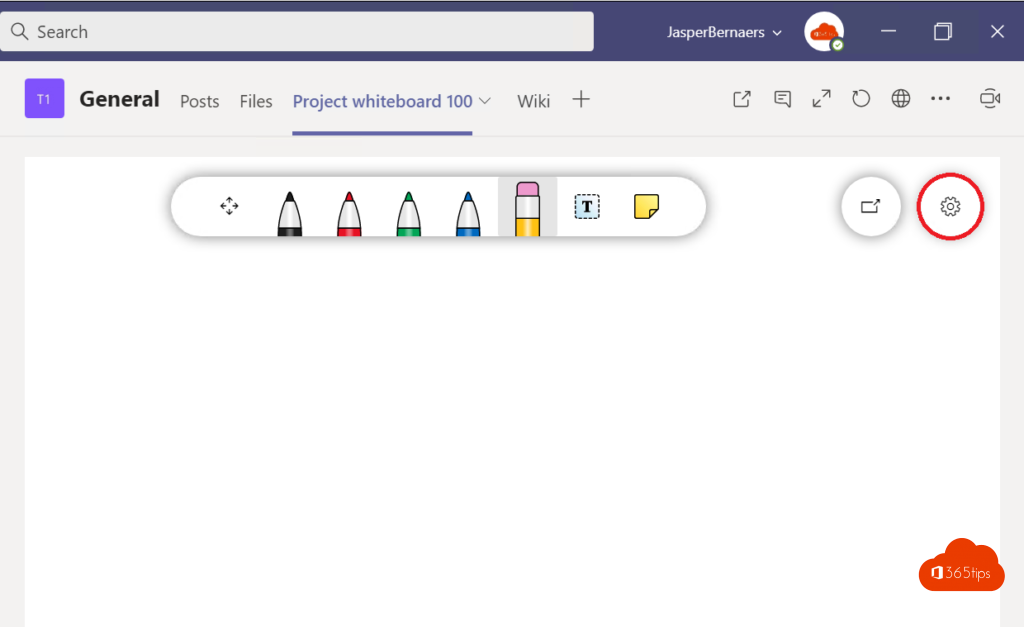
All team members can open the board and draw, type and add sticky notes at the same time. Changes appear live.
Whiteboard in a meeting
- In the meeting, select Share.
- Choose Microsoft Whiteboard.
- The board appears for all participants; anyone allowed to edit can join in right away.
After the meeting you'll find the board in the meeting chat, on the Whiteboard tab.
Useful features
| Feature | Use |
|---|---|
| Templates | Ready-made boards for brainstorming, retrospectives, SWOT, kanban or project planning |
| Sticky notes and note grid | Collect ideas, then group them |
| Reactions | Vote on ideas with a thumbs up or heart |
| Images, documents, Loop components | Put a screenshot or PDF page on the board and draw on it |
| Ink beautification | Hand-drawn shapes become neat rectangles, arrows and lines |
| Follow | Everyone follows what you show on the board |
Where is the whiteboard stored?
Whiteboards are saved as .whiteboard files in the OneDrive of whoever created the board, in the Whiteboards folder. They count toward that person's storage, and OneDrive's sharing, retention and deletion rules apply. If that person leaves, make sure important boards are handed over or copied.
Whiteboard outside Teams
- Open all your boards in the Microsoft Whiteboard app for Windows, iPad or Android, or at whiteboard.office.com.
- A tablet and pen give the most natural drawing.
- Export a board as an image or PDF via ... > Export to include it in a report.
Tips
- Start from a template; an empty board scares people off.
- Give everyone their own sticky note color so you see who contributed what.
- Guests can join in during a meeting if your organization allows external sharing. For quick votes, see polls in Teams.
Read also
Create polls in Microsoft Teams with Polls and Microsoft Forms
Add a SharePoint page, site or list to Microsoft Teams
Create a kanban board with board view in Microsoft Lists
Nederlandstalige versie: Microsoft Whiteboard gebruiken in Teams-kanalen en vergaderingen