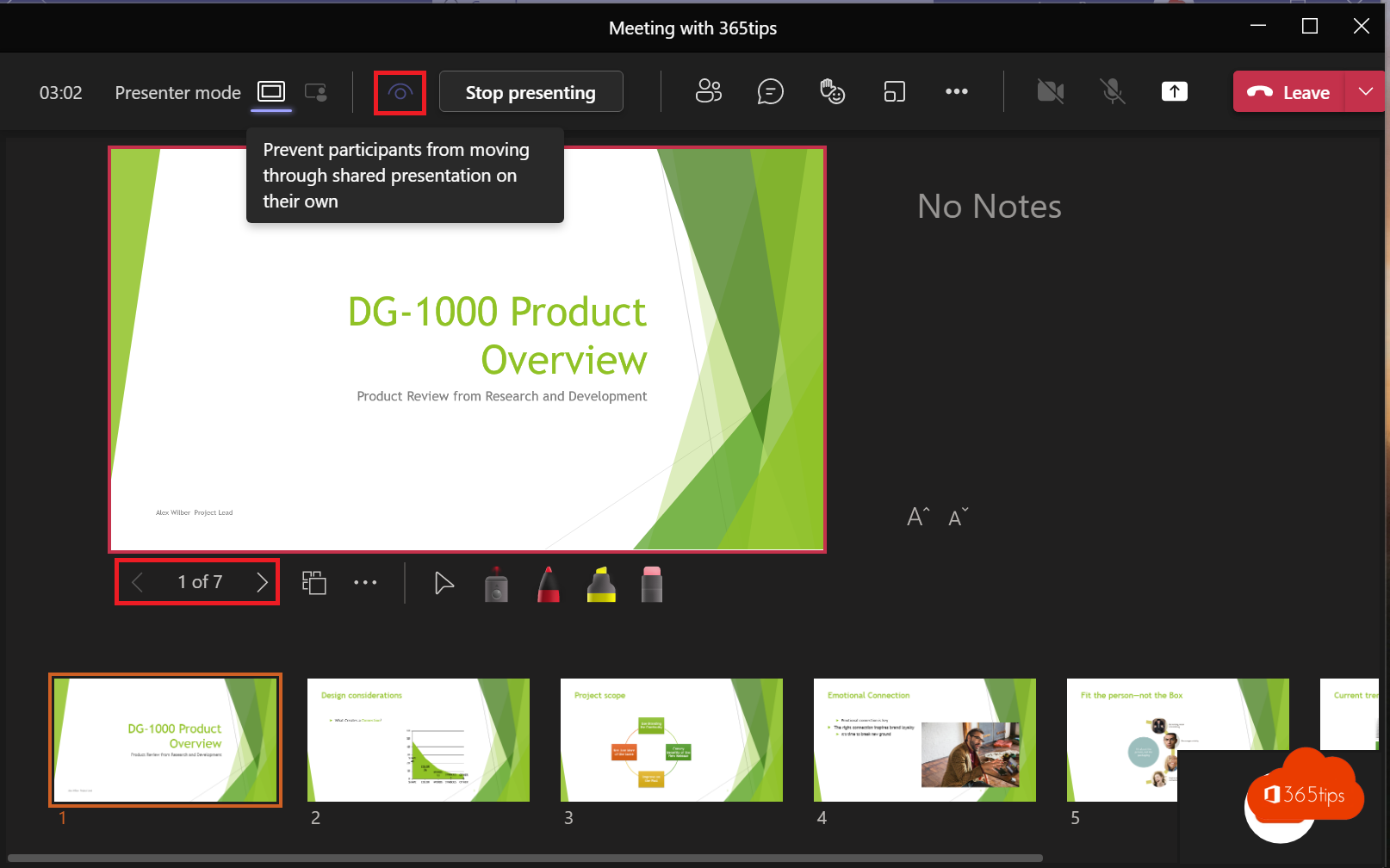
You can show a PowerPoint in Teams in two ways: share your whole screen or window, or use PowerPoint Live. The second way is almost always better. You see your notes and the next slide, the picture is sharper and attendees with a slow connection can follow more easily.
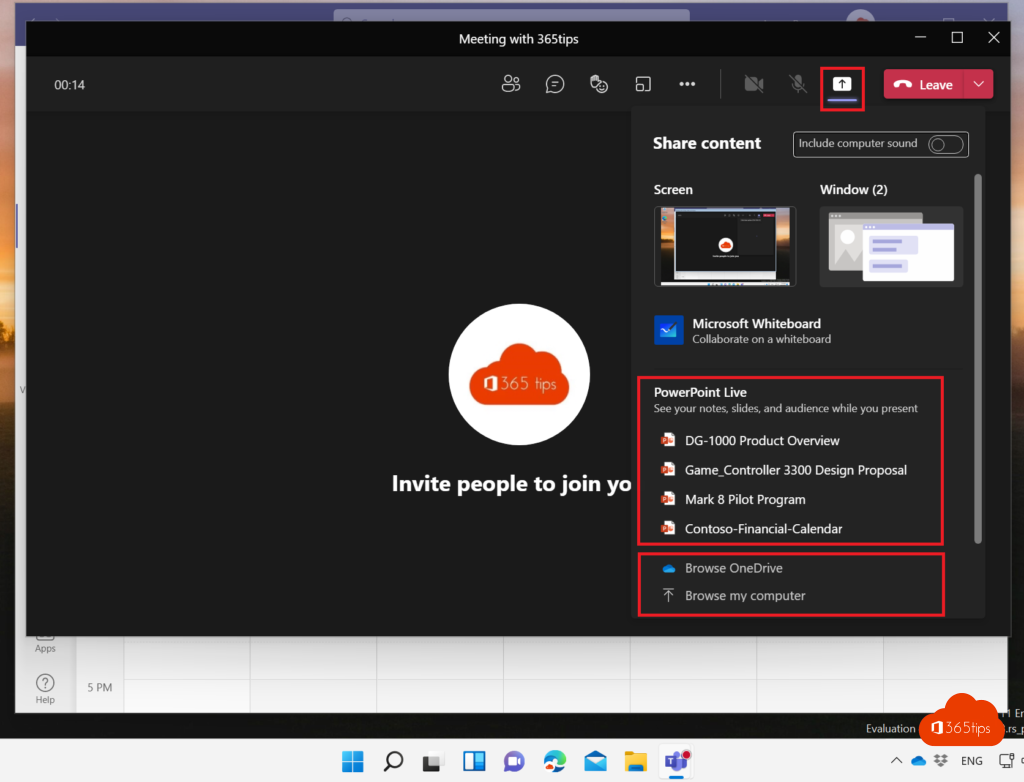
Start PowerPoint Live
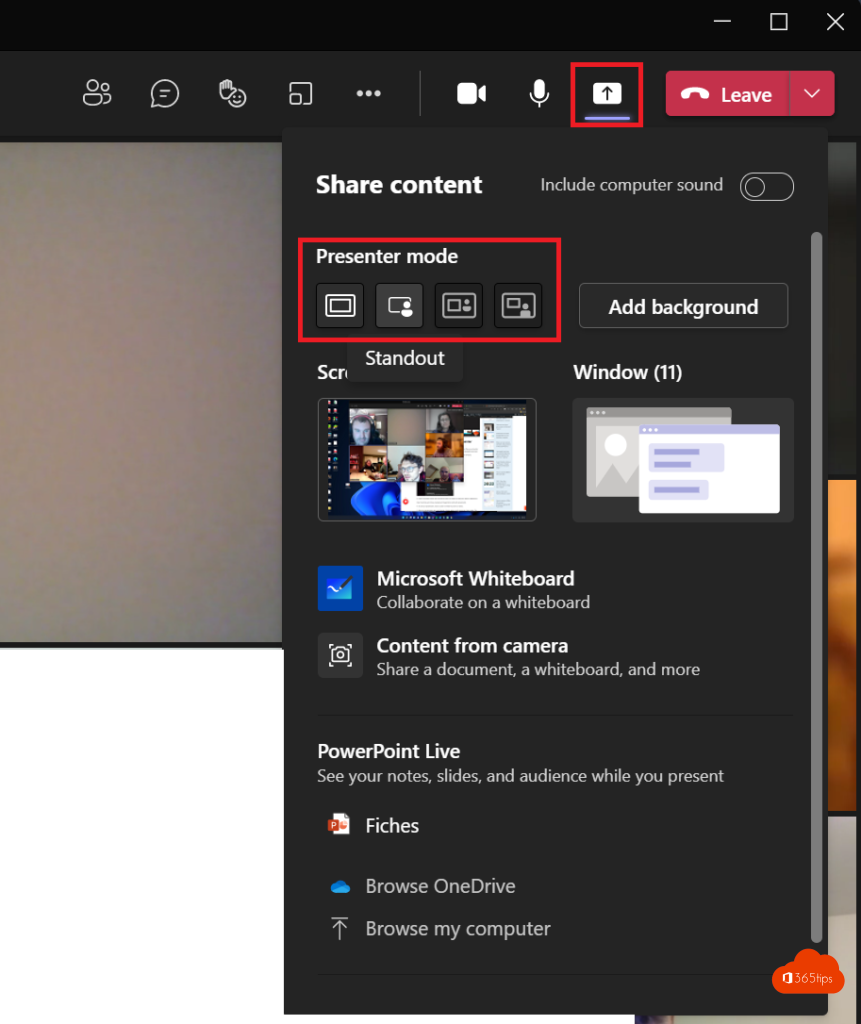
- In the meeting, select Share.
- Under PowerPoint Live, pick a recent file or select Browse to choose your presentation.
- Your presentation opens in Teams, with your notes, the slide overview and your attendees.
Tip: you can also open the presentation in the PowerPoint app and choose Present in Teams.

Why PowerPoint Live?
- Presenter view: only you see your notes and the next slide.
- Laser pointer, pen and highlighter to point things out.
- Cameo: your camera feed inside the slide itself.
- Less bandwidth: Teams sends the slides, not a video of your screen. Videos and animations stay sharp.
- Accessible: attendees can read the slides with a screen reader or in high contrast.

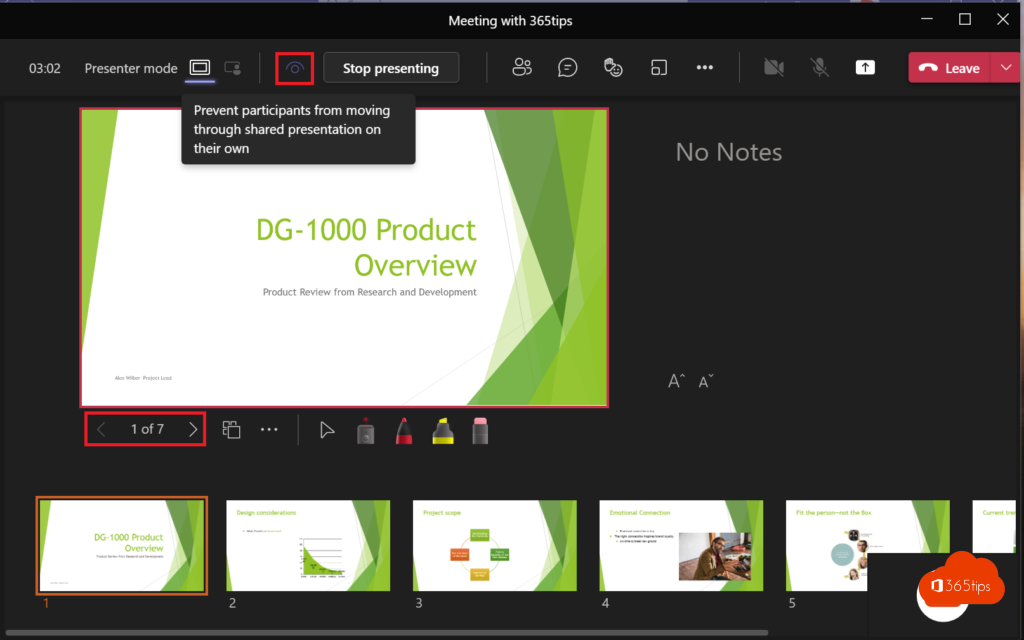
Attendees browsing ahead
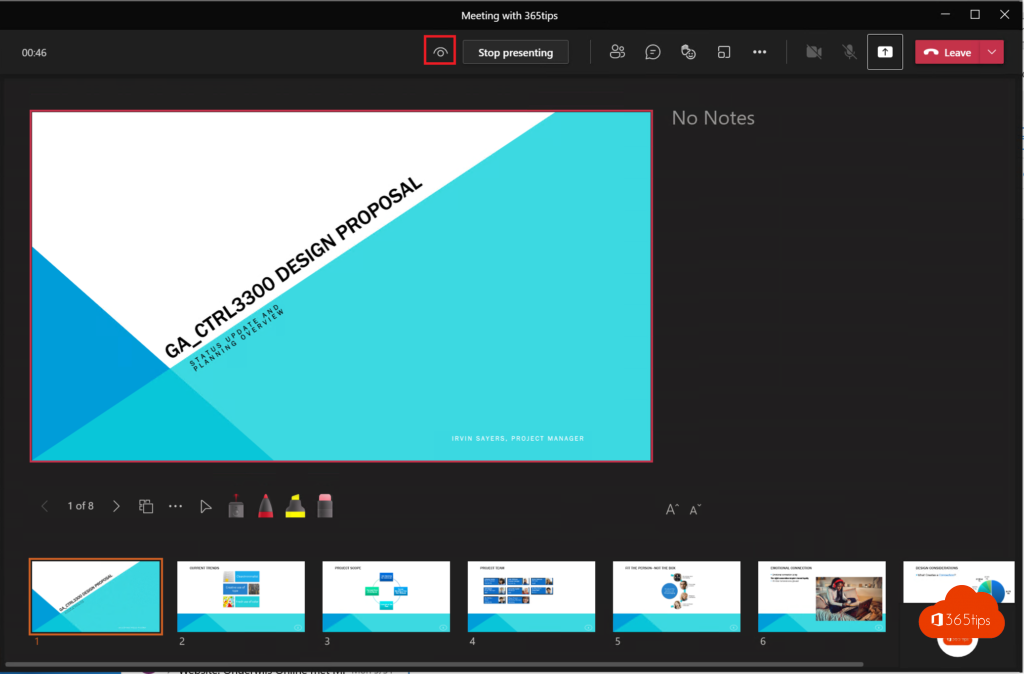
By default attendees can browse back through your slides themselves. Don't want that? Select the eye icon at the top to turn off private viewing. Read prevent attendees from navigating your presentation. If sharing goes wrong, see black screen when sharing in Teams.
Read also
Prevent attendees from browsing your presentation in Teams
Use presenter mode (Standout, Side-by-side, Reporter) in Microsoft Teams
Black screen when sharing your screen in Microsoft Teams: causes and fixes
Nederlandstalige versie: Een PowerPoint-presentatie geven in Teams met PowerPoint Live