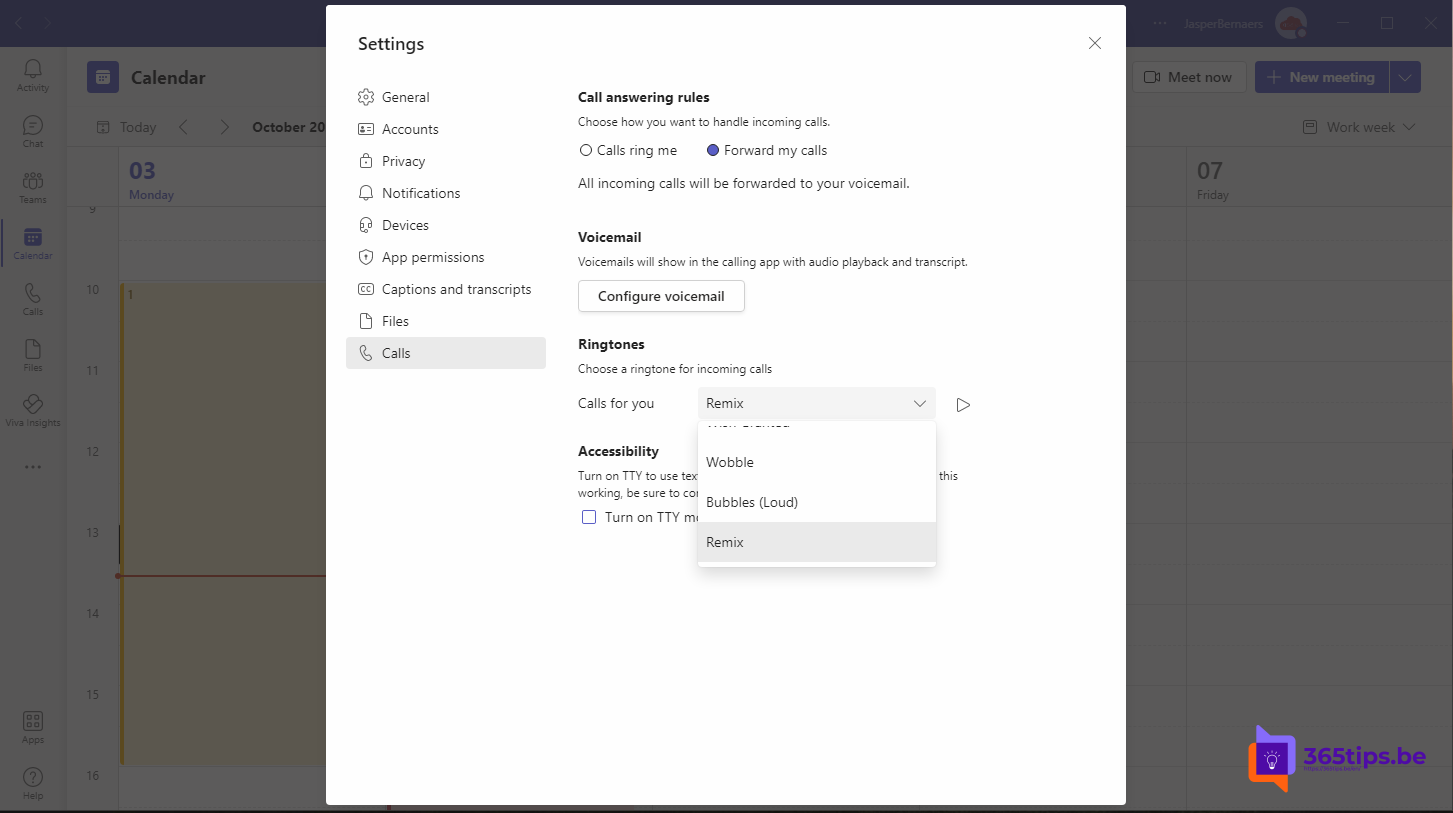
In 2022, Microsoft released an upbeat remix of the Teams ringtone, made by musician Calum Newton. Want to change your ringtone in Teams, or prefer a calmer sound? This article shows where to find ringtones in the new Teams and how to set them per type of call. Which ringtones you can choose, and whether the danceable remix is still listed, can vary by version.
Choose your ringtone
- In Teams, select the three dots (…) at the top right > Settings.
- Go to Calls.
- Under Ringtones, choose a sound for calls for you. You can often also pick a separate sound for forwarded and delegated calls.
- Select the play icon to listen to a ringtone first.

For a long time, you couldn't use your own music file as a ringtone. Check whether your version has an option to add your own sound; otherwise choose from the built-in list.
Notification sounds for chats
The ringtone is only for calls. Sounds for chat messages and mentions are set in Settings > Notifications and activity.
On your phone
In the Teams app on iPhone or Android, tap your profile picture > Settings > Notifications or Calls. The available options depend on your device: on an iPhone, Teams often uses the system ringtone. Also see Teams notification settings and quiet hours in the Teams mobile app.
Read also
Mute Microsoft Teams notifications during meetings and set them up smartly
Set quiet hours in Microsoft Teams so you're not disturbed in the evening
Video calls with Microsoft Teams: how it works
Nederlandstalige versie: Je beltoon aanpassen in Microsoft Teams